As you have already mentioned, grouping of curves can be done with the built-in collections.
And (please correct me if I’m mistaken) by following some naming convention for the group (like starting it with curve_), the feature you are looking for, can be achieved without having to add any new functionality.
I am not sure what ‘Weight’ would signify in an object group.
(The filter box in outliner is persistent, which means the filter strings get saved along with the blend file.)
Please keep the cool suggestions coming. Never mind adding tasks to my list
I don’t know if this is a normal behaviour but take a look at what happens when I changed the view to Ortho:
You can notice that the curve is created far away from the cursor…
And after creating several curves, I got this error :
Traceback (most recent call last):
File “C:\Users\xan2622\AppData\Roaming\Blender Foundation\Blender\2.81\scripts\addons\blenderbezierutils.py”, line 4587, in modal
return self.subModal(context, event, evtCons)
File “C:\Users\xan2622\AppData\Roaming\Blender Foundation\Blender\2.81\scripts\addons\blenderbezierutils.py”, line 5424, in subModal
return self.baseSubModal(context, event, snapProc)
File “C:\Users\xan2622\AppData\Roaming\Blender Foundation\Blender\2.81\scripts\addons\blenderbezierutils.py”, line 5311, in baseSubModal
return self.drawObj.procDrawEvent(context, event, snapProc)
File “C:\Users\xan2622\AppData\Roaming\Blender Foundation\Blender\2.81\scripts\addons\blenderbezierutils.py”, line 5081, in procDrawEvent
self.parent.confirm(context, event)
File “C:\Users\xan2622\AppData\Roaming\Blender Foundation\Blender\2.81\scripts\addons\blenderbezierutils.py”, line 5294, in confirm
self.save(context, event, autoclose)
File “C:\Users\xan2622\AppData\Roaming\Blender Foundation\Blender\2.81\scripts\addons\blenderbezierutils.py”, line 5618, in save
alignToNormal(obj)
File “C:\Users\xan2622\AppData\Roaming\Blender Foundation\Blender\2.81\scripts\addons\blenderbezierutils.py”, line 306, in alignToNormal
normals.append(geometry.normal(mw @ bpts[i].co for i in range(len(bpts))))
ValueError: Expected 3 or more vectors
This error used to occur when user tried to create a curve with just two points (like a single line). This is fixed in the script commited day before yesterday. So, if you can, please try this condition, both with the current script you have got and the updated version to confirm if the fix works.
Could you let me know: how big the blend file was in terms of the number of objects & curves. Were you able to reproduce this 1) after deselecting and reselecting the draw tool and 2) after restarting Blender? And if you could, please also let me know the option selection in the toolbar.
PS: Did you change the default key map configuration?
I do confirm that it happens with the current script that I had yesterday.
Today, I downloaded the latest version of the script and I haven’t been able to reproduce the error. Seems fixed.
Is this normal that, Flexi Draw Tool doesn’t snap to the grid, in Ortho view ?
Well it does snap to the grid, but you can only know that after enabling a Top view.
It could be convenient to be able to snap to the grid intersections shown in ortho view.
The blend file contained only the default camera and default light, and a UVsphere.
The “far away snapping dot bug” is persistent when you close and restart Blender.
It disappears if you change the view (from Ortho to Top view, for example).
I didn’t change the Bezier Utilities default keymap.
The snapping dot randomly change its position on the viewport if you rotate the Ortho view.
Follow these steps:
On a default Blender scene (a camera, a default light).
Create a simple curve with Flexi Draw Bezier in Ortho view (or with Top/Left/Right view, it doesn’t matter).
Go to Flexi Edit Bezier
Select the curve
Rotate the Ortho view
At this point, you should notice that the Snapping dot is away from the cursor and randomly changes its position if you rotate the Ortho view.
With grid snap enabled, the drawing pointer does snap to the nearest grid intersection. However, the grid that’s displayed has z coordinate 0. So with a view other than the single plane orthographic views, the cursor may seem to snap to some poin other than grid, even though the point is at the intersection.
Here’s an example:
In this video, I have set the Origin to 3d cursor, and snap plane to xy. So the cursor always remains in the XY plane of the 3d cursor. First, I have set the cursor at z coordinate value of around 1, so the grid snapping in perspective view appears not to snap to the intersection. But if you look at the curve drawn from top and front views, you will see, all the points are on grid intersection of an xy plane that’s exactly at the height of the 3d cursor .
In the second case, I have set the 3d cursor to origin, so the z value is zero. Now, even in the perspective view, the pointer always snaps to the grid, because the grid z location and 3d cursor z location, both coincide in this case.
I was trying before I found out about your ‘Other Tools’ section. In edit Mode select both end points of
the curve and set it to vector ‘V’ shortcut, and ‘F’ to close => the corner is straight. But I can’t do that in
object mode, because first I have to select both end points.
I am not sure if I get the question, but if you use the Close Spline with Straight Segment tool, the tool makes the joining segment with vector handles. So you won’t need to change the handle type again.
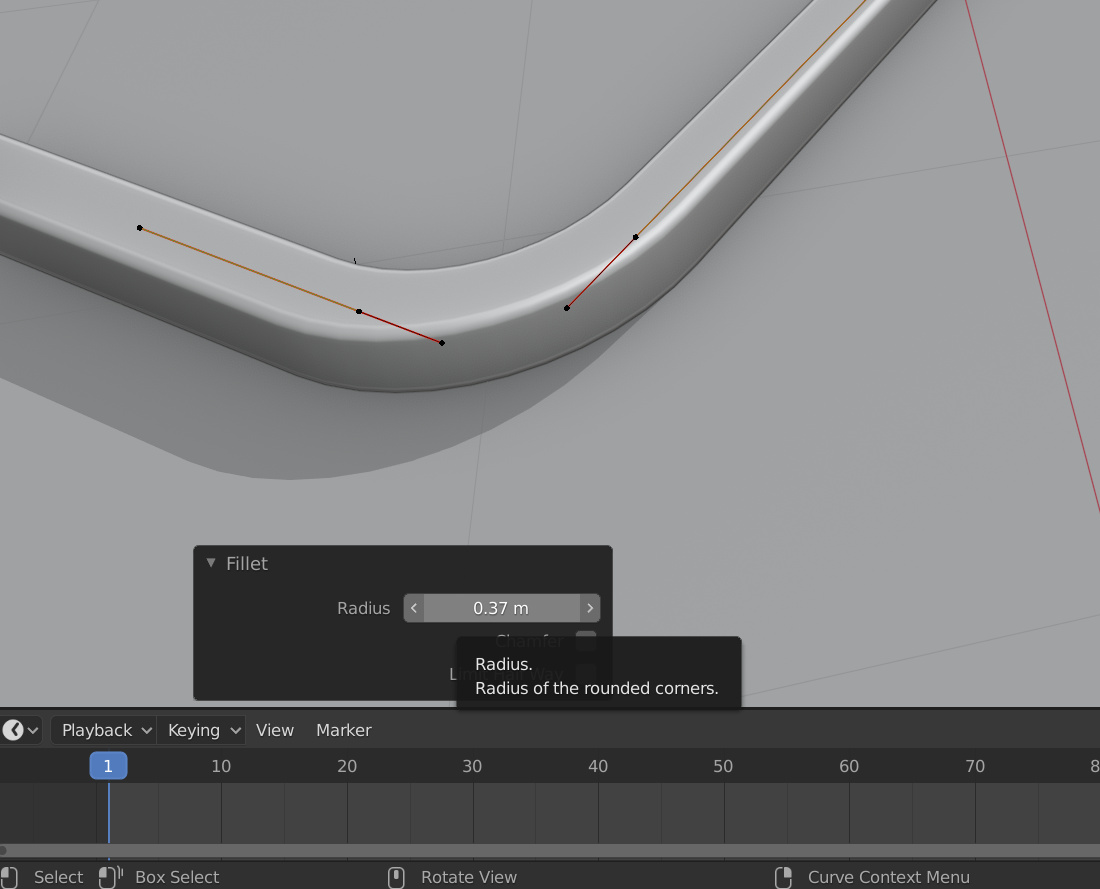
Also, for the bevel tool to work, it is not necessary to have vector handles only. The beveling works so long as the handles are not aligned, since beveling a point that already has aligned handles does not make sense.
great… but seem no numeric keyboard entry working. (numeric keypad)
maybe nice if when none point selected, bevel run on point with mouse hovering it… time saver.
other request… can we change both handlers (left and right) at the same time when selecting curve point and press S key? here I need select left and shift select right handler and press S key to switch both handlers at the same time, so many clicks for a single thing.
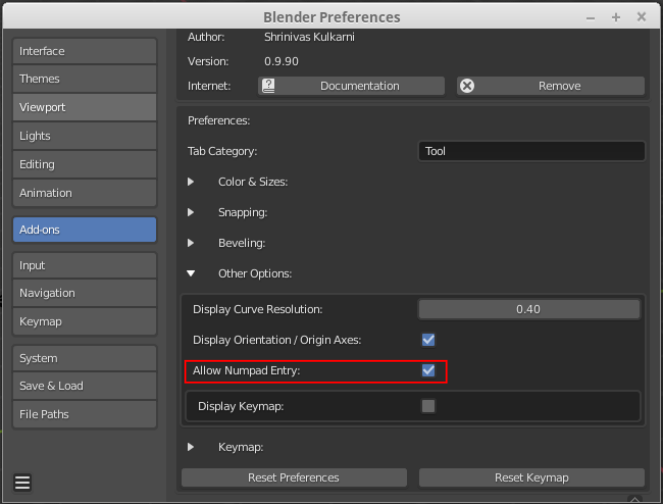
You can now enter values via numpad. But since many users (like me) would like to continue to use the numpad for switching views, I have provided an option in preferences to enable numpad entry.