I was out of town, staying at a friend’s place, fully in travel mode. Then my phone buzzed.
It was a client, a small studio I’d just delivered a sculpting add-on to right before my trip. One of the operations was suddenly throwing an error, and they needed it fixed. Client deliveries are something I never compromise on, so I didn’t want to make them wait until I got home.
I asked my friend if I could borrow his PC for a bit. He said yes. Easy, right?
I installed Blender, installed my add-on, and got nothing. There was no error message and no warning. The add-on just never showed up in Preferences, as if I had never installed it at all.
That’s the worst kind of bug: the silent one. A client was waiting, I was on someone else’s computer, and Blender was acting like everything was fine.
So I started digging. I switched Blender versions and eventually discovered that in older versions you just need to place the add-on file in a specific folder. But newer versions (4.2+ with the extensions system) need a lot more than that. After many tries, I finally got a script working that installed the add-on properly, fixed the client’s issue, and delivered on time. 
Afterwards I kept thinking: if this happened to me, someone who builds add-ons, how many people are stuck on this right now, with no idea why their add-on just vanishes?
So I cleaned up that script, gave it a simple UI, and realse it free for everyone going through the same frustration, so far it use by almost 1000 people. so here is how to fix blender addoninstallation issue
 Blender Add-on Installation Fixer (Free)
It’s a simple installer panel inside your 3D Viewport sidebar. You pick your .zip or .py add-on, click install, and you’re done.
- Works on Blender 4.2, 5.0, and older versions
- Supports both modern extensions and legacy add-ons
- One-click install from the N-panel → Addons tab
- Clear success/error messages, so no more silent failures
- Includes a quick-start PDF guide
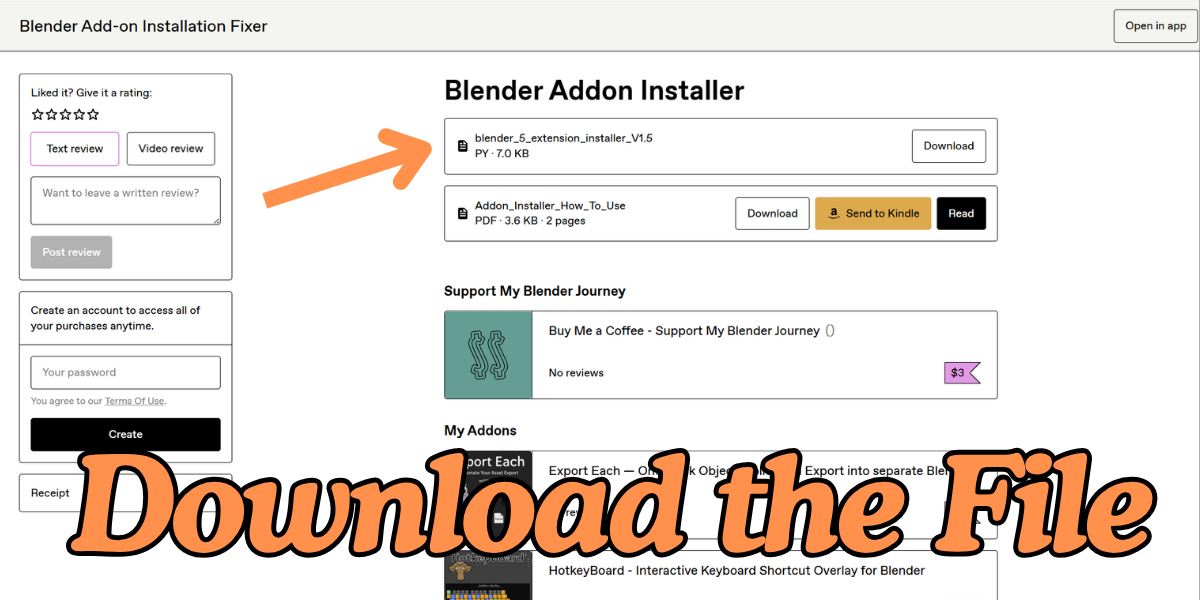
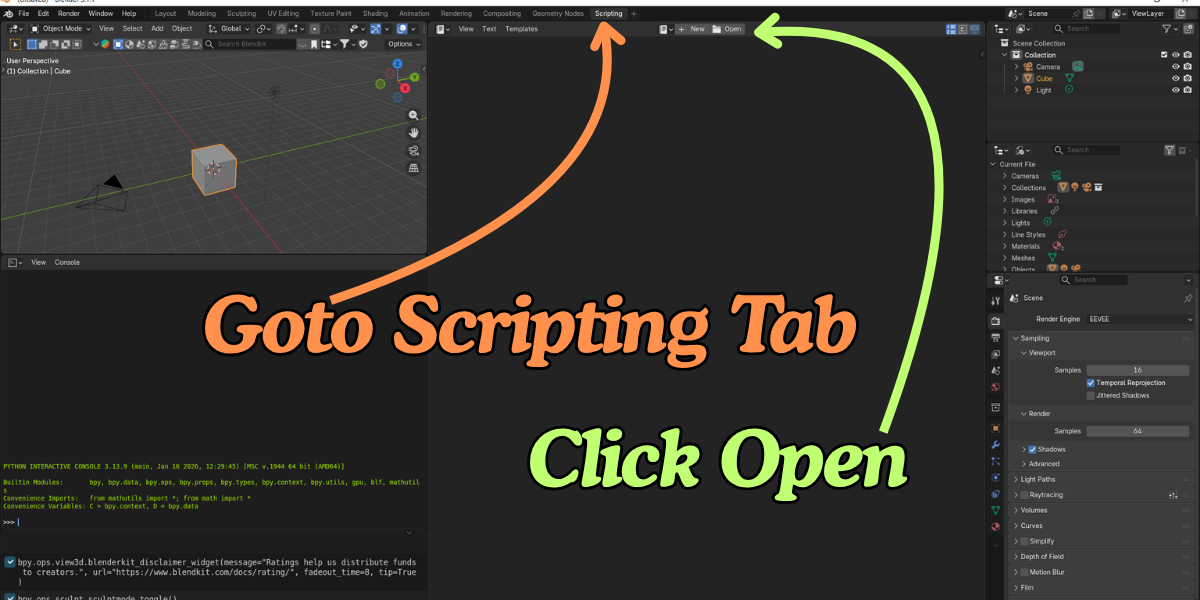
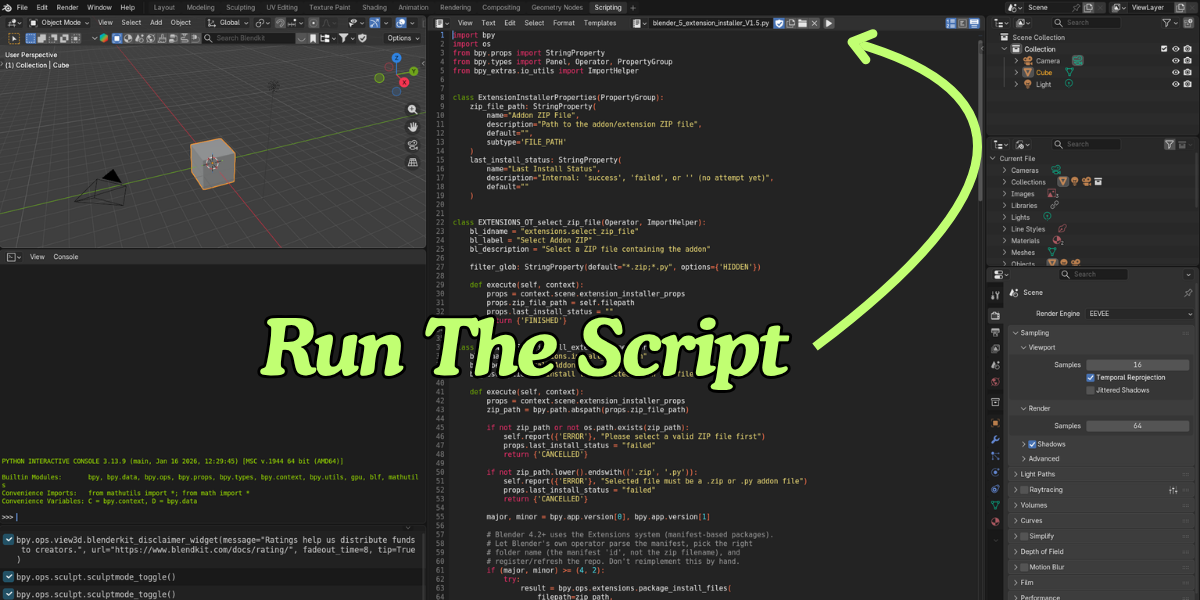
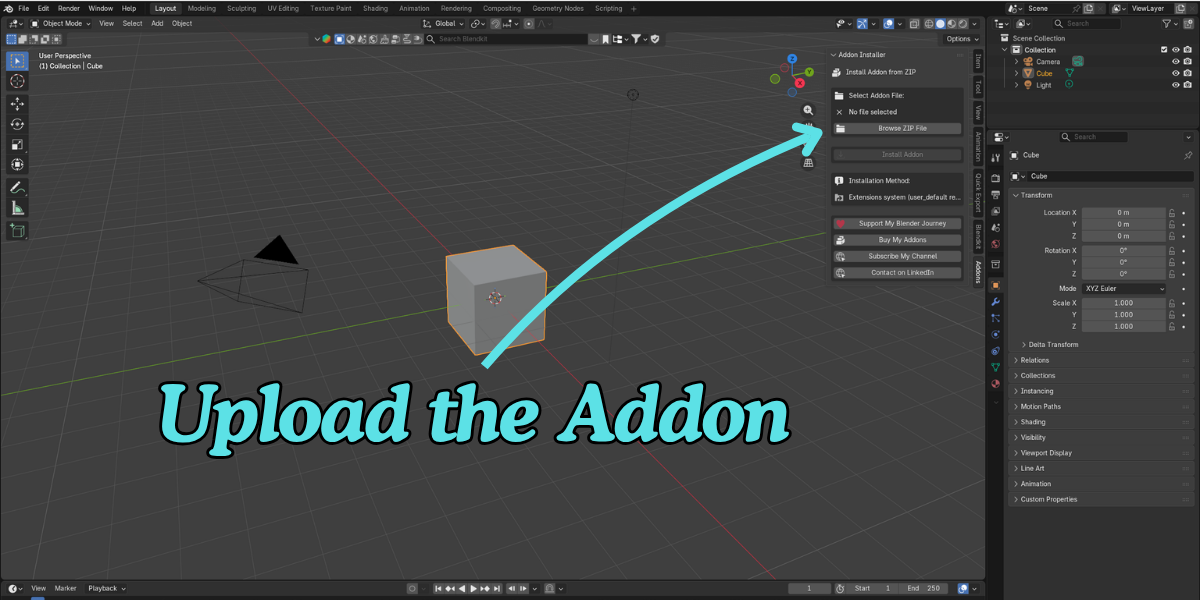

If you’re facing the same issue, follow these steps:
- Open Blender and go to the Scripting workspace.
- Open the script in the text editor (or paste it into a new text file in older versions).
- Click Run Script
 . You should see “Addon Installer Panel registered successfully!” in the console.
- Go to the 3D Viewport, press N, and open the Addons tab.
- Click
 Browse ZIP File and select your add-on.
- Click
 Install Addon and check the info bar for the green success message.
Download (free): https://salmannaseem.gumroad.com/l/BlenderAdd-onInstallationFixer
 Video tutorial:

If you run into an add-on it can’t install, drop the name or error in the replies and I’ll look into it. And if it saves you during your own “client is waiting” moment, I’d love to hear about it 
Happy blending!