I would like to save or open a file in Windows through a Blender app.
Can I open a window to save/open files with Python?
Hello,
Yes you can do this with Blender. The UI you would need to setup yourself, but for opening and saving files you can easily do that with the OS module or the open() function.
OS example
import os

# Opens file
os.open()

# Saves data to file
os.write()
open() example
https://www.w3schools.com/python/python_file_write.asp
For more documentation there are plenty of examples on the internet.
Sort of. You can use TKinter (https://stackoverflow.com/questions/3579568/choosing-a-file-in-python-with-simple-dialog) but I suspect that it’ll freeze up the main thread while you’re doing it.
Might be best off making your own in Blender.
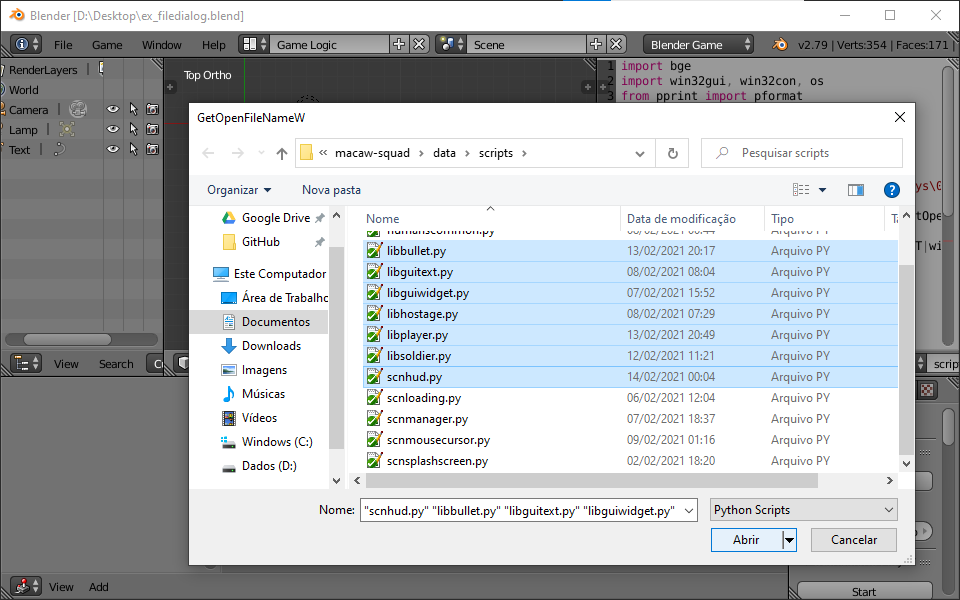
Well, since tkinter is not installed in Blender as default and probably you want a native file dialog, I manage to make a file dialog using the following method (based on this answer). You need pywin32 installed on your Blender in order to run this blend. If you need help installing it, see below.
ex_filedialog.blend (82.8 KB)

Installing pywin32 on Blender
- Not actually that hard… Open the command prompt at your Blender installation folder, specifically
2.79/python/bin(you may need run as Administrator if Blender is installed in Program Files).

- Install pip on Blender by running
python -m ensurepip.

- Install pywin32 by running
python -m pip install pywin32.

Observation: You may try to use tkinter instead of pywin32, probably would be a lot easier.
Thank you, this works great.
Is there a way how to save the file like this, where you can name your file?
Sure. I just updated the script to fit a save file routine.
ex_filedialog.blend (83.2 KB)


import bge
import win32gui, win32con, os
from pprint import pformat
from pathlib import Path

cont = bge.logic.getCurrentController()
sensor = cont.sensors[0]

if sensor.positive:

    try:
        filter = 'Text files\0*.txt\0Python Scripts\0*.py;*.pyw;*.pys\0All files\0*.*\0'
        customfilter = 'Other file types\0*.*\0'

        # Open file dialog
        fname, customfilter, flags = win32gui.GetSaveFileNameW(
            InitialDir = os.environ['TEMP'],
            File = 'somefilename.txt', DefExt='',
            Title = 'Save file to...',
            Filter=filter,
            CustomFilter=customfilter,
            FilterIndex=0
        )

        path = Path(fname)
        writeFile = True

        # Handle file overwriting if file exists
        if path.exists():
            writeFile = False

            # Message box to confirm file overwrite
            response = win32gui.MessageBox(
                None,
                "Overwrite existing file?",
                "Confirm overwrite",
                win32con.MB_YESNO|win32con.MB_ICONQUESTION
            )

            # Enable overwrite if user responds YES
            if response == win32con.IDYES:
                writeFile = True

        # Write file if folder exists
        if writeFile and path.parent.exists():
            with open(path.as_posix(), "w") as _file:
                _file.write("My file content")
                print("> File written to", _file.name)

        cont.owner.text = pformat(fname)

    except:
        print("X No file selected!")
Thank you, this seems to work great.
By the way, is there an equivalent for Linux? This seems to be only for Windows.
Save file is working perfectly.
The problem I have is with loading files.
The example you have shown prints the names of the files.
What I need is to read the file.
I have tried this:
filePath = fname

with open(filePath, "r") as openedFile:

    data = literal_eval(openedFile.read())

    Events["X_GRID"] = data["X_GRID"]
    Events["Y_GRID"] = data["Y_GRID"]
The fname from your example gives me the name of the file directory but doesn’t load the actual file.
How should I specify the file directory from your load file example?
Thanks.
What does happen? Do you get an error stack trace? Have you tried printing the path and what you read from the file?
Ok, it works now.
I didn’t import literal_eval.
That was the reason it didn’t load.
So, how do you know the problem is with the file reading? If it’s not reading anything from the file then you’d get an error when trying to do this:
Just put a print after every step. Something is going wrong, you just need to find it. Hard code things if you have to until you figure out where your issue is.
Ok, it works now.
I didn’t import literal_eval.
That was the reason it didn’t load.
Glad to hear you’ve solved it.
That would’ve shown you an error when it wasn’t working. Do you know how to view the console? It tells you exactly what the issue is. This is from a Python prompt, but the error would’ve been the same:

For some reason it didn’t show anything when I had it inside another function that used try and except.
When I moved it somewhere else it showed the error.
Especially while developing, it’s best to avoid using try/except for that exact reason - you’re hiding the errors that are occuring. Once you get to production, it can be worth using try/except to do something like loading default values if you’re unable to read your config file, or whatever.
You can also use try/except to show error dialogs. For example, if you can’t initialise some hardware then you might put code to show an error dialog into the except part.
As you get better at it, you can use except to catch specific errors and deal with them properly. For example, with a network game, you could catch a timeout error and retry the connection.
Thank you for the info. I’m still just a novice in this.
Meh, you could still use the statement raise to raise controlled error prints.