blender on a G5 and Mac Intel Laptop with openGL problems

Hi

does anybody use a G5 with blender or the new Mac Intel Laptop
and has openGL issues? i see always a great amount of artifacts
sometimes with some parts of my models and I do not know
what causes it.

anybody experiences the same or maybe even knows how to
fix that?

http://content.goowy.com/file81rrlo8t7u-f_19194083-57-jpg-openGLerror.html

I use it on a MacBook Pro and have no problems at all.

EDIT: OS X is still 10.4.6.

hi

the G5 had some older OS X versions as well.
It always depends on the model. As you can
see with the screenshot you see that problem
only with two elements of the model.

Hey here is the link to the blend file:

http://content.goowy.com/filetdxxt0kboh-f_19197564-2171-blend-saltpeppershaker%20Packaging.html

tell me if you see the same issue.

you are simply working in a too small scale and your objects having thickness, back and front faces cant be ordered correctly in the Z buffer.

this affect only the ogl preview and is normal. scale your object by a factor 2 or 3 and artefacts disappear.

more, working with a combination of big faces near small one can make some normals calculation behave strangely.

Yup see the same issues. And what Lukep says makes sense. The artifacts go away of you scale everything up.

I’m running Blender 2.42a on a new iMac Intel Duo with OS X 10.4.7 and haven’t noticed any problems at all.

Is there no way to fix this? This is another problem caused by the same issue that only lets us get limited camera clipping ranges. Other 3D software can get round these problems.

If you adjust the clipping ranges, you can see the artifacts appear and disappear:

Cekuhnen, can you load the same model into Maya and see if you get the same effect?

This page has some good information on it:

http://www.opengl.org/resources/faq/technical/clipping.htm#0050

It mentions there’s a way to disable clipping:

10.050 I know my geometry is inside the view volume. How can I turn off OpenGL’s view-volume clipping to maximize performance?
Standard OpenGL doesn’t provide a mechanism to disable the view-volume clipping test; thus, it will occur for every primitive you send.
Some implementations of OpenGL support the GL_EXT_clip_volume_hint extension. If the extension is available, a call to glHint(GL_CLIP_VOLUME_CLIPPING_HINT_EXT,GL_FASTEST) will inform OpenGL that the geometry is entirely within the view volume and that view-volume clipping is unnecessary. Normal clipping can be resumed by setting this hint to GL_DONT_CARE. When clipping is disabled with this hint, results are undefined if geometry actually falls outside the view volume.

10.060 When I move the viewpoint close to an object, it starts to disappear. How can I disable OpenGL’s zNear clipping plane?
You can’t. If you think about it, it makes sense: What if the viewpoint is in the middle of a scene? Certainly some geometry is behind the viewer and needs to be clipped. Rendering it will produce undesirable results.
For correct perspective and depth buffer calculations to occur, setting the zNear clipping plane to 0.0 is also not an option. The zNear clipping plane must be set at a positive (nonzero) distance in front of the eye.
To avoid the clipping artifacts that can otherwise occur, an application must track the viewpoint location within the scene, and ensure it doesn’t get too close to any geometry. You can usually do this with a simple form of collision detection. This FAQ contains more information on collision detection with OpenGL.
If you’re certain that your geometry doesn’t intersect any of the view-volume planes, you might be able to use an extension to disable clipping. See the previous question for more information.

I know I’ve said this before but are you 100% sure we have a 24 or 32-bit depth buffer and not an 8-bit buffer? I found a gaming forum that suggested for AGL you use the following call to set up for a higher z-buffer:

With regards to Z buffer depth, under AGL you can ask for AGL_MAXIMUM_POLICY and AGL_DEPTH_SIZE = 32 to get a 32 bit Z buffer if one is available. If the hardware doesn’t support it, you get whatever its maximum depth is instead. Of course, you should still test with a 16 bit Z buffer to make sure your game doesn’t look terrible!

Not that it would matter given the arbitrary limits on the clipping range input.

I sometimes wonder if an LOD solution would be better. Where far away objects or very small ones are substituted with planes. Didn’t someone come up with that idea a while back and it was supposed to give up to 10 times faster real-time drawing for complex scenes? That probably wouldn’t sort all the artifacts of course.

I actually posted a bug tracker for a similar situation. The interior geometry was so close to exterior that artifacts were showing in the render. Your scene is somewhat different, but if you delete the interior geometry the moire’ pattern is not visible. For some reason that scene crashes blender when it’s rendered.

Crashing looking for Yafray. :rolleyes:

this openGL issue only happens on OS X and not under windows at all.
that is what annoys me so much because i am working mainly with os x and i did not see those issues with earlier versions of blender.

:slight_smile: I live in windows. I see exactly what you are saying here too when viewing your scene. The same image you posted up front is visible here on this windows box.

argh really? that is funny because I never saw that on the Dell Xeon workstations. I only saw it on the G5s. But that means that than maybe not the driver might be the issue but rather the quality of the graphic card because the Xeon stations had high end graphic cards.

What. A lot of people use windows.

Yah, the box has Intel graphics. You may be right.

My suspicion (which may be completely wrong) is that the Mac version of Blender is not programmed to use a higher depth z-buffer so it will show the problem on both high-end and low-end machines but that possibly the Windows version has the OpenGL calls that enable a higher z-depth buffer when it’s available. The source code shows this:

Win32:
static PIXELFORMATDESCRIPTOR sPreferredFormat = {
sizeof(PIXELFORMATDESCRIPTOR), /* size /
1, /
version /
PFD_SUPPORT_OPENGL |
PFD_DRAW_TO_WINDOW |
PFD_SWAP_COPY | /
support swap copy /
PFD_DOUBLEBUFFER, /
support double-buffering /
PFD_TYPE_RGBA, /
color type /
32, /
prefered color depth /
0, 0, 0, 0, 0, 0, /
color bits (ignored) /
0, /
no alpha buffer /
0, /
alpha bits (ignored) /
0, /
no accumulation buffer /
0, 0, 0, 0, /
accum bits (ignored) /
32, /
depth buffer /
0, /
no stencil buffer /
0, /
no auxiliary buffers /
PFD_MAIN_PLANE, /
main layer /
0, /
reserved /
0, 0, 0 /
no layer, visible, damage masks */
};

Linux X11:
int GL_capabilities =
{
GLX_DOUBLEBUFFER, // front and back buffers
GLX_RGBA, // rgba display
GLX_DEPTH_SIZE, 8, // at least 8 bits deep
GLX_RED_SIZE, 1, // of which at least 1 red
GLX_GREEN_SIZE, 1, // of which at least 1 green
GLX_BLUE_SIZE, 1, // of which at least 1 blue
None
};

OS X:
static const GLint sPreferredFormatWindow = {
AGL_RGBA, GL_TRUE,
AGL_DOUBLEBUFFER, GL_TRUE,
AGL_DEPTH_SIZE, 16,
AGL_AUX_BUFFERS, 1,
AGL_NONE,
};

I can’t remember if it was 8 in the OS X one because I tried to change them once to see if it would make a difference and it didn’t seem to but then again maybe my GPU only supports an 8-bit z-buffer so I wouldn’t notice the difference anyway.

Another thing I came across on the OpenGL site was this:

12.080 There is no way that a standard-sized depth buffer will have enough precision for my astronomically large scene. What are my options?

The typical approach is to use a multipass technique. The application might divide the geometry database into regions that don’t interfere with each other in Z. The geometry in each region is then rendered, starting at the furthest region, with a clear of the depth buffer before each region is rendered. This way the precision of the entire depth buffer is made available to each region.

Maybe that’s what needs to be done to ensure no artifacts happen. I had to use this method for doing more accurate edge detection for a Renderman toon shader. This still has issues if a single object has large and small parts though, I think it would only work for individually large and small objects.

I didn’t see any artifacts when I tried Cekhunen’s scene in Maya (BTW, the OBJ exporter should really just export the visible layers - I had to delete them all). However, something’s gone screwy with Maya again (possibly a system update) whereby it hangs up when I click any of the menus that let me access the camera clipping values :rolleyes:. That’s one thing I can say about Blender. It may have its faults but it’s damn reliable.

good call. changing the value to 32 does indeed solve the problem even on a medium range card (Radeon 9650)

I will check with others coders if it is safe to change it to 32 (i think so) and will commit the change if ok

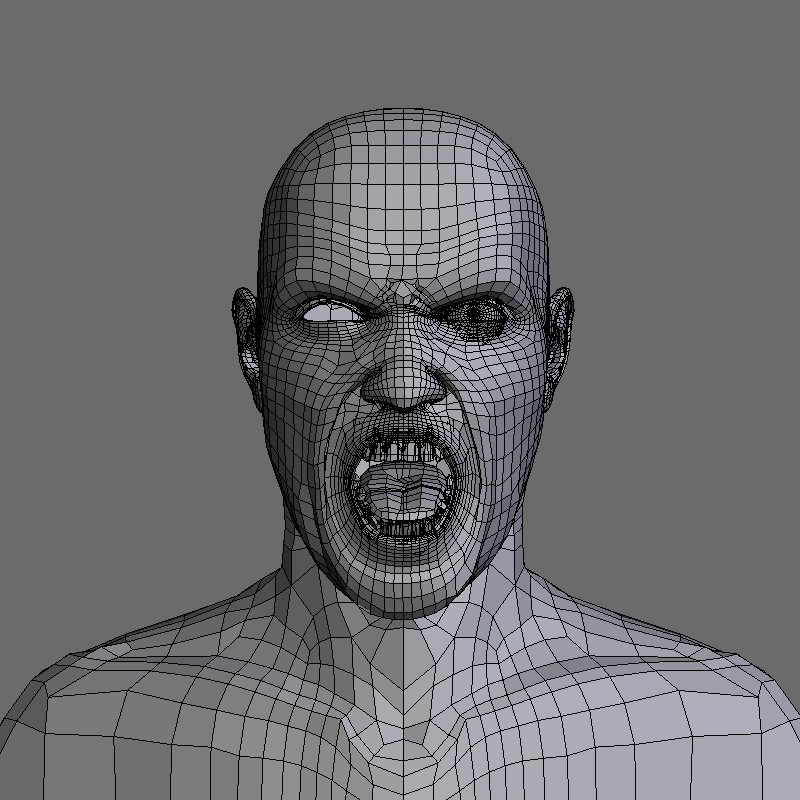
Ah that’s something I’ll try out ‘cause I get lots of clipping errors in camera view like in this pic for example (eyes and mouth esp). I don’t have these problems when I run Blender within a virtual machine (Parallels) on Windows. I haven’t tried Claas’ .blend there (simply forgot about it) but I’ll do tonight.

schdeffan,

it is Claas not Class and not Claus, will people ever learn spelling my name?? :wink:

OSXrules

great call, that might explain it!

Honestly,

it was just a typo, I always type the following consonant twice instead of the vowel. Nevermind. I know some people called Claas.

Stephan (whose name is more than once written with an f)