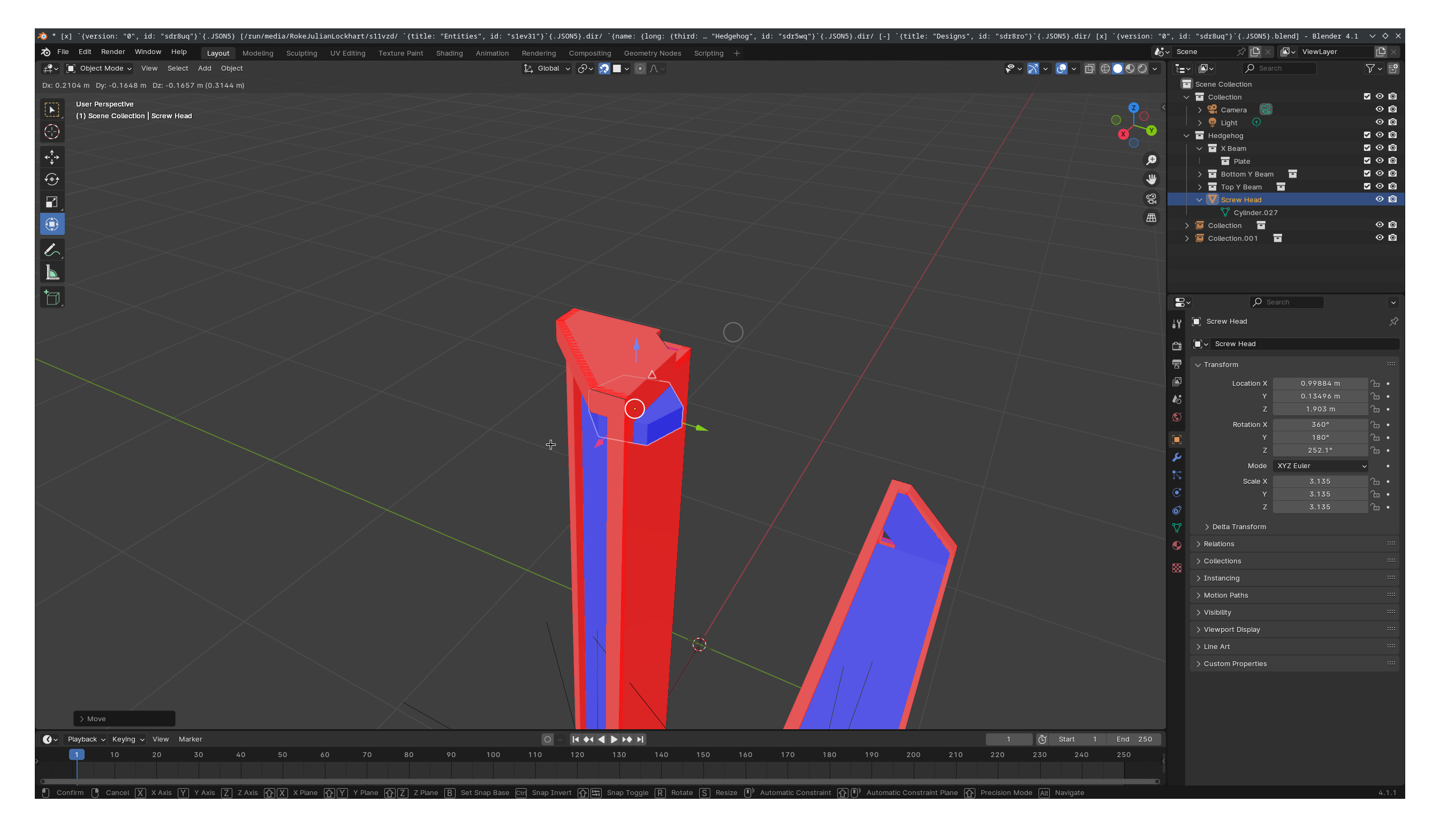
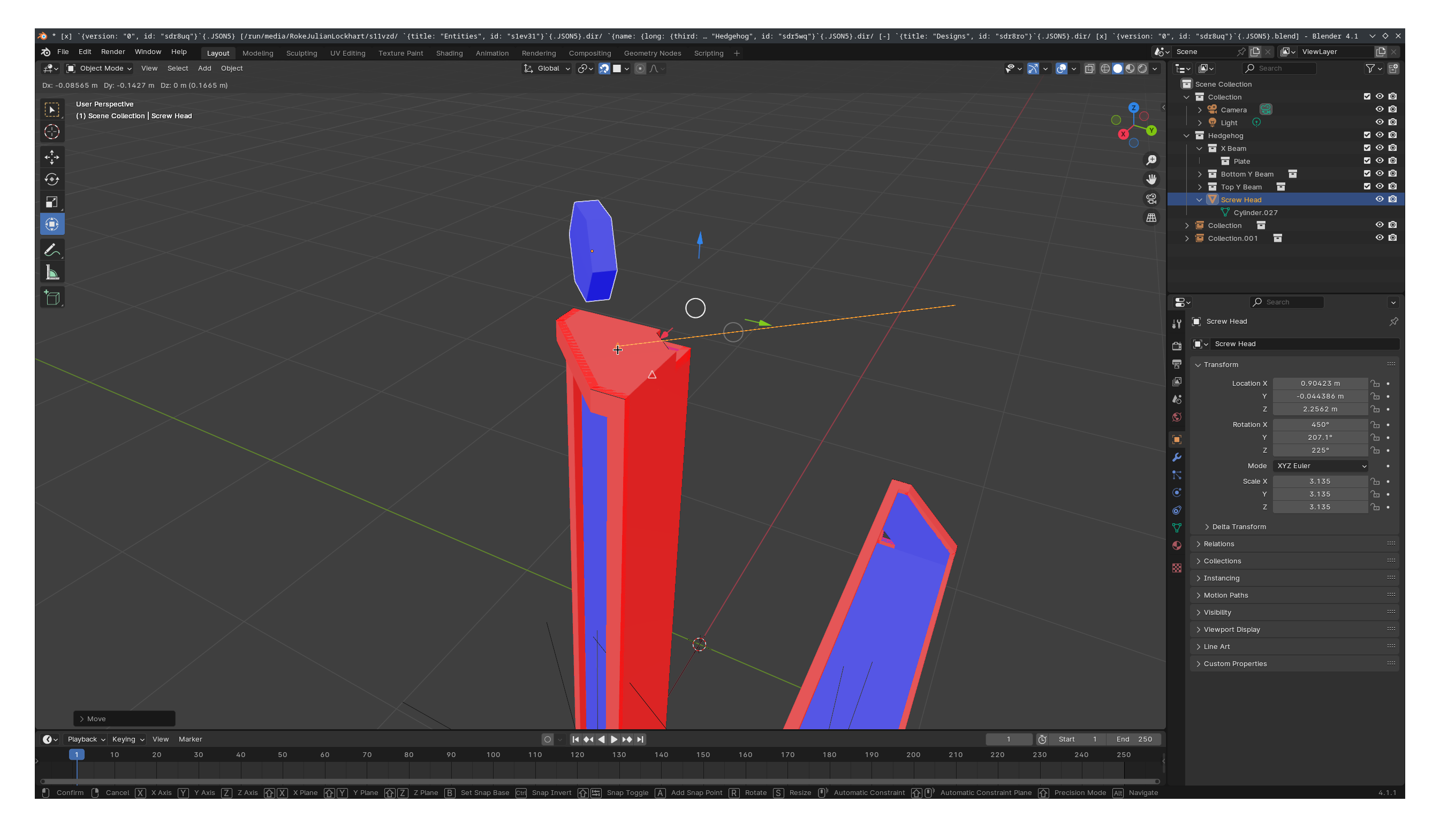
The depicted object is a linked blend, which contains an object, an empty, and two mirror modifiers on the object, one of which is oriented to the empty.
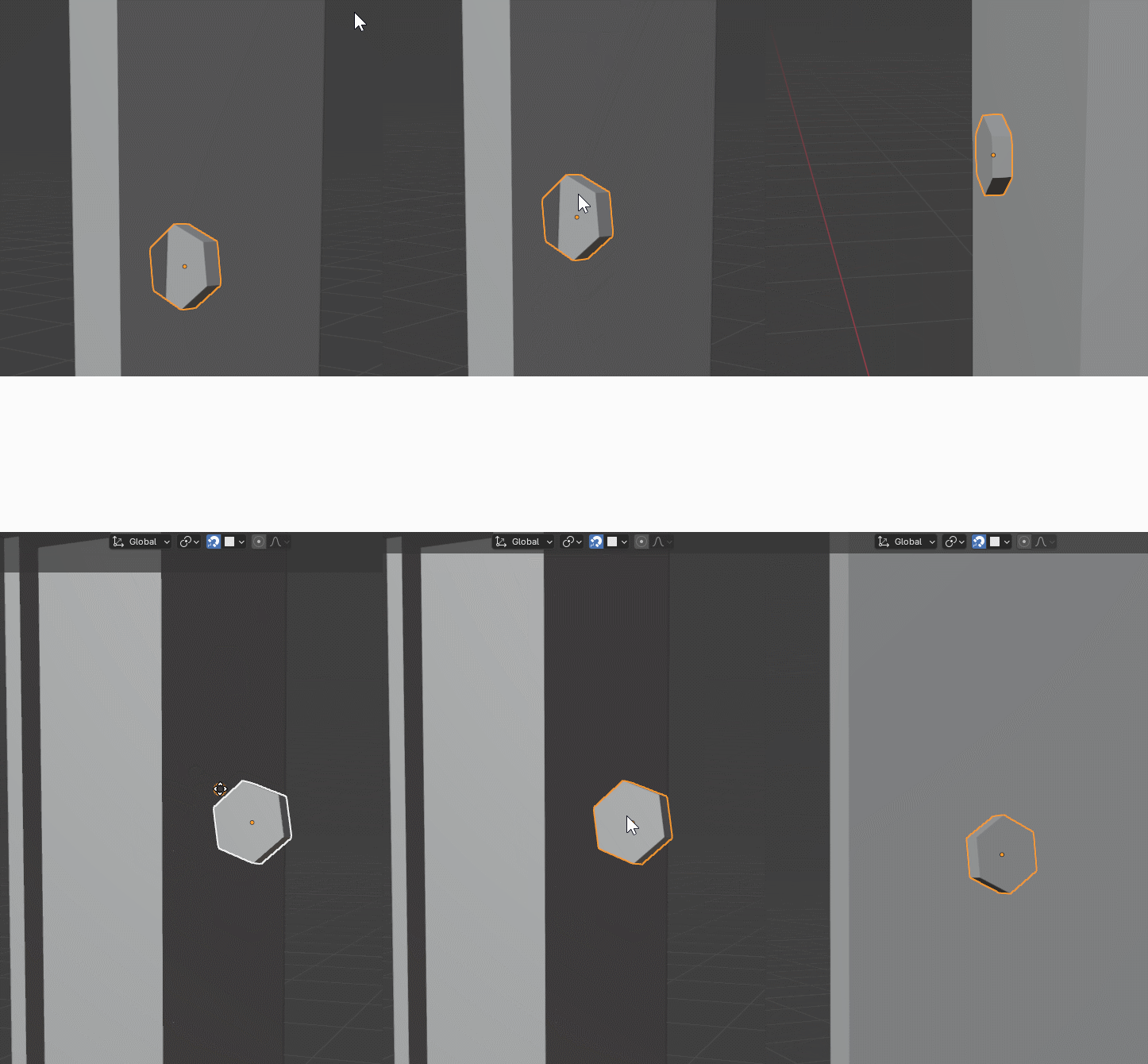
However, it’s not the sole object to not be snapping as I expect - it seems like all of them do so:
@joseph, better to provide a little more information than is necessary, in case the issue is package-specific (downstream). Isn’t providing a version standard when requesting assistance?
They will always snap to their origins, if you want to snap somewhere else you must change the origin point to a vertex, edge, or face…
If you are a far distance away from your objects on screen the chance of snapping will be reduced, it is better to scroll into the area you want to snap to…
If the objects orientation is different from the object you want to snap to, select Align Rotation to Target, in the snapping drop-down…
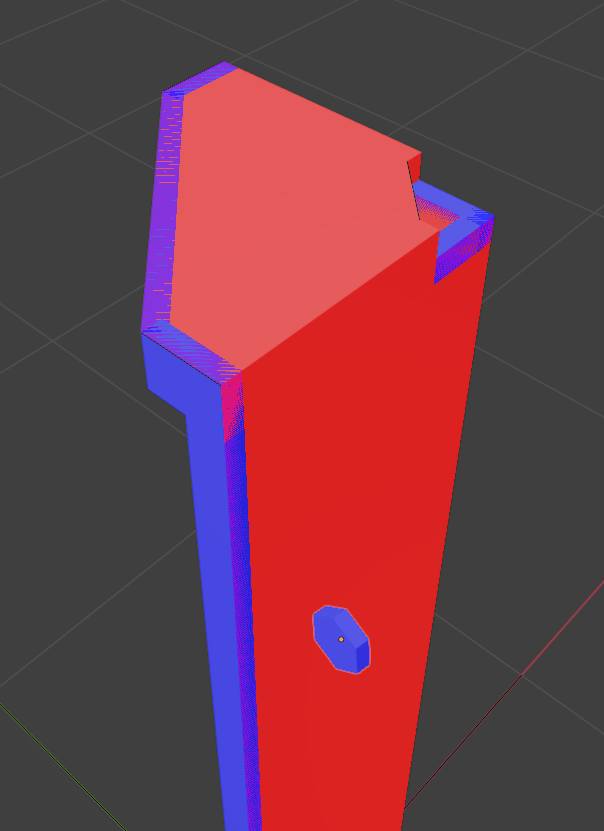
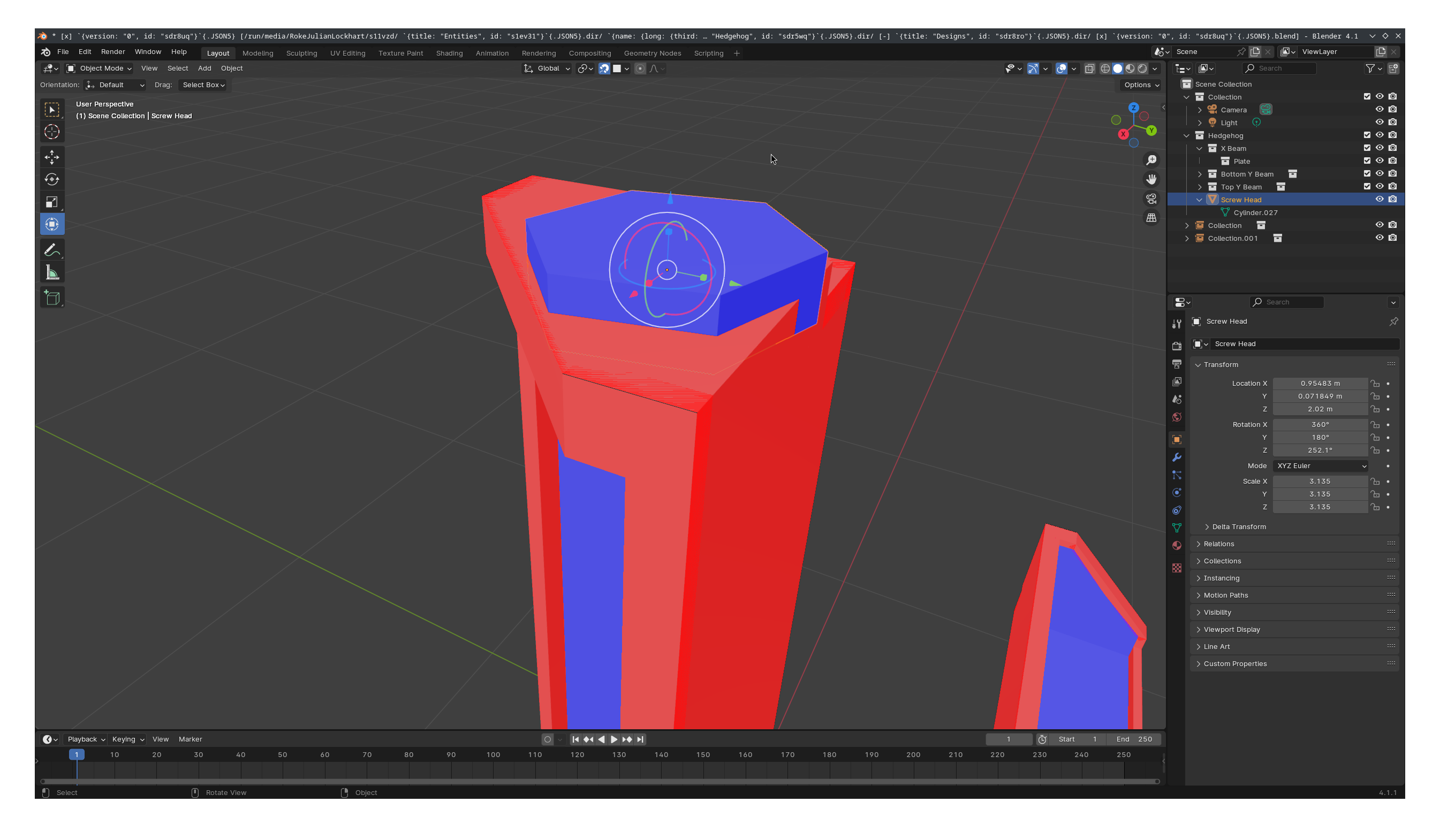
If your mesh has bad geometry, duplicated faces or reversed normals, you won’t get snapping to work correctly…
I mentioned this as I took a look at your mesh… You have both of those things.
Thanks. I’m glad to hear that it’s a fault of my own. I’m not familiar with either of those concepts, so I’ll do some research and ascertain whether remediating that fixes the problem.
What view mode are you utilizing to see that?
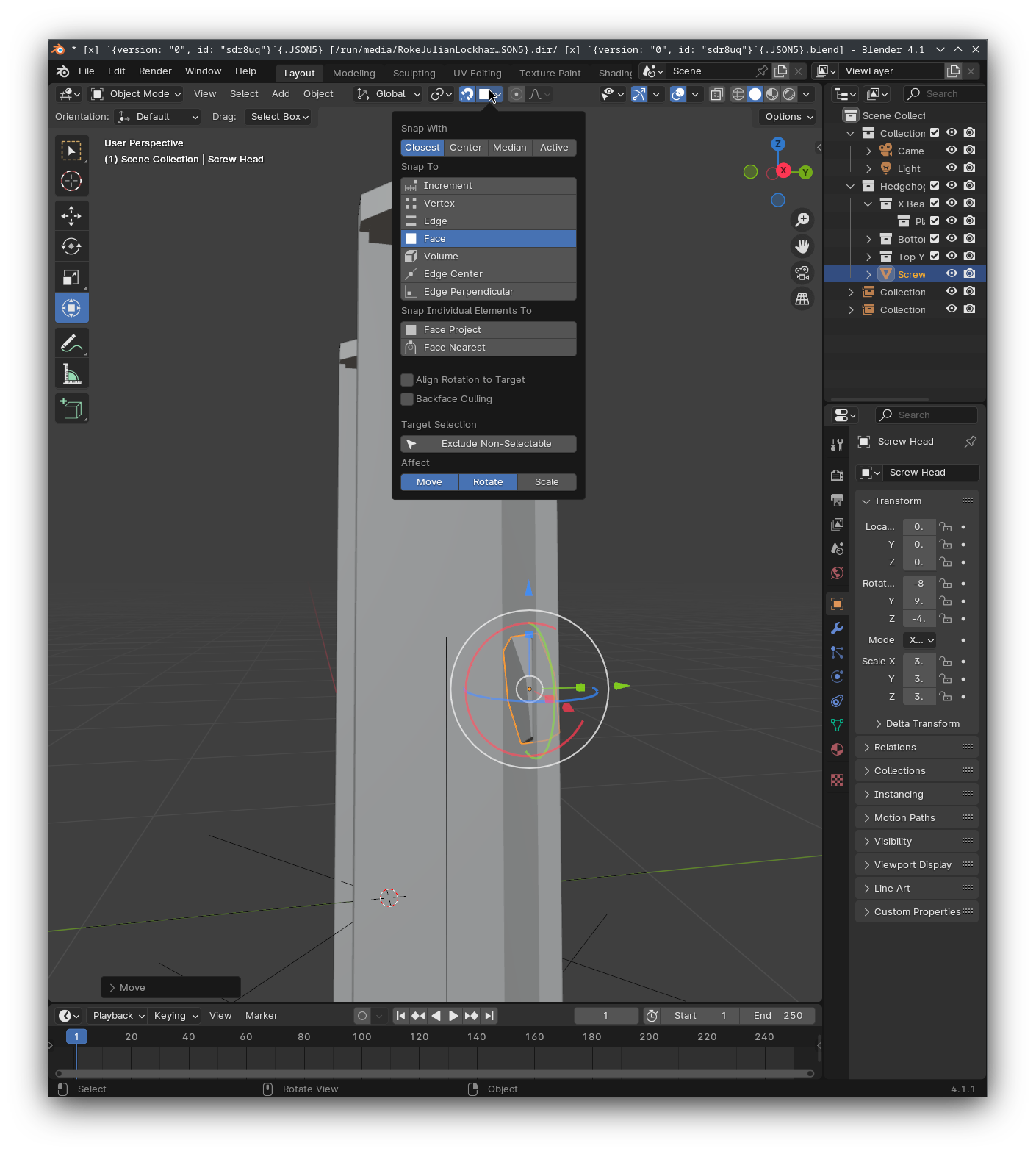
To my knowledge, I have demonstrated that I’ve done so:
I’ve chosen “Faces” and both “Rotate” and “Move” there. Are those not the correct options?
@Okidoki, that definitely appears to still be clipping - it’s a better demonstration of my issue than I provided. Are you demonstrating that the issue is reproducible, or that what I’m experiecing is expected?
@RSEhlers, I’d definitely got the configuration incorrect - what https://youtu.be/HP4UPkLj5lE?si=4ba3k8upIaLNIY52&t=15 demonstrates (and what I presume you meant) works a million times better than what I was using. However, there’s still the fundamental problem of everything snapping to the centre:
You have to use the Snap Base feature if you want a custom point to snap. When you started dragging, press B to get into the “Snap Base EditMode”, then hover over your the new snapping point and press b again to finish the “Snap Base EditMode”. When you continue your dragging you’ll see you have a different snap point now.
I believe that collection instances, like your linked assembly, don’t snap from their linked geometry.
They are only an empty with a center point as far as blender is concerned.
They can be snapped to, but not from, if that makes sense.
@Debuk is right about the snap base editmode tool (I keep forgetting that feature exists now, thanks for the reminder!). That is probably going to be your best/only way to snap linked collections currently.
I showed how it snaps to the faces while also rotating… and ask about what you expected…
I wonder what you suddenly mean with clipping… AFAIK clipping is cutting of something a specific values…
@SterlingRoth, that would make me feel a lot less stupid, although that would ultimately be more frustrating. I’ll try to ascertain whether that’s documented anywhere. Thanks.
However, surely that wouldn’t apply to the little hexagon depicted? It’s literally just a cyclinder with less faces, yet it clips slightly too - it solely snaps to its centre.
Hmm. I think you should take some more time to try out the tools. Its not really a separate tool. Its part of the snapping, it modifies the snapping point for your current snap settings.
I changed it to center at the beginning here to be behave like its for you currently.