Compositing Color Profiles

I am wondering how people go about compositing their rendered image sequences specifically over the top of a background image, in this case a PNG.

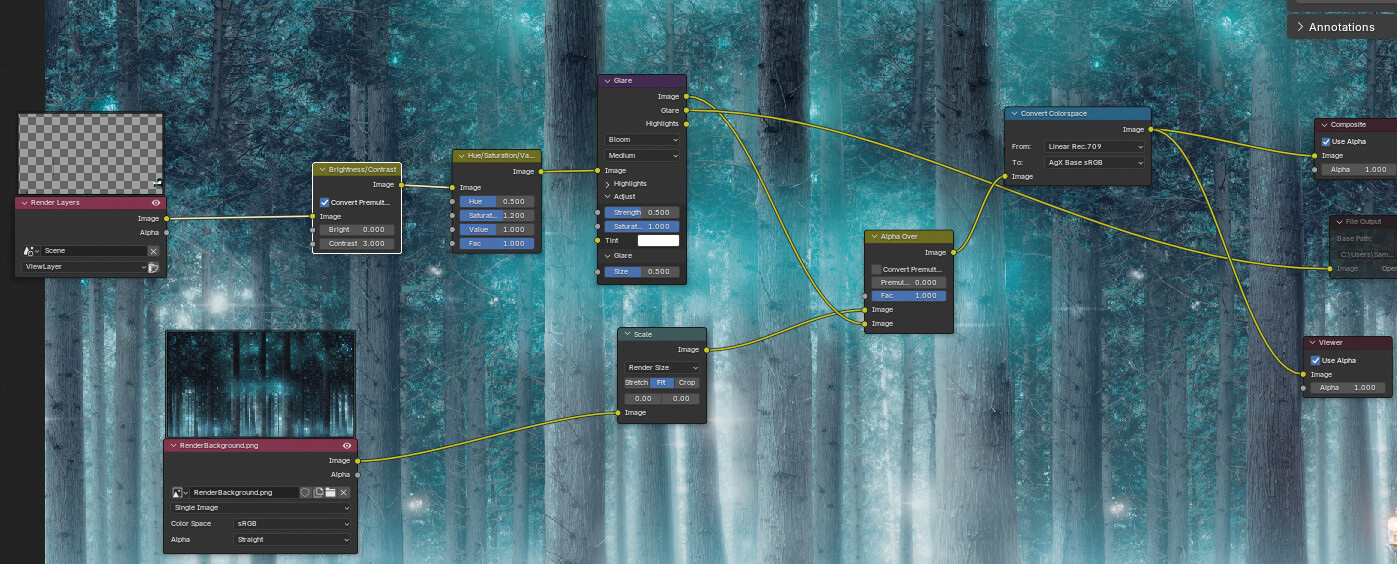
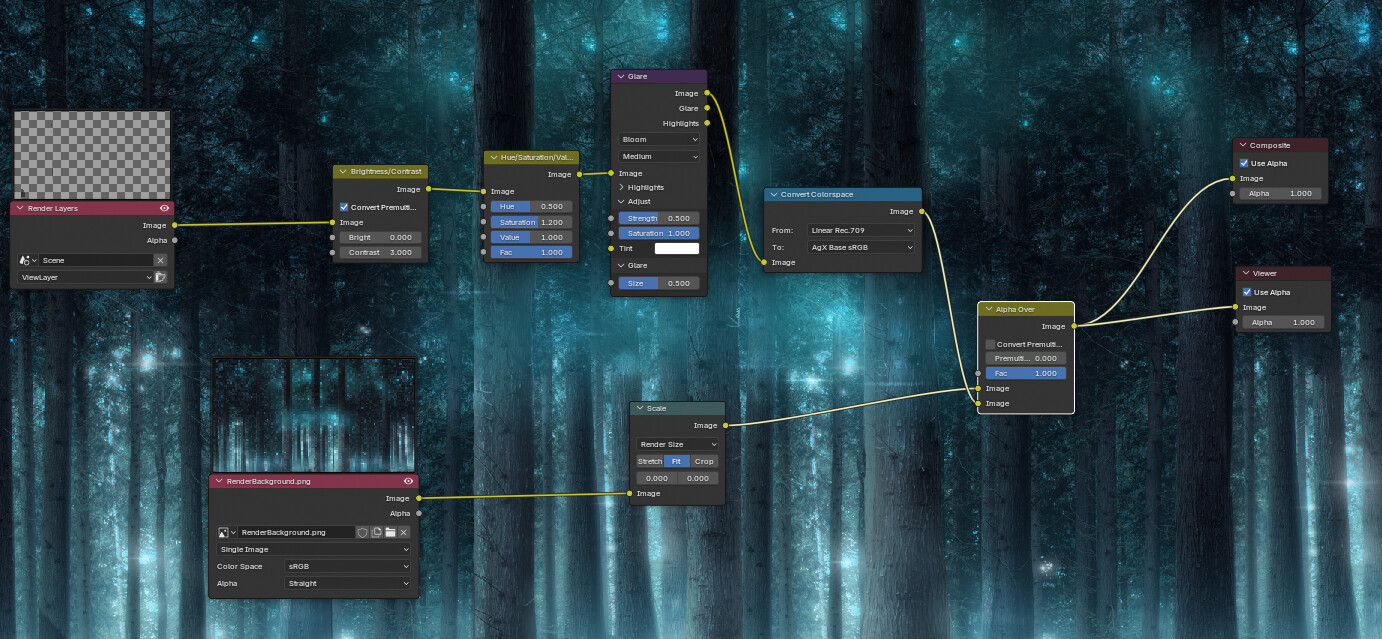
I have a scene that is set to the AGX color profile. When I then composite this scene so that the PNG image is in the background using the alpha over node and render, the final render adjusts the colors of the PNG image so that they are slightly off. I need the colours of the PNG image to be exactly the same as the original image.

I can do this by adjusting the scene color profile to standard however this then alters the colours in the scene to look incorrect. I have tried using a color space conversion node in the compositor to convert the PNG from sRGB into AGX however this still seems to tweak the colours.

I have also tried to composite my scene over the PNG image in Da Vinci resolve and correct colours using the OCIO colourspce conversion in the fusion tab hower there are still issues, particularly with blow from the scene render not looking anything like the bloom in blender. Has anyone else had this issue? Is this just something to put up with or am I doing something wrong?

You need to color correct those elements before the compositing action over the background; it sounds like you’re just color correcting the entire result, which of course will affect how the background looks.

In Resolve - same thing. Color correct the source node, not the entire clip.

As to the bloom looking different - honestly, a lot of people have issues with that and the solutions are all over the board, depending on #things. I just don’t use bloom from Blender, and instead add it in AE or Resolve.

How can I colour correct the PNG so that when I render the scene it doesn’t change. I am not doing any colour correcting in the compositor (I have some color nodes in there but they are muted). Its just converting the colors to AGX since the scene has to be AGX.

set it the colour space to standard in the render panel options, and put your colour conversion node directly before the composite node, after the alpha over. That way the final result of both the render layer node and the imported png will still be agx but it won’t affect the alpha over operation.

Ok - so, I thought you were trying to color correct the render, not the background.

On second read, I’m reading this:

Yeah, that’s what will happen. Changing the color space does this, that’s the purpose of it.

Sorry, i think I’m just not following exactly what visual result you’re after… you want the render result to match the PNG, but you’re also trying to change the color of the PNG, but still match the PNG…?

If I put the node just before the composite node it will change the colours for both layers (scene and PNG) so you will only ever get one of them correct and never both if I’m thinking correctly?

I’m assuming you have set blender’s colour space to agx in the render panel. If you set that to standard, then the png and render layer node will match, then the colour space node right at the end will set them both to agx.

You’ll probably need to use rec 709 to AGX though, because the compositor operates on the linear data (if I recall correctly)

Sorry yes its a little tricky to explain. I have a graphic from a client (PNG). The graphic is going to be printed in the real world with some cut-outs “windows” for screens with animations playing over the top of the graphic. So my “window” animation background needs to match the graphics colours exactly with animations over the top in AGX colour profile.

I am a little confused by the colourspace conversion node as well. Does standard colour space = Linear REC.709? There is no standard option in the drop down. And there are various options for AGX: AGX Base sRGB, AGX Base Rec. 2020 etc. Which one is the standard AGX option in the view transform? Sorry if Im not explaining very well.

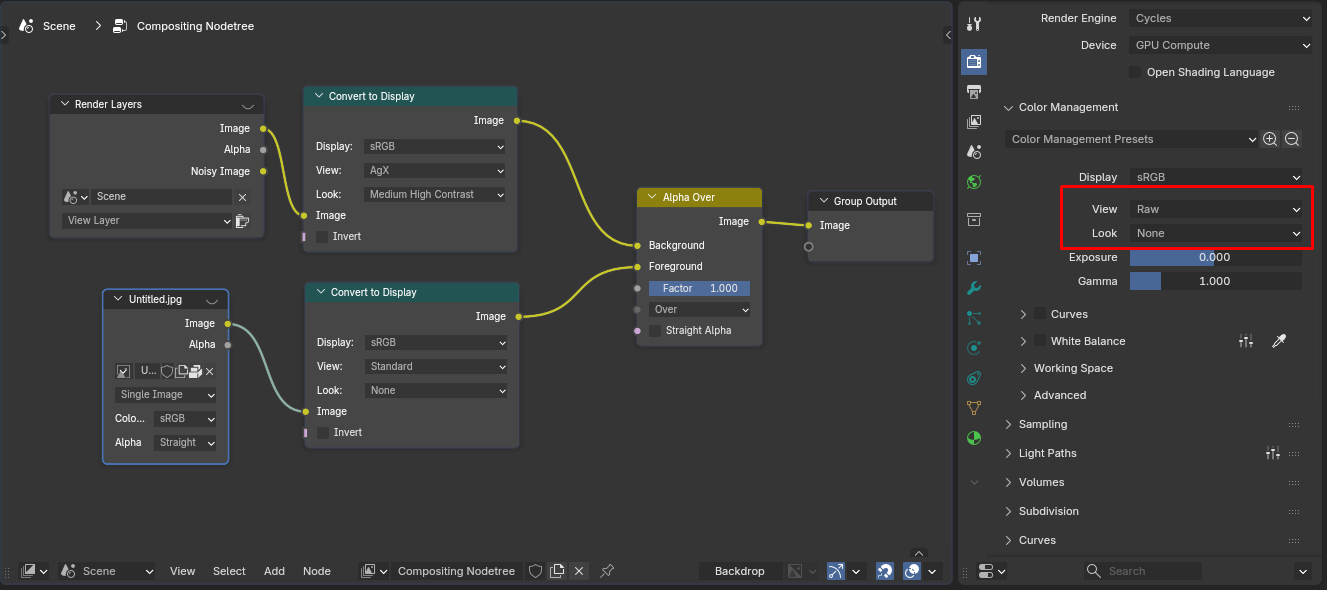
I mean to set it to standard in the render panels colour management section:

Then the colour conversion will be happening on the node only just before the composite node.

Be sure to set look exposure and gamma as I’ve set it here. If you need to modify those, you can do it with an rgb curve node or two prior to the colour conversion node.

you only need one of them at the end.

The colors still dont seem to match the original PNG.

(sorry for deleted posts I had spotted the duplicated conversion nodes).


Thanks. I can confirm that these render settings match yours exactly but still the colour of the PNG seems to change.

it might just be the effect of the glare, but you could try converting the png to rec 709 prior to the scale node with another convert colourspace set to srgb to rec 709, but I thought this was already handled by the image node, so I didn’t think that was necessary, but I could be wrong.

Changing the render scene view transform to standard did the trick. I did however have to move the colour space conversion node to affect only the render scene and not the PNG. I guess because the image is already in Linear Rec 709 even though the image node says sRGB?

I do also wonder why the view transform is called standard and not Linear Rec 709?

Thanks for all assistance with this!

But how will that cause the AxG rendered image to look good? I tried this, i had rendered out some test viewlayers and noticed color shift when loading it back into blender. The output file was set to sRGB. Loading it backinto Blender, it seems it only works indeed to set scene to “Standard”. But if you then already have a renderlayer set and rendered using AxG and its used a renderviewlayer, i cant seem to match them both to get the same colors.

The issue im seeing if “Save as Render” is unchecked and you save as sRGB. then load that image back into blender.

If you use images that don’t need to go through color transform(I mean your main one, the one you are using for rendering) with rendered stuff that does, you can choose color management for each image:

In that case, you turn off global color management altogether by setting it to raw and none(because you are doing everything yourself in the compositor).

sRGB image still needs to go through Standard transform because everything is converted to Blender’s working color space when loaded.

That’s it. This should solve all of your issues.

So if its rendered using AgX and a renderlayer is available, i set that to AgX base sRGB or Linear Rec 709 and then do the transform?

I was confused about when saving an image using override and then apply “Standard” while it was rendered using AgX. Not sure if “Standard” is then sRGB or that it keeps being AgX. No matter what color space option i pick, it wont look correct.

When i try to import that saved iamge using override, i dont seem to understand which setting i need to apply to get the correct transform again.

The part i find confusing is when saving a file. The “save as render” vs followscene / override options

What is rendered is in Blender’s working color space before it leaves Blender. So you cannot set it to anything. You just pass it through a color transform either using color management settings or with the compositor node, however in that case global color management settings need to be set to raw for it not to happen twice. It is in working space, you need to get it to your Dicplay device space using a color transform. That’s it. So just like in the screenshot, only Convert to Display node, nothing else in case if it’s rendered and comes from Render Layers node.

It’s always sRGB if that’s your display device setting. AgX is not a color space, it’s a color transform. It takes what is in your working space(linear) and converts it to display device color space(sRGB probably, if that’s what you have set as Display Device)

If you rendered an image and used AgX and saved as a jpeg or tiff or something, it is then in whatever color space your Display Device was set to (so sRGB). That’s why when you load it to Blender it gets “converted” to scene working space and you need to run it through Standard transform to get it bak unchanged.

No idea what that means or what override you want to use. If you rendered an image and it’s not EXR so it has baked in color transform, when you load it you have to only set its color space correctly. So that’s whatever your Display Device setting was when rendering and saving it.

You likely don’t need any of this and need to leave those settings alone.

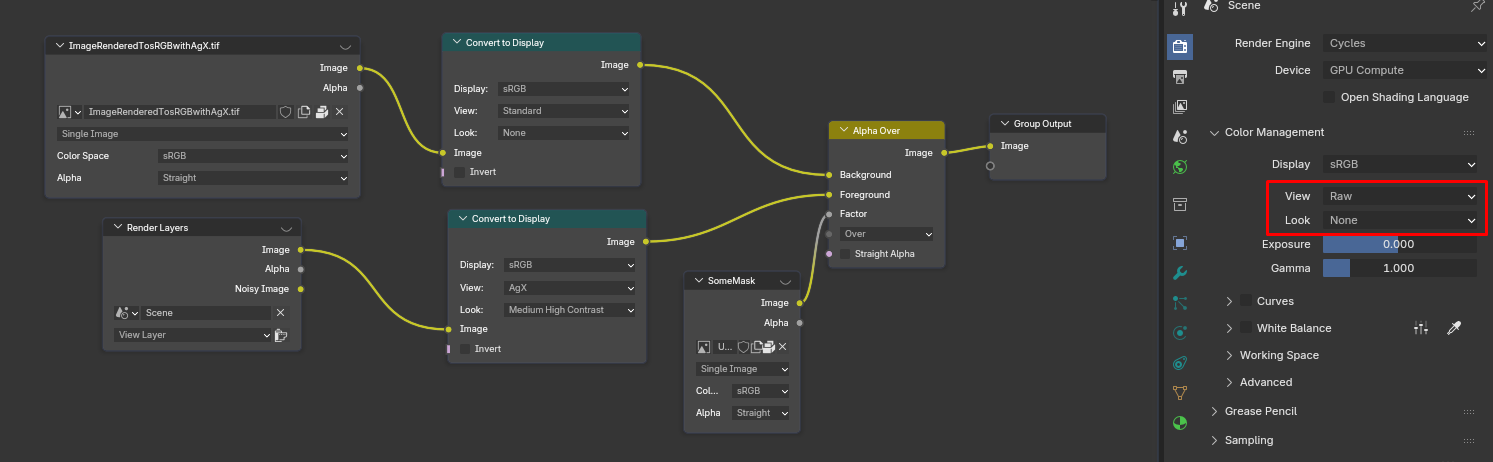
If you are compositing, just use EXRs. If you just want to use an image as background or something and need it to remain as is, you can use the setup in my screenshot.

If you need more help, it would make sense to describe exactly what and how you want to do and the context of it all.

So let’s say I rendered something using AgX and saved to tiff. Now I want to render something else and put it on top of it using alpha over.

First image is in sRGB because AgX converted it to sRGB when saving because my Display Device was set to sRGB. Second image is the one I am rendering now to put on top of the first one so I use the same AgX settings. I am doing color management in the compositor so I set the regular color management settings to raw.

But that’s pretty much all the compositing that makes sense - just alpha over. If you need to do something else you probably want to mix linear colors, not what already went through color transforms.

I am also very confused about it, because it has nothing to do with any of this. If it’s a render, save it as render :laughing: Those are probably for when you bake something or render something from above as some maps or something, but the naming is really confusing. To be honest, I don’t fully understand what “Save as Render” is supposed to mean. Luckily it doesn’t matter. None of that is needed for anything really. Just some useless noise. It would probably be best to leave it alone and forget it exists :laughing: That’s what I do. I don’t need to override anything and i don’t need to save my renders as unicorns, they are fine being saved as renders.
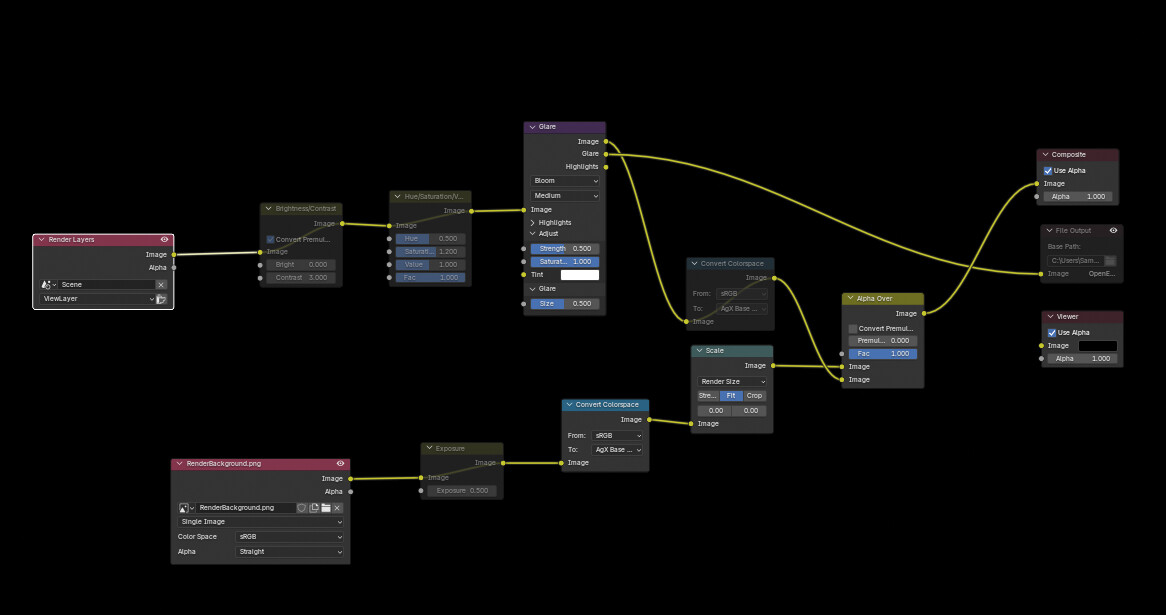
Thank you very much for that very well explaination!

One thing i never understand, Blender doesnt save files with a color profile. Wonder why that is. Even when you save it with a profile from the “save dialog”. When i open it in say Photoshop, i always the missing profile warning

It’s a missing feature in Blender. That would be quite useful in my opinion. Especially now that we can choose meaningful display device settings. Blender doesn’t save ICC profiles and it doesn’t read them either so that’s one thing to keep in mind. I think it would only make sense to add support for reading as well as writing ICC profiles and so it’s probably more complicated than it might seem, that may be why it doesn’t get addressed, but I don’t know… As far as I know Blender uses OpenImageIO library to deal with images, so it does seem quite straight forward to support that :man_shrugging: There must be some reason… I guess I wonder as well. :laughing:

Wait a second… :laughing:

https://projects.blender.org/blender/blender/pulls/151958

:thinking: My knowledge seems to be outdated. Yeah, it does save ICC profiles…
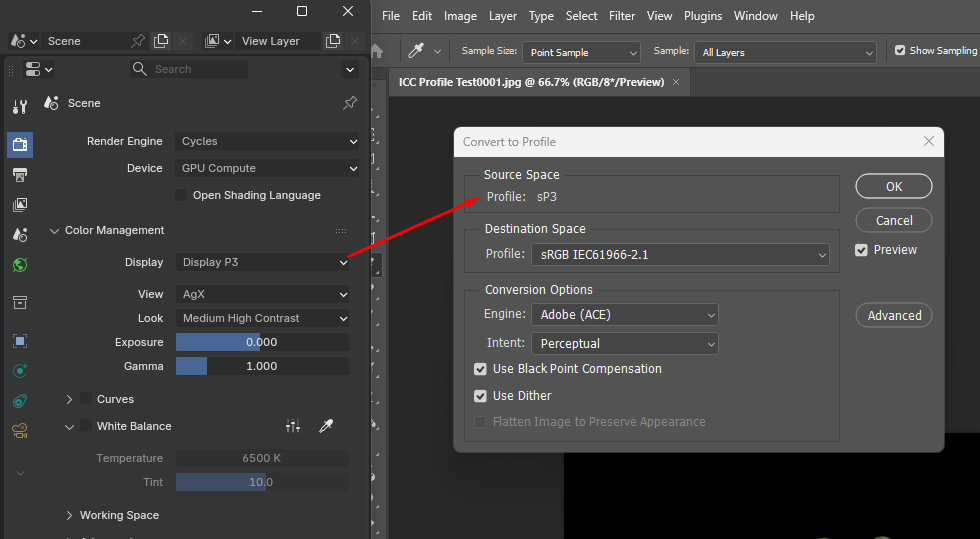
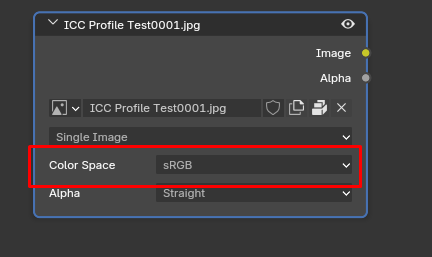
Then it doesn’t read them:

:laughing: