I converted text to mesh with Alt+C.
But now the text is a mess with all triangles.
What is the best way to convert text to low poly mesh.
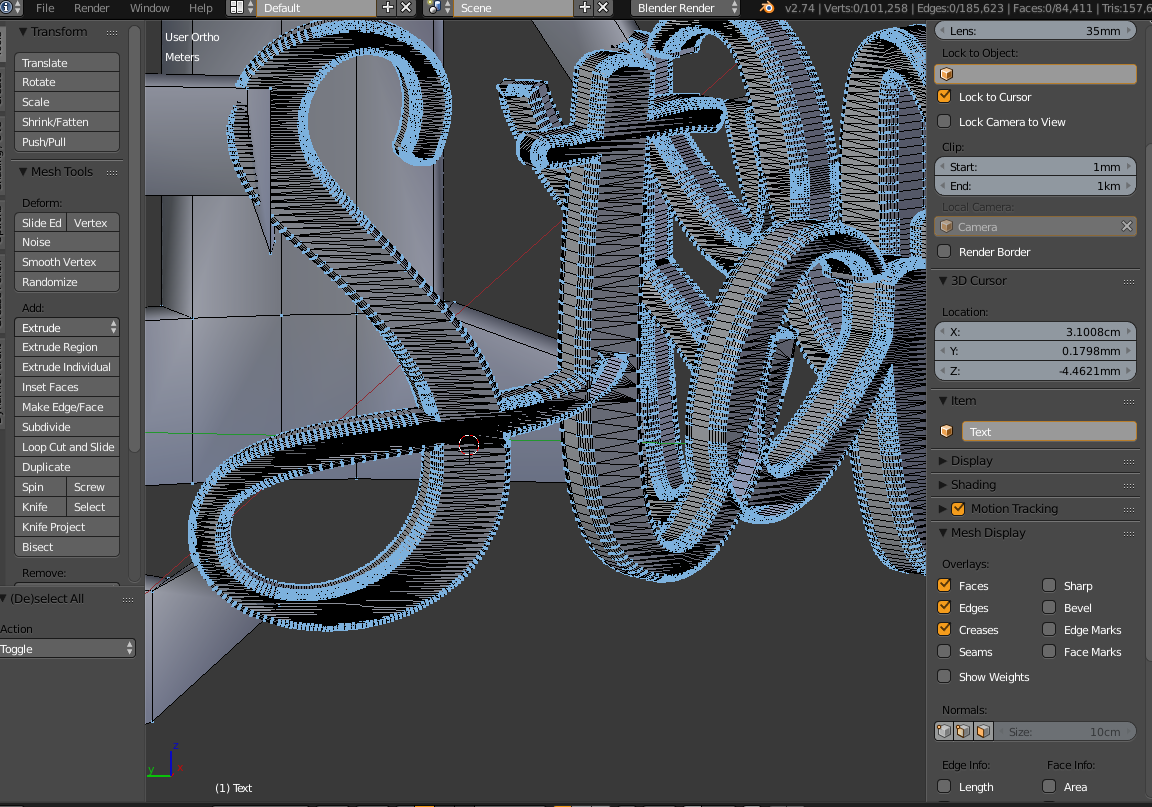
if it’s too dense, lower the resolution of your curve object before converting. you should be able to fix the tris with ( alt J, I think ? ) tris to quads.
also need to remove doubles for all face !
you could have left it as font !
happy bl
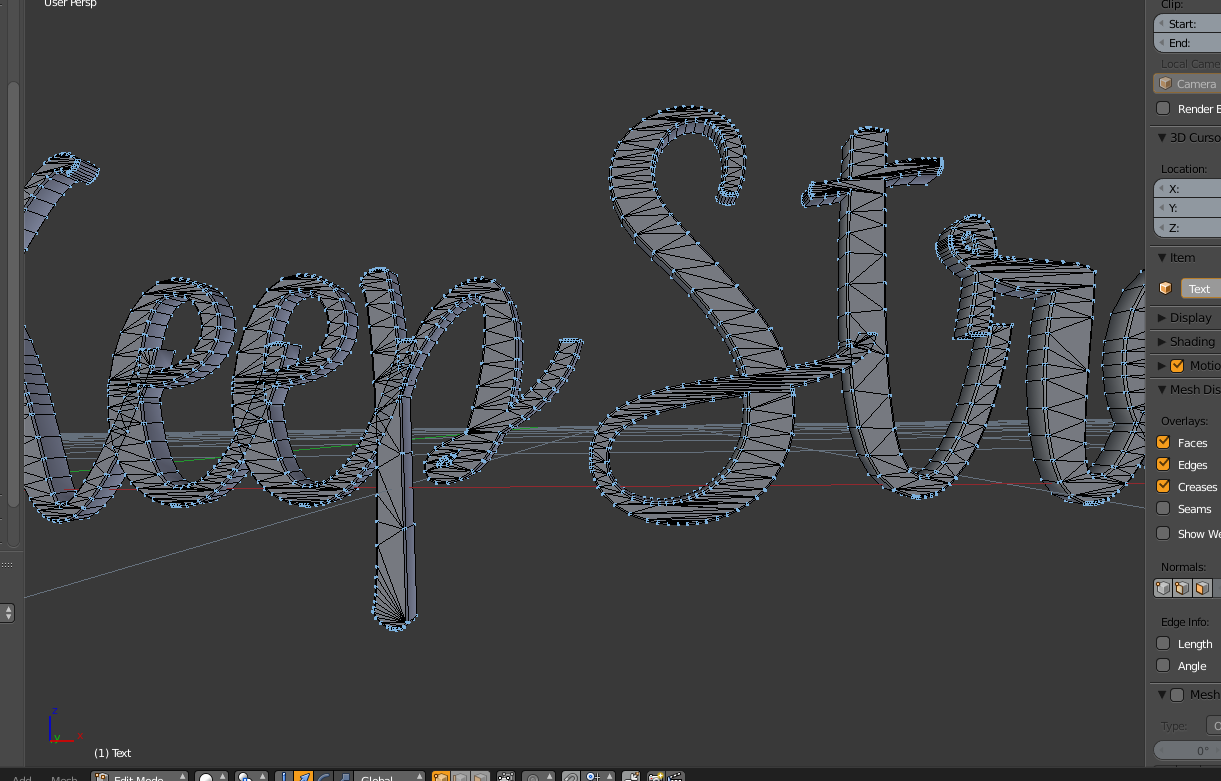
you might need to try the remesh modifier

That’s because “remove disconnected pieces” is on.
I don’t think remesh would work very well on this. The smoothness of the curves would not carry through.
Thanks highpoly fonts are not a big problem it just takes some work to make handwriting fonts suitable for 3d printing
Decreasing resolution, converting text to mesh, remove doubles and using boolean difference to remove not visible font parts.
Still why does blender make all those unnecessary triangles during convert text to mesh.
But no problem the blend files is not very large its the exported file stl or x3d getting from 8 to 80mb.
Happy blending.
While editing the font I see the faces look transparent ? But when I add a face it is solid?
Need some help with this.
fontinkscape.blend (740 KB)
The object is too small for perspective viewport to show it great for even the minimum clipping distance. Orthographic viewmode doesn’t have that problem.
But that’s not all you need to have comfortable working scale. Tools and modifiers have default merge distances for example and those become too big for that scale, so scale it bigger.
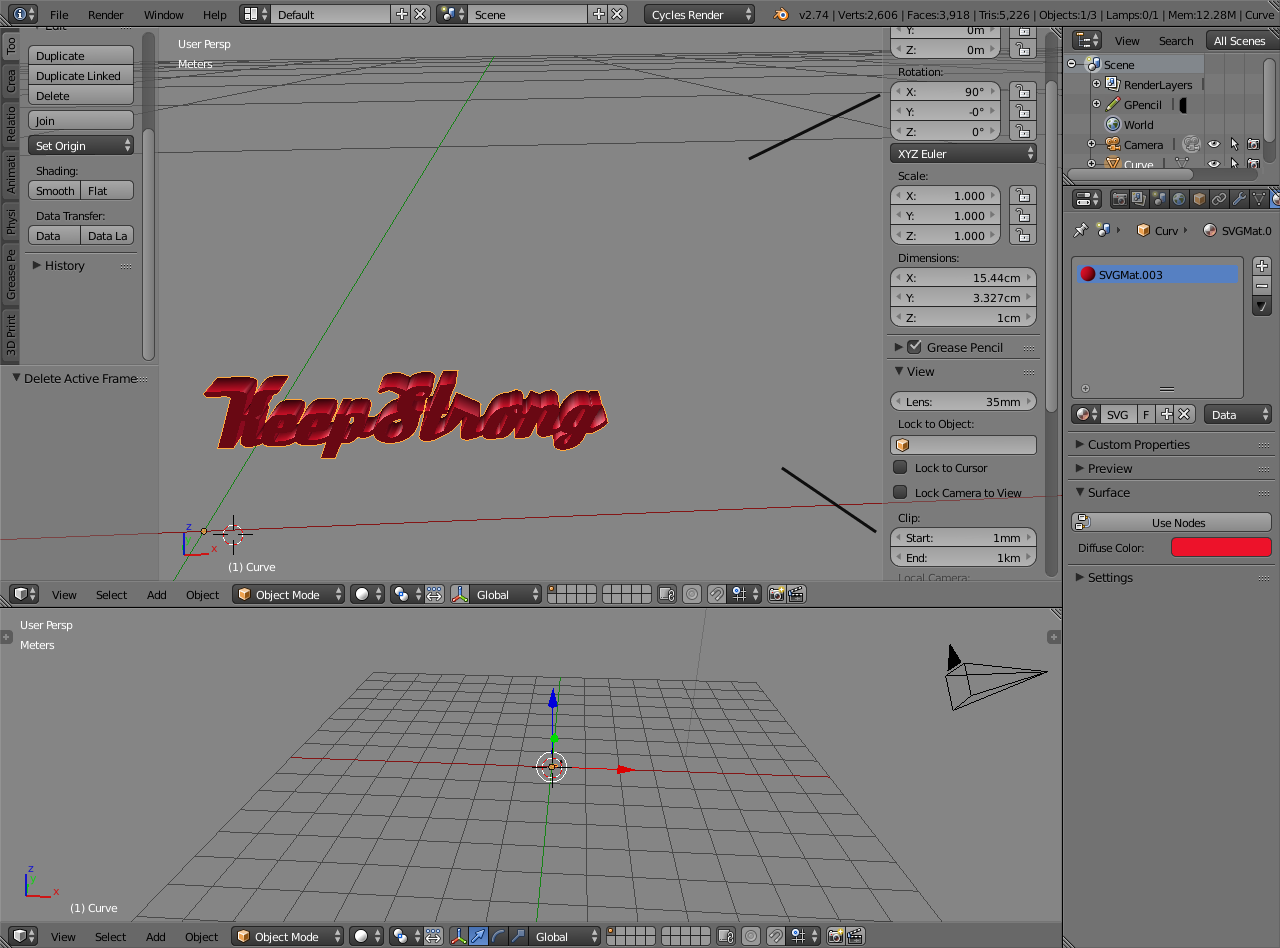
The object has unapplied rotation and the clipping distance is set too small (and the range is high).
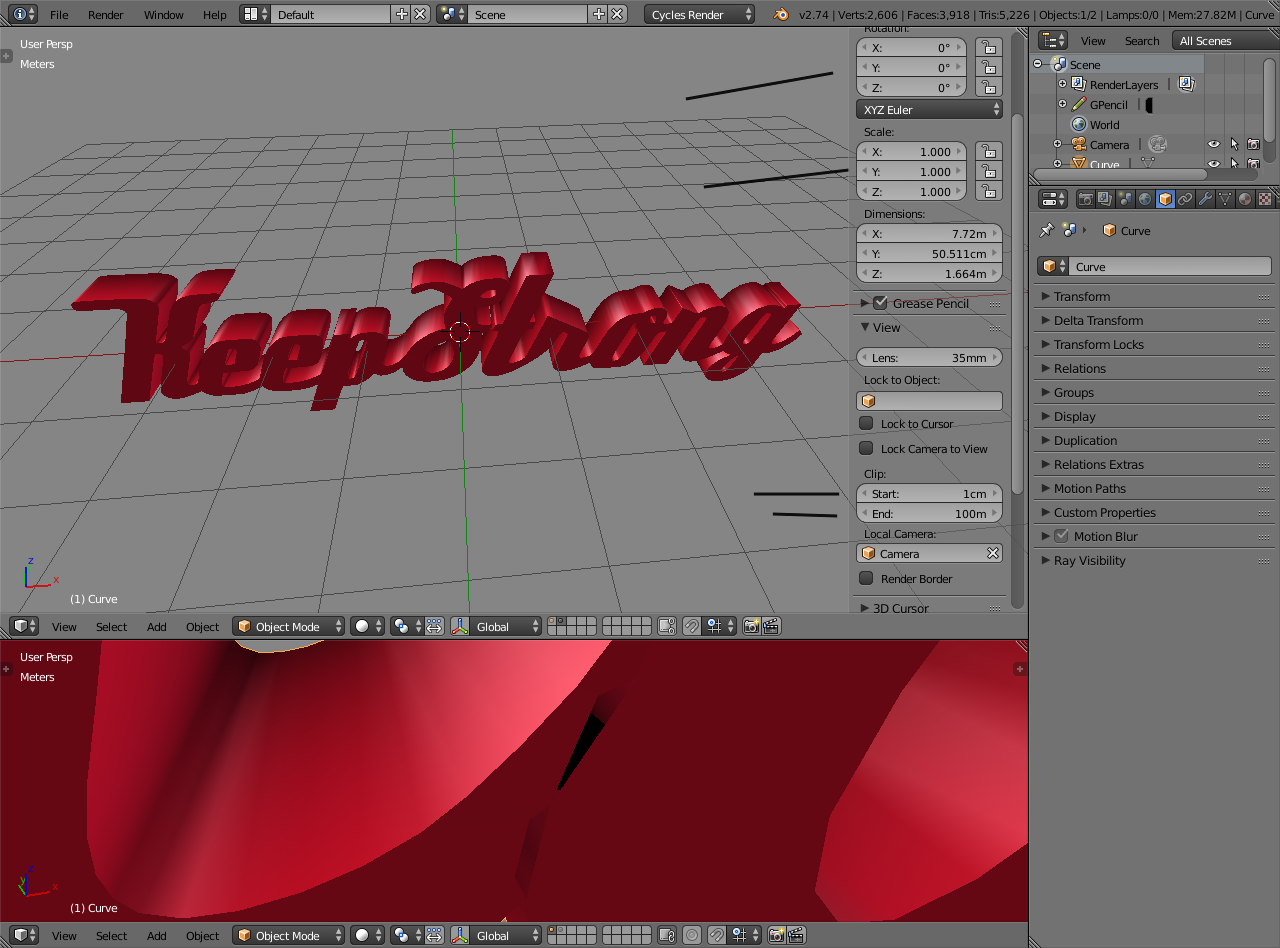
Origin moved to geometry, location reseted so the whole thing is at the world center, scaled up 50 times, rotation and scale applied, increased view clipping distance. Also the mesh has holes where you were editing it, and the 3d cursor lock was on so the viewport behaved weirdly.
Sorry I accidentally send the file in perspective mode but I was working in ortho mode.
I know the object is a small size for blender 15cm x 3 cm but its normal for 3d printing.
In blender i changed therefore View-clip from 10cm to 1 mm otherwise blender is changing to the inside mesh view.
That should do the trick. I know the text has some holes which I have to fix they became when I decreased the resolution.
When scaling up I still have the strange colour problem when I add a face while editing. Recalculating Normals did not help.
Thanks for trying to solve the problem.

Sorry the problem is to many double edges which takes me hours to delete.
Converting text to mesh is not what I expected from blender. No idea how to do this better.
I see you mentioned it’s for 3D printing. Posted one example some time ago https://blenderartists.org/forum/showthread.php?366006-How-to-curve-SVG-text-object-for-3D-printing&p=2839085&viewfull=1#post2839085
Curves and curved surfaces need geometry and since 3D printing only takes real geometry into account, high poly count is a pain in the backside.
I usually try beautify fill (Alt+Shift+F) and remove doubles
then decimate or remesh modifiers with the right settings
Thanks it is for 3D printing.
Have tried several text samples to convert to mesh but not one is going good.
All have holes which I have to fix manually.
If you don’t mind the divisions around the outside of the text and want to get rid of most of the triangles on the front and back of the text, you can select those polys and run limited dissolve. The text faces will clear up, and leave, for the most part, ngons in their place, which is not a bad thing as long as the faces stay flat and are not to be deformed.
However, you can also run limited dissolve on the entire mesh. As far as I know though, 3D printing requires triangulated geometry, so you will have to re-triangulate when done reducing geometry.
Here is your file with limited dissolve, recalculated normals and searched for double geometry. You will probably have to triangulate before printing. File is only 839KB, so I can’t imagine it being too large to print.
fontinkscape2.blend (894 KB)
Thanks would be nice if Alt+ C was working properly for text.
Still not exactly sure what you want the mesh to look like and what you consider to be “unnecessary” triangles. For 3D printing the whole thing has to be triangulated anyway, so actually all triangles are - in a way - necessary.
However, the main cause of mischief in your case is that script font with all the overlapping parts. Converting that to mesh and fiddling with Booleans to get rid of the overlaps is like cleaning up after the mess has already happened. I think you would be better off by doing the clean up before you even get into Blender:
Create that text in a vector image program of your choice (Inkscape, Illustrator, Xara or what have you), convert the text into shape/path and do the clean up there, so you get a single, continuous and non-overlapping path to import into Blender. In Blender immediately convert the path to mesh, do the limited dissolve ajm suggested and extrude to 3D:

Exported .stl file is 650 KB.
BTW, do you need the bevels? Of course you could use the curve tool set on the unified path for extrusion and beveling before converting to mesh, but with all those tight corners in the font any bevel is again calling for trouble.