Hi
How to delete a material you don’t need anymore?
The button below is not doing anything. What is that button doing?
And how to really delete a material from the list?
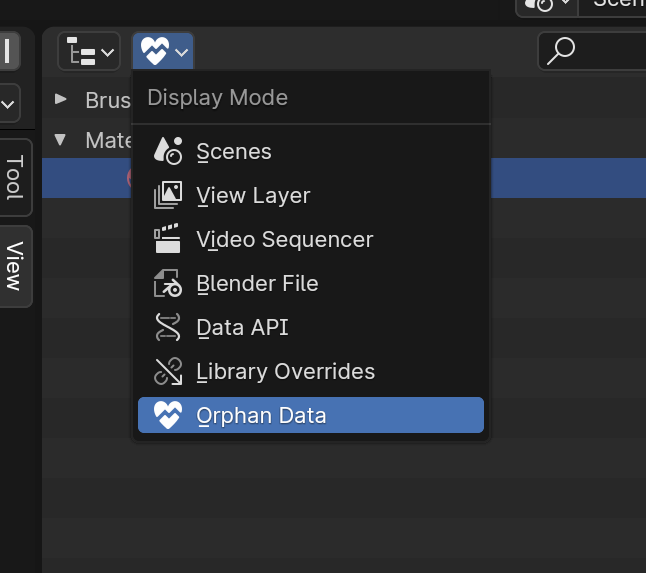
First Click the button highlighted yellow and click Blender File. Next you are going to scroll until you find the Materials tab highlighted by purple. Then Just right click the material you wish to delete

@anon987799 just want to add to the solution of @AlexArgent. that you can use Orphan data. to see data that is no longer used in the scene. (sometimes you have a lot of materials in the scene that you didn’t name yourself and it gets confusing)
some Materials you don’t need may not show in the orphan data. cause there is an orphan mesh that is still using them (so clean unnecessary mesh data blocks too)
now to answer your question :
that button delete the connection between the “material” and "the material slot " of that object.
every object can have more than one material slot (in your screen shot SLOT 1) a meterial was assigned there “Material.001” clicking that X will remove that material from that slot. but the material itself (as a material data block is still in the scene and can be reused if needed there or with other objects)
Still don’t understand it 
So it removes a material from a slot but NOT the material itself?
Can a slot have more then 1 material inside?
yes
No, a slot is for one material. that’s why we have objects to have more than one SLOT if needed (that’s kinda the way of allowing multiple materials on one object )
hmmm. think of every object is a meta data container. and we have datablocks type for everyneed: Mesh data block, curve, Material, sound, image…etc
a mesh object with a material. will be an object that have a connection to two other objects: a mesh data block and a material data block.
it can sound confusing why not deleting the matarial in the shader editor will delete it. it’s because the materials. mesh data etc. can be shared between several objects. and deleting it for one object doesn’t mean you don’t need it anymore.
even if it’s not affected to any material slot at that time. maybe later you will create another object and add that material to one of its slot.
look at the drop box left to the material name in your first screenshot. if you click there you can choose of the materials previously created in the scene to be the one on that slot (even if it’s already used by another object, not used by any object, …).
in a nutshell the materials created in a blender scene are not inside those objects, think of it like they are in a small Material library within the blender file and you connect them to objects slot so those objects can use them
To assign a material to a object, I just need to put a material in a slot and then choose the slot after clickong the object in the scene?
Kinda.
every object that takes Material will already have one SLOT by default. the mesh will always use the first SLOT by default.
so you can add as many SLOTS and “create new”/“Select existing” on them.
when you do the first is used by default unless yo chose to make some parts of your objects use the other slots (other materials) by selecting some faces for example in edit mode and assign them to the second slot.
below is an example :
My object have three Material slots as you can see on right in the material tab:
one is the default used for skin. one for hair and one like in this example for part of the mesh.
on the left (shader-editor I’m looking at SLOT1 as you can see on top ) so it’s showing me the Material named “skin” in it’s editor cause that’s what is connected to that SLOT so i can edit it.
notice the number 8 next to the material name on top. that is telling me that material is used by 8 other objects (if i change it’s color now it will change for those 8 objects). so if i click that button X you asked about in your first post blender will ask that SLOT1 of that OBJECT to Stop using that material but not delete it cause 7 more objects will need it. (7 more material- slots other objects are connected to that SAME material and needs it )
when i created hair. i didn’t want it too look like the skin obviously sow I added the second SLOT. created a new hair material on it and called it hair and selected tat material in the hair tab.
I added claws to that animal for example i wanted them to be in the same mesh but different Material. so i added a third SLOT create a new material and selected the faces i need and click assign (when in edit mode you will see the assign options in the material tab at right)
that’s basically the work flow of MATERIALS and SLOTS
Thanks! I understand 
Hover your mouse over the delete X…
The User Tooltip popup tells you to Shift + Click to set users to zero.
There will be a 0 before the materials name. It will no longer be saved, so next time you open the file the material will be gone.
Blender being what it is, sometimes you need to go do that deletion in the outliner that the other commenters mentioned.