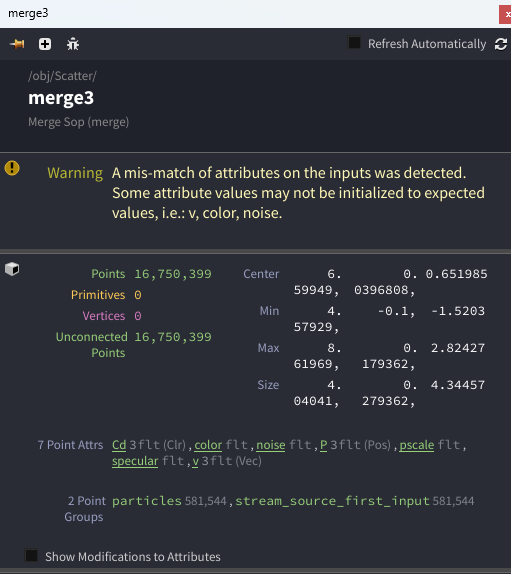
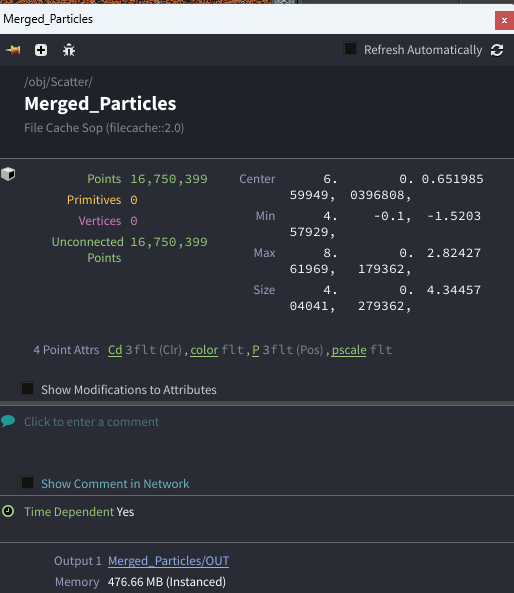
If I want to export this from Houdini as an Alembic file, what do I need to set up so Blender can import it while keeping the same colors and overall look it had in Houdini, so I can achieve the same final result in Blender?
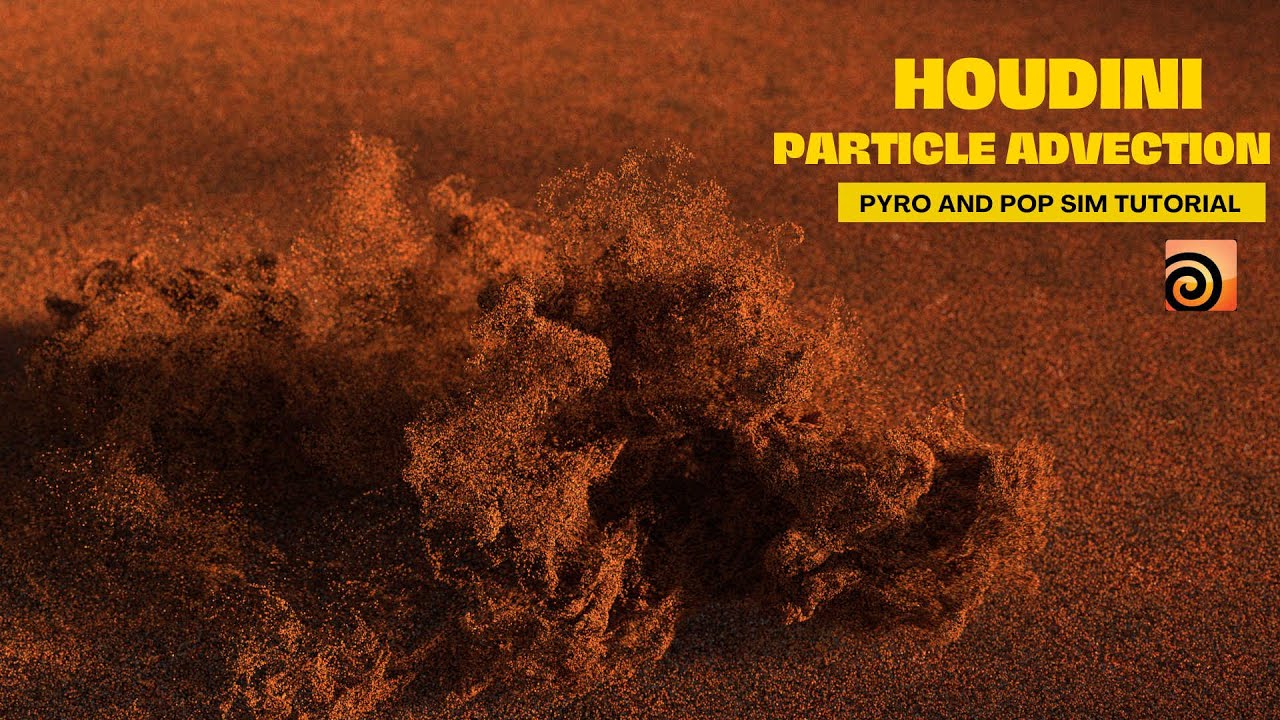
Thanks,
Zach
If I want to export this from Houdini as an Alembic file, what do I need to set up so Blender can import it while keeping the same colors and overall look it had in Houdini, so I can achieve the same final result in Blender?
Thanks,
Zach
Generally speaking, I’d recommend exporting your simulation as USD instead of Alembic. The thing is, Alembic in Blender won’t keep the point attributes you want to save from the sim, whereas USD handles that pretty well these days.
I’m not sure how things stand with Alembic today. I stopped using it for this kind of stuff a while back. But up until a couple of years ago, if you wanted to bring Houdini attributes into Blender via ABC, you were pretty much stuck using that clever but super cumbersome Entagma hack: mapping attributes to P and having separate .ABC files for P, Cd, pscale and so on. Something like this: (not need to do it that way anymore!)
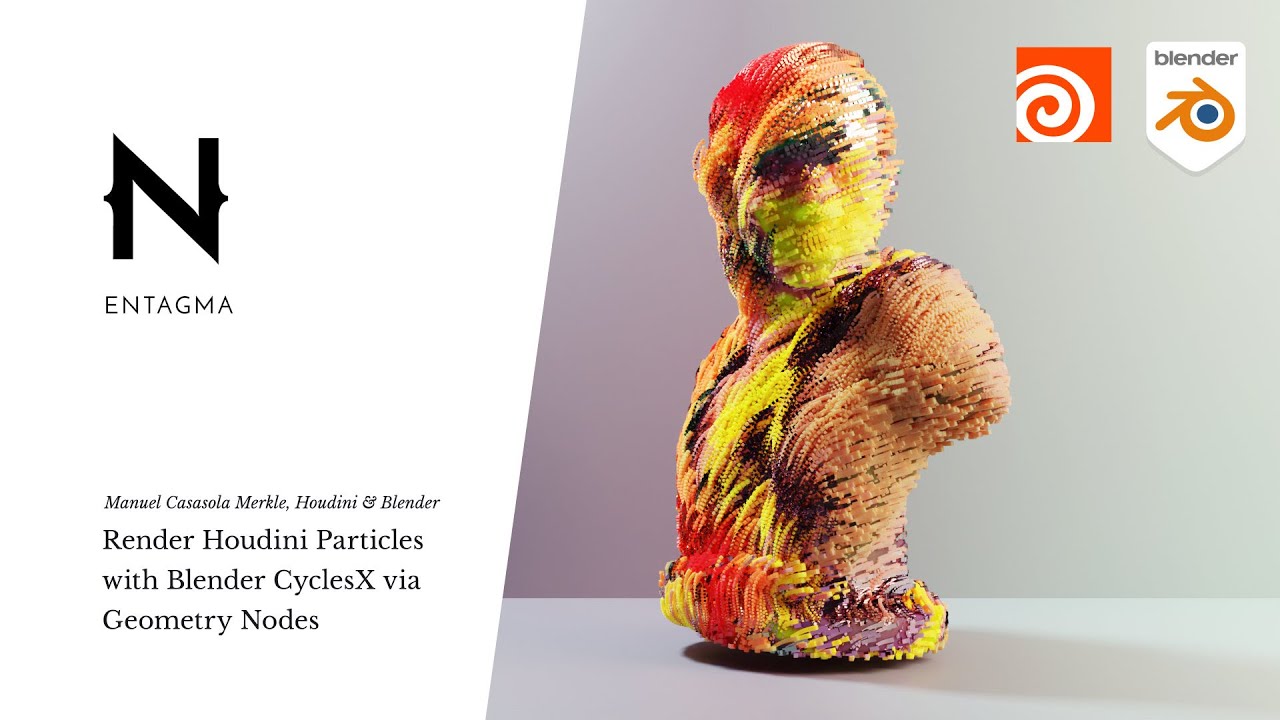
Just keep in mind that some attribute names might change. The most notable one is Cd , which will show up as displayColor when you import it into Blender via USD.
Also, I’d suggest deleting any attributes you won’t actually use in Blender before exporting to USD. That way, you can keep the .USD file as lightweight as possible.
Skimming through the video, I noticed you’ve got an Attribute Delete node called GET_RID_OF_UNNECESSARY_ATTRIBUTES . Basically, it keeps all the stuff that might actually be useful to bring into Blender: Cd , v , specular , and pscale .
I’m a bit on the fence about specular , though. It’s used in mtx as an input for specular and I’m not entirely sure how useful that would be in Blender. But hey, since it’s just a float, it won’t make your final .usd file huge, so maybe you can find a use for it.
The same goes for v (velocity). Once your simulation is baked and exported, it probably won’t be of much use inside Blender if your goal is just render the simulation.
Lastly, before the USD ROP, I’d also toss in a Group Delete node to clean up those two groups you have there before exporting.
My memory is still climbing past 90 GB even though I’m only exporting these attributes. The only settings I’m changing in the USD Export node are the frame range and the output path to a specific drive. What should I do now, since deleting some attributes and removing the groups didn’t fix the issue?
If you download the Houdini project that’s linked in the description of that YouTube video, you’d probably be able to fix my problem fast after looking through everything.
The thing is you’re dealing with nearly 17 million points. Depending on how the emission works, that number could even get higher in other frames. Even if you strip it down to the bare essentials (in this case, just Cd and P), I doubt you’ll be able to shrink that USD file size much more.
From where I stand, you’ve basically got three options:
I’m afraid I can’t do that. I’m not currently working with Houdini, so I don’t have it installed on my system.
I’m talking over 90GB+ with my ‘ram’ (memory)… not the total file size. Any chance that could be fixed so it doesn’t exceed my memory with a specific setting changed that doesn’t change the overall looks?
Thanks for all the help btw!
Oh, damn.  Sorry for the confusion, my bad. Yeah, you can actually do something to stop that huge RAM usage.
The key is this flag: Flush Data After Each Frame
The Flush Data After Each Frame parameter on the USD render node controls whether it writes data out after each frame of data is generated. This feature can be used to create individual files containing the data for each frame, or arbitrarily large files containing time sample data across all frames.
When the USD render node writes out a frame range with Flush Data After Each Frame off:
If the LOP Network is generating a lot of data, this can quickly use a lot of memory (even though the stitch operation does not duplicate data which is the same from frame to frame).
If you find writing out animated USD runs out of memory in Houdini, you can enable this option to limit Houdini to only have a single frame’s data in memory at any one time. The result may take longer to write to disk, and the final file size may be larger than with this option disabled. But the amount of data that can be written will not be limited by the computer’s available memory.
I finally got it working with the USD format, and I’m so relieved!!
Thank you again for all your help. It honestly made a huge difference!
So glad it worked! Always happy to help.
This is relating to the same scene…
I’m running 100 million points now with only three attributes, and my final file cache node is coming out to around 500 GB for 400 frames. How can I bring it down to around 200 GB or less while still keeping all 100 million points before exporting as USD to Blender? With a USD node after my file cache, the file size will probably end up over 1 TB — I’m really hoping to keep it closer to 300 GB or less.
Link: https://youtu.be/n2eK0GpaAV0?si=SpYUGaO-Pr7JVHQv
Example of a CGI artist who had around 100 million particles in his scene and it only took 219GB of storage up (listed it in his description).
I know Miguel probably didn’t use a USD node since he rendered with Karma (wasn’t needed), but just curious how I could get my file sizes like 3X+ lower without deleting attributes, decreasing frames/ point count?
Even if i do not use Houdini yet… this was interesteing to follow…