Got a quick question on textures and video RAM

I have a pretty powerful computer, 4090 RTX video card that is slightly overclocked and water cooled and at slightly overclocked 10980XE i9 cpu with 18 cores and 36 threads all running on a PCIE4 m.2 drive so in my mind at least, speed is not an issue.

Ok, to the question, I made a huge noob mistake and learned from it. All the textures I was using were 4k and I ran out of GPU VRAM, 24GB of it. I was using around 27GB of it including shared memory. I went through and painstakingly replaced all of them with 1k textures however I am still using about 19GB of GPU memory, a nice drop but not what I was expecting.

1st question, is there a way to tell what exactly is eating up all my GPU VRAM?

2nd question, in general is there a best practices when picking textures? My thinking is there is no way I could visually tell a 4k texture from a 16k texture and I’ve heard people say, use one texture level up from what you are rending. That to me means since I am rending in 1080p that I would use 1k textures, is this right?

Any additional information on this would be helpful, I dont know what I dont know. Thanks!

1 Like

Textures are not the only thing that use VRAM. A scene using 19 GB of VRAM is crazy high, I’ve never gone above 8 even with dozens of 2k textures. Can you share more info about your scene? How many lights do you have?

I’m not sure what information you’d need but it’s not a huge scene in my mind. It’s a castle scene with a draw bridge that lowers, it has about 8 brazers, each one has its own point light that moves a little to simulate flame flicker, that are all particle driven, prebaked, and offset by a few frames each to make the flames look more realistic. The drawbridge has a working chain system, 2 chains to be exact, that extend with the drawbridge door. The doors, 2 of them, have armatures and are functional but dont move in this scene. There’s a large light used for moonlight that covers the entire scene, an area light.

If there’s anything you need let me know.

What is the amount of polygons used in the scene? :thinking:
For images, you are using either VRAM or shared RAM.
However, modeling data (polygon) will only be used in VRAM.
In this case, you are most likely using too many polygons.

1 Like

Next time, you can pack Blender files into .blend file itself and unpack it again. This copies all textures into a dedicated Texture folder where .blend file is located. All textures are now being loaded from this folder instead (not the original locations per each texture).
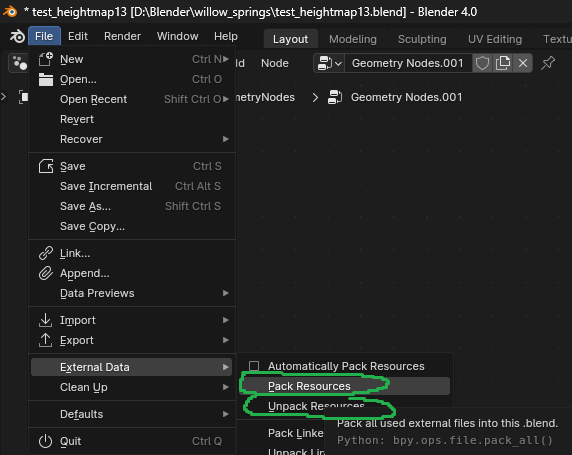
image

Now use any image handling app like IrfanView that allows batch resizing. You can now resize all of them at once and just reload the scene or restart Blender to see the effect.
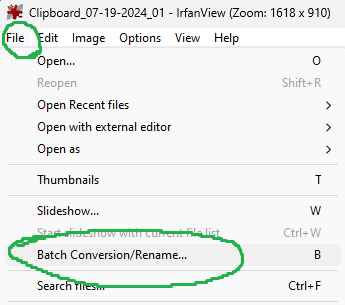
image

is there a best practices when picking textures?

I’d say render only what you see. Meaning if you’re using a close up on a wall, it can have high res texture on it (looking at it from a very extreme angle for example where you see most of the object from up close), but any other texture can have 1/4th of that resolution in the background. Very far objects can have even 512x512, just enough to display “some” color variation. This can be also masked by additional effects, smoke etc. Then you can go with even just color or gradient. It’s up to you entirely. Your scene, your rules.

Also, with batch resizing explained above, you can do this like with LODs. If you have large scene with many textures, you can take batch of textures from certain radius, resize them. Then select larger radius and resize even more. However, you need to compile all those textures again the way they won’t rewrite high res you want to keep. This takes a bit more planning and folder managing at this point. You can always load in “lost textures” with Find missing data function - this will load in textures from a folder specified by you (need to have same name and suffix).

There’s another option I learned only recently and that is baking textures together. This is even more advanced process and requires specialized addons like Zen UV and SimpleBake, so you wouldn’t pull all your hairs out while doing it the standard way in Blender.

Baking many textures together simlifies render by a lot I understood. Then you can also of course resize them as needed and this also removes the hurdle of packing/unpacking and batch resizing in external program.

If you’re willing to go an extra step and invest a few bucks that is.

And the general rule for rendering in my opinion is “fake it whereever you can”. If it’s cheap and looks good, it will render fast. Instead of creating a complex scene with volumetrics, why not just render that volumetrics once in a static scene and then use it only as an image on a flat plane while rendering fast moving animation in front of it? Barely anyone will notice. An extreme example, but I hope you get the point.

This is a few things I picked up along the way, but I rarely render anything, so there are people that could give you better advice for sure.

Edit.: Yes, and like oo_1942 said

In this case, you are most likely using too many polygons.

Again, if you can fake it, do it. If you have many modeled pipes in the background, you can render only those, then render the rest and compose the final image together in compositor.

Or render those pipes as a parallax map and use highly detailed 2D texture (128Mb) instead of thousands of pipes costing your 3Gb of VRAM instead. Just an example. You need to figure out what’s the real bottleneck, ideally by some profiler (if that’s a thing in Blender) or just take individual parts of your scene and “measure them” separately.

Have fun!

2 Likes

image

Since there are many objects and many meshes, it seems that you can consume enough memory depending on your configuration environment. :thinking:

Sometimes a particular object consumes a lot of memory, but this is not known unless you check it yourself.

I’m not even 100% sure what all those numbers mean. What is a high number, low number and average?

texture resolution is (almost) not related at all to screen resolution
Since 1k texture could be unwraped to 1m by 1m plane or 100 by 100m plane, or to sameobject but one takes 5% of screen and other takes 50%.

In 3d we measure textures on object with texel density. And thats keyword that You should read-on or watch some video tutorials on youtube.

1 Like

Cycles or Eevee?
Do you use displacement?
What file format are your texture files?
Have your tried to render without textures to figure out if textures are the actual culprit?

Cycles, don’t know what displacement is sorry, textures are PNG, and no I have not but worth a shot…good idea!

1 Like

Don’t be. If you’re a beginner you don’t know things. That’s just natural.

A displacement shader uses the values of a texture to displace the surface of a mesh. In order to do so the renderer slices the surface into smaller polygons/triangles and then uses those to create finer details (by moving them up or down according to the values in the texture).
As you can imagine all of this needs to be ran through VRAM while rendering and can fill it easily.

1 Like

Ah OK, I haven’t used those yet so I for sure am not using it in this scene but sounds cool. I’ll play around with those nodes, the ground for my scene could probably benefit from that. It has leaves and branches and such built into the texture.

In regards to texture format… I am using png myself, but I think there is a better option: EXR with DWAA compression seems to be much smaller than png and there might be other advantages like faster encoding time.
The visual quality should be the same.

gdsg

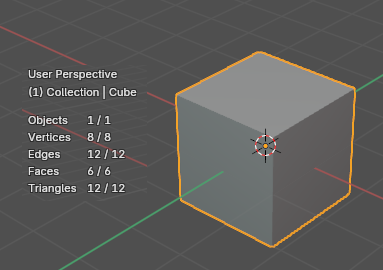
The meaning of numbers is easy to understand when you make one Cube. :slightly_smiling_face:

1 Like

:smiley: “particle” is the keyword here. :smiley: When you start having tens or hundreds of thousands of something(which is very easy with anything that has anything to do with particles) in your scene it tends to get bigger. :smiley:

I don’t get it why people get surprised… Yes, it’s very easy to run out of memory - you don’t have to do anything very special or difficult at all to do that. You can do that with anything you want - textures, geometry, modifiers, particles, hair, instances, volumes, simulations… whatever.

2 Likes

Ah, that does help thanks.

That makes sense I guess, especially if blender is treating one particle as an object. I was shocked to see someone say they’ve never seen a scene over 8GB, mine are typically 20GB of pure VRAM lol… I’m sure I’m not doing things the most efficient way and it could probably be less but that’s what it is for now. I need to learn how to keep those numbers down, I’m sure there are some best practices here but I don’t know them all yet.

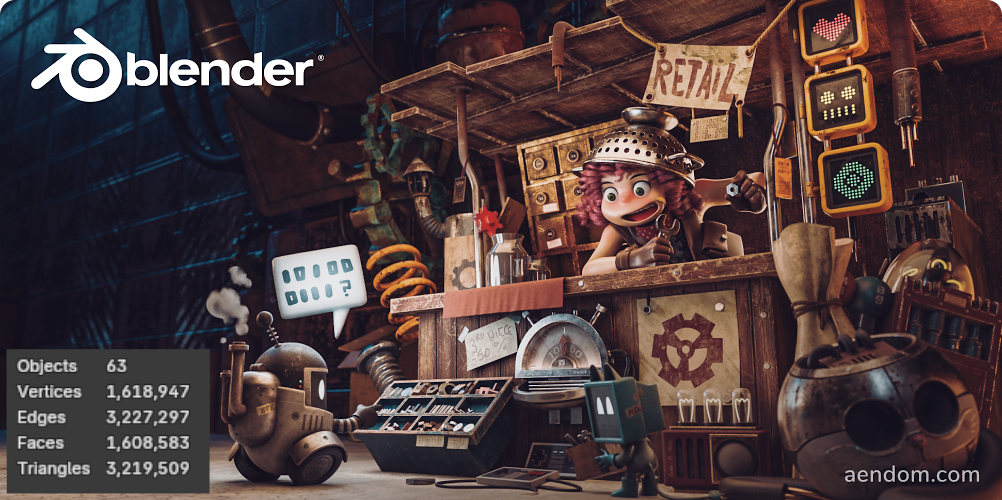
If you’re not convinced of the memory consumed by your project
You can get the blender demo file from the link below and test it.

For example, this file… :thinking:
File size 398mb
6.8gb when I opened the file in blender
13gb is spent on rendering.

I’d say that depends entirely on your system. If you can’t render the scene, numbers are high. When you render quick, numbers are low.

Everyone’s ceiling is different. Someone is limited by VRAM, someone by patience.

Cycles, don’t know what displacement is sorry, textures are PNG, and no I have not but worth a shot…good idea!

Sounds like you’re very new into all this. I mean it in a good way. I think the best would be for you to watch some Youtube tutorials for beginners, to understand some basic theory and jargon. You will definitely also find interesting functions and inspiration as well!

I know it’s tempting to just download some really cool looking scene and hit render button, but when it goes as poorly as in your case, it can paint you a pretty bad picture of how all this works. We all have been there.

1 Like