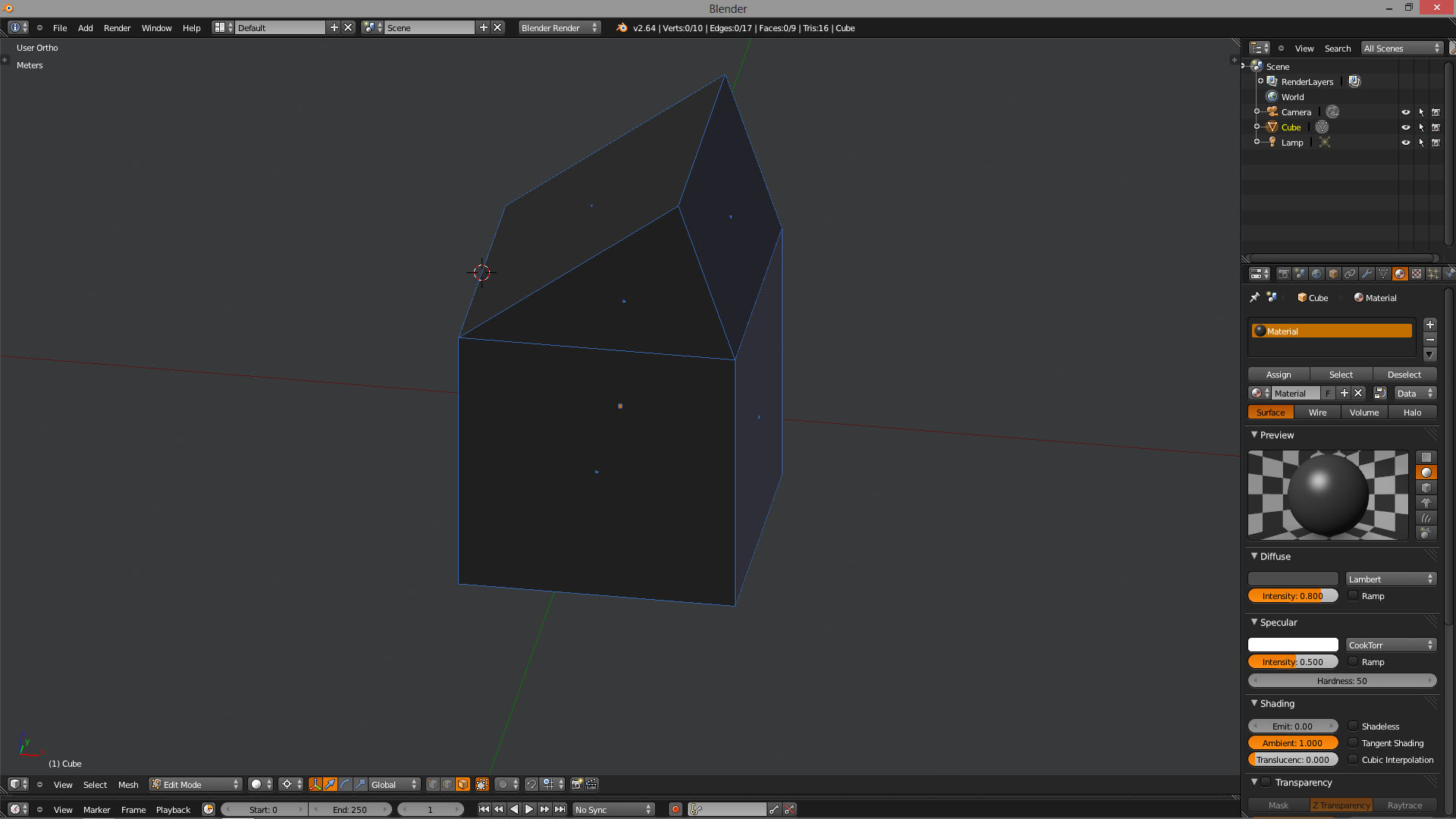
3dsMax has a face tool called Hinge from Edge. I’m wondering, does anyone know if there’s anything similar in Blender?
I know about the rip tool, and I suppose I could very carefully rip the vertices or edges until I had a face that was only still connected by one edge, which I could then rotate around. But I’m hoping there’s an easier way.
There is no identical tool of course… but there are ways of doing similar/same things, so the real question is “what are you trying to accomplish”? Are you modeling or animating or both? Is it important to replicate the same actions as shown in the video cited?
Example: You can snap the 3d cursor to the edge you want as a “hinge” select the face and separate it and then rotate around the 3d cursor… select all and remove doubles, there’s a “hinged face” - but is that what you want?
Spin tool will accomplish exactly what is shown in video. Again, if that’s what you’re trying to do. You can’t animate it like in the video tho. It is permanent once you do another task.
Cube > edit mode > select edge to be the “hinge” then Shift-S > Cursor to Selected…
Get into proper viewing angle… the spin happens relative to the view and spins around the cursor.
Click Spin (Toolshelf > Mesh Tools > Spin) or Alt-R then set parameters in Toolshelf (or F6 for floating panel)
That extrudes all the vertices so you end up with multiple vertices at the hinge so…
Mesh menu > Vertices (or Key-W or Ctrl-V) > Remove doubles
You could duplicate, rotate, select the old face and delete, select all ,remove doubles - probably takes less time then the user in the video you linked to needed to find the tool to begin with.
Or as Larry states. use the spin tool. Or extrude the face and rotate if you want it “closed” like the video.
For a pure rip without the filled spaces, here’s the method I’d use:
Select the faces I want to separate
Press Y to separate (I guess it’s really called something else)
In edge mode, select the hinge-edge
Activate Active Element-pivot (alt+.)
Activate Normal as custom orientation (alt+space-menu)
R, double-tap Y to use the hinge edge axis.
Remove doubles