How I rigged and animated color in Blender

Hey all!

Today I want to share not just my final work, but what I learned in the process. A cool rigging trick that will give extra artistic freedom to your characters! It might have happened to you: you link your rig into a scene - and all materials are sort of locked. You can adjust them only in the rig file. But what if you wanted to animate the color of your character?

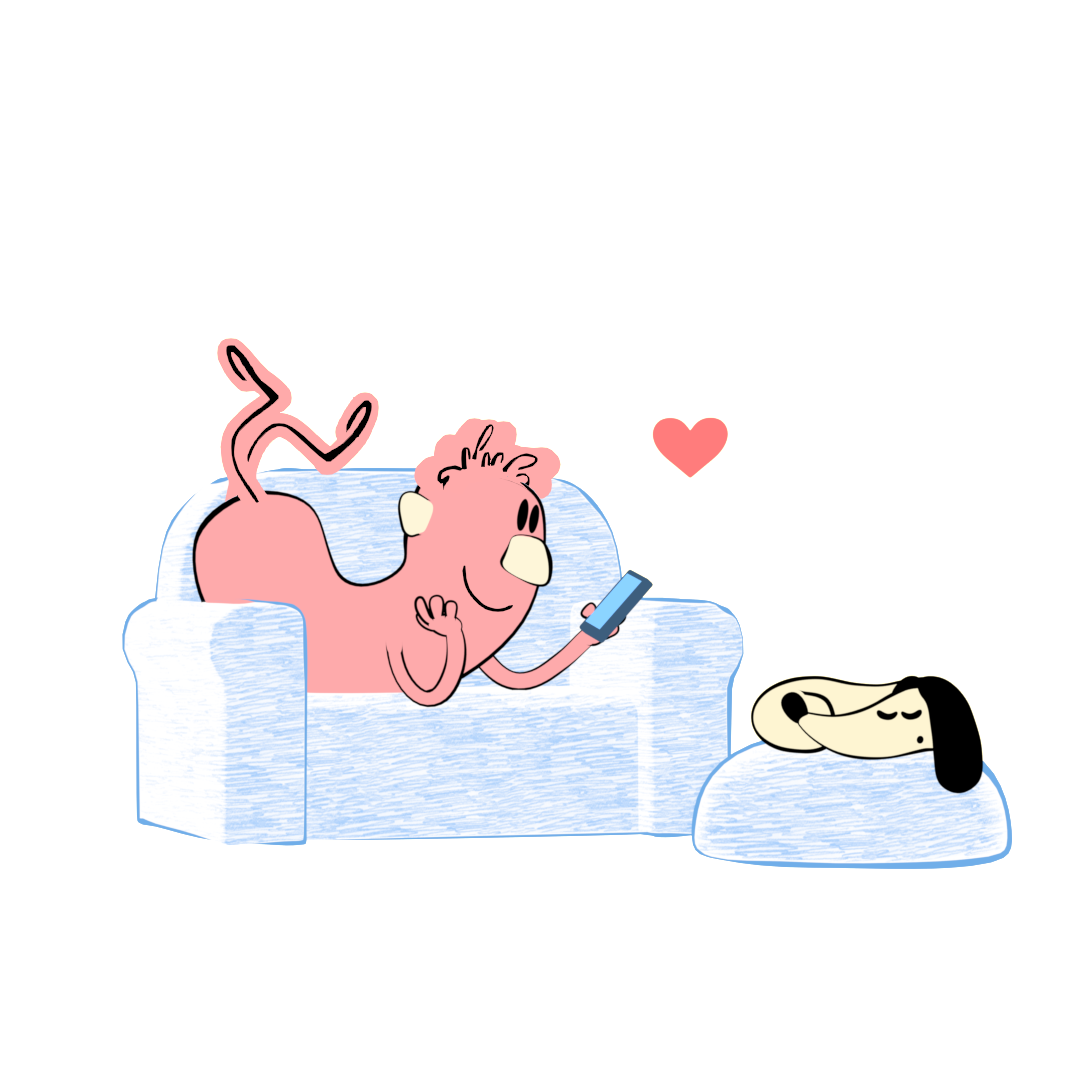
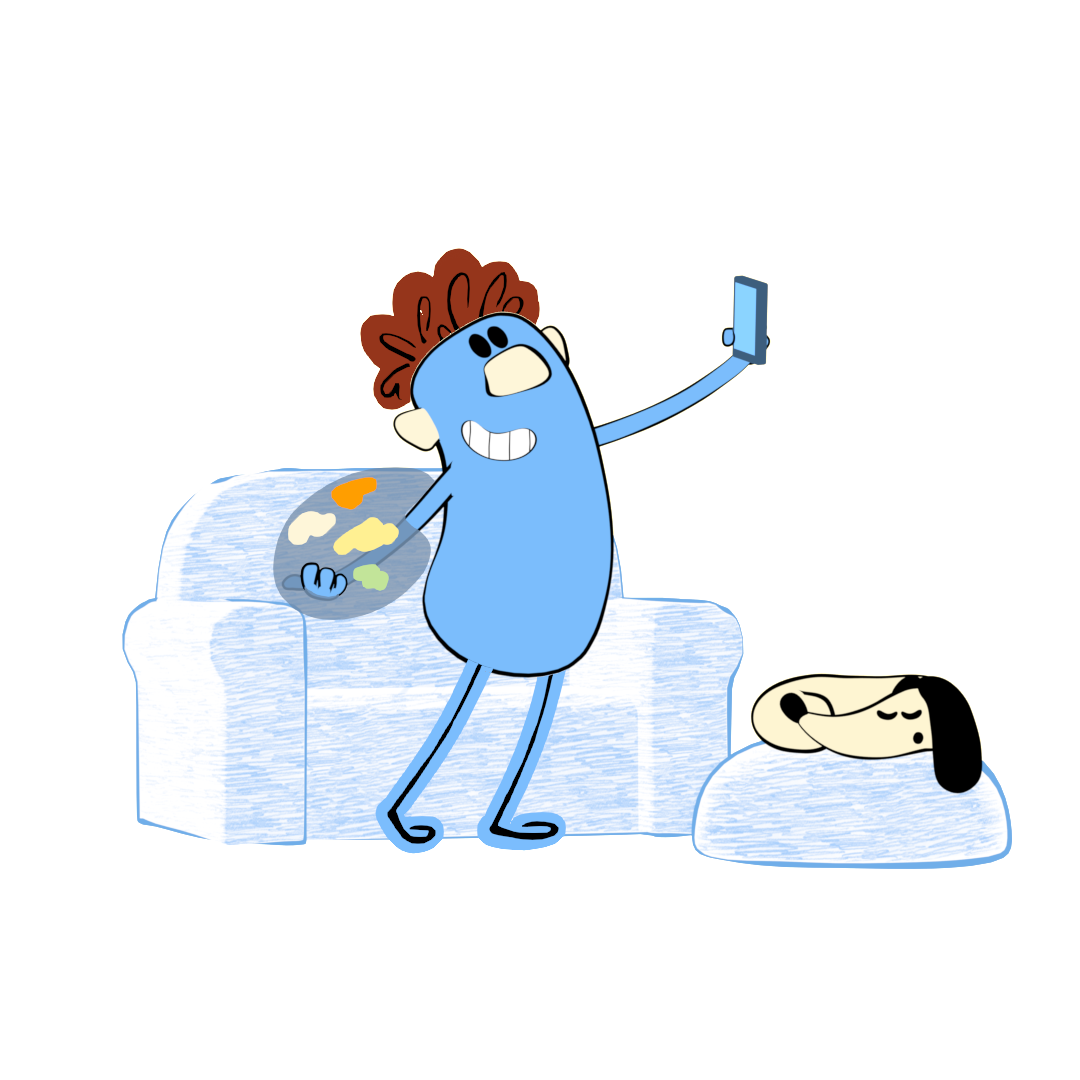
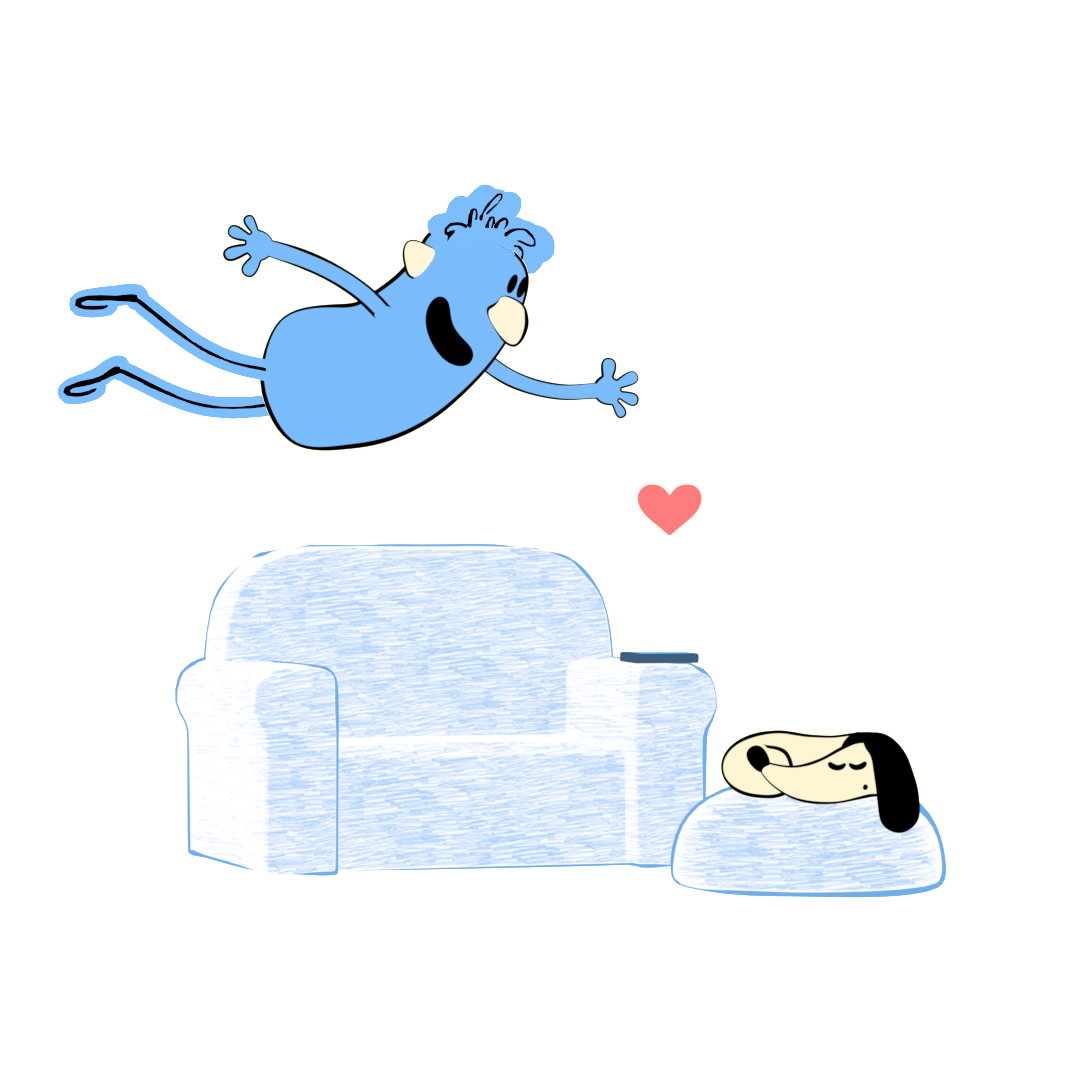
In the latest episode of my Funny Legs project I wanted to do just that: switch Bob’s body color to show the change of emotions and change his hair style. I needed to rig the color change for both mesh and Grease Pencil. Here’s how it looks in animation.

I really hope you’ll like it. And if you want to try it yourself, I recorded two tutorials (links below)! I’ve never done tutorials before, so, please, don’t judge me too hard. :sweat_smile: In case the videos are a bit fast, here are the short instructions to follow.

Mesh color change :fire:

:sparkles: Create Color Ramp in Shader Editor.

:sparkles: Connect it with default Principled BSDF or directly with Material Output.

:sparkles: In Pose Mode select the bone that will control the color change.

:sparkles: In Bone Properties create a New custom property. Click on a gear to edit. Change the Name from “prop” to “color”. Check Library Overridable.

:sparkles: Right click on property – Copy as New Driver.

:sparkles: In Shader Editor right click on Fac of Color Ramp – Paste Driver.

:sparkles: In Pose Mode select the properties bone. Press N to see the menu on the right.

:sparkles: Drag the Color property for a smooth color transition. Drag with CTRL to jump from one color to another.
… … …

Grease Pencil color change :fire:
:sparkles: Create different materials for GP object.

:sparkles: GP object has a key. Copy-paste it multiple times. Select vertices in Edit Mode,
and assign new material for every key.

:sparkles: In Modifier Properties add Time Offset. Choose Fixed Frame mode. Now Time Offset controls what keyframe (what color) of GP we see.

:sparkles: In Pose Mode select the bone that will control the color change.

:sparkles: In Bone Properties create a New custom property. Click on a gear on the right to edit.

:sparkles: Choose Integer Type. Change the Name from “prop” to “GP_switch”. Adjust Min and Max according to the number of your GP keys. Check Library Overridable.

:sparkles: Right click on property – Copy as New Driver.

:sparkles: Right click on Frame of Time Offset – Paste Driver.

:sparkles: In Pose Mode select the properties bone. Press N to see the menu on the right. Drag GP_switch property to jump from one color to another.

If you read this far, I hope you enjoyed it and learned smth new! Have fun :open_hands:

47 Likes

great work

1 Like

Thank you! :smiley:

1 Like

Nice little tricks ! And the project is pretty cool too !
Keep up the good work !

2 Likes

Thank you! You are very kind :blush:

1 Like

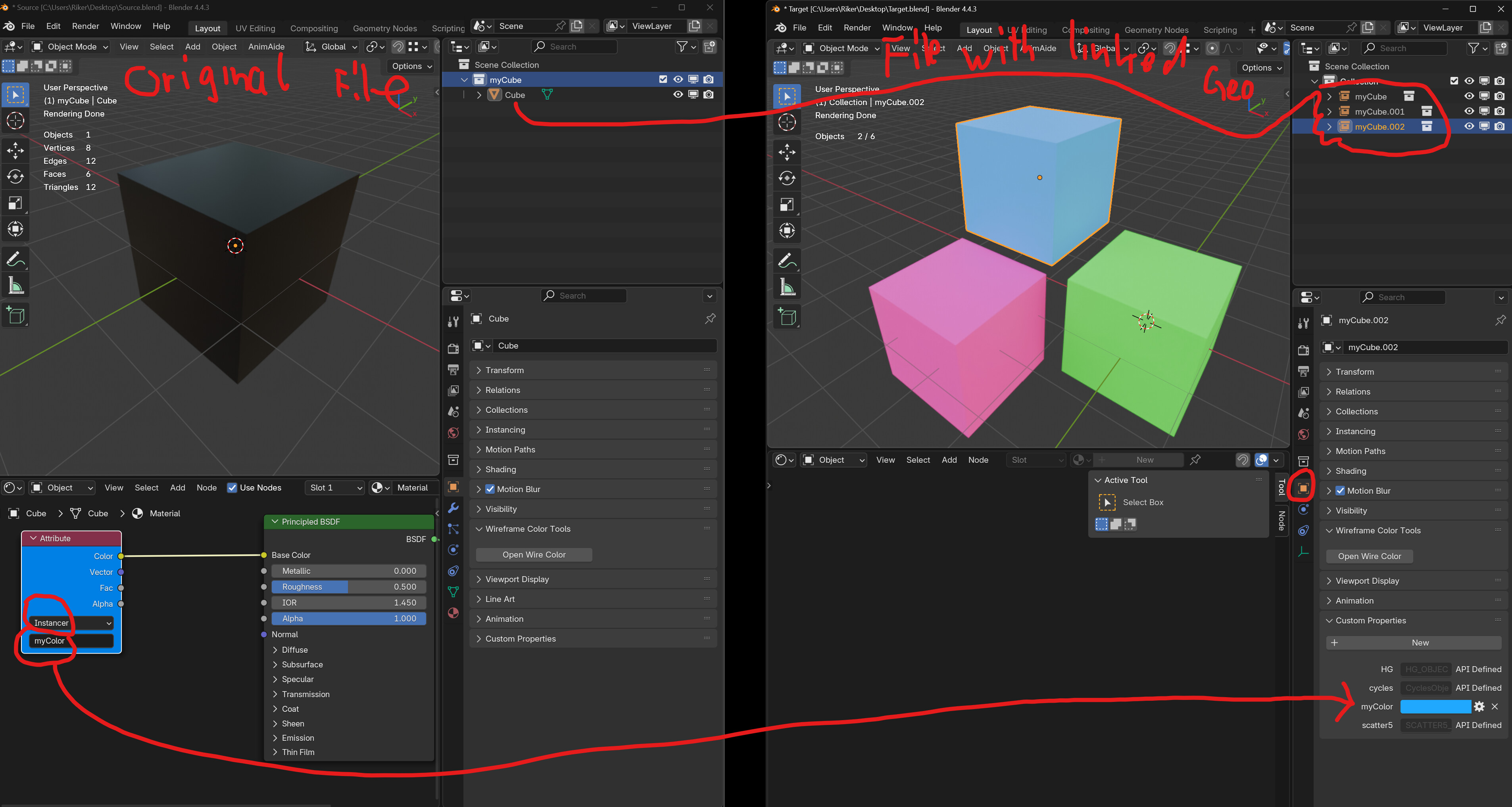
You can also use a color as a custom property directly without the color ramp.

On the left you see the file with the original cube. On the right you see the collection “my cube” linked into a new file.

The material gets an attribute set to “instancer” in the original file.

In the linked file you give the object a custom property with the same name as the attribute in the original material.

2 Likes

Wow! That’s a nice approach, thanks! So, I link the color to the rig, but you make the change possible directly in mesh properties. Cool! :fire:

In the object properties. Instances have no mesh data.

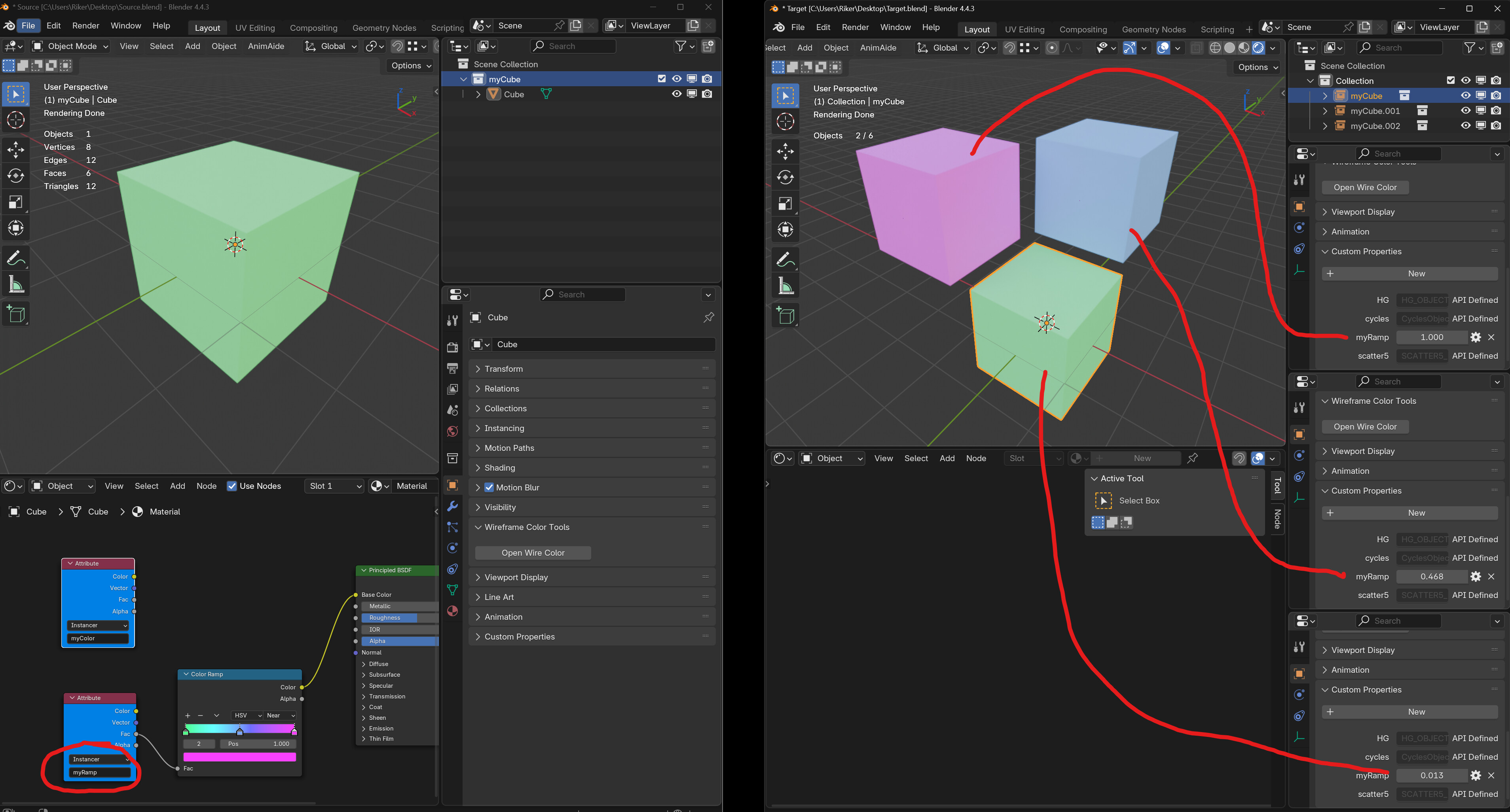
The ramp you are using gives you a nice possiblity to control the color transition. But using a ramp works with this solution as well. It is simpler to set up and doesn’t require overrides or drivers.

That said, your animation is really cool. :smiley:

2 Likes

Nice! Thank you for explaining and showing this, really appreciate it! Always nice to have more than one option)
And thank you, I am happy you like the animation. :smiling_face_with_three_hearts:

1 Like

Great tutorial!

2 Likes

Hey, nice animation! I really like the style!

Also wanted to say I use the same method for controlling things on a linked rig that you normally can’t access. I have a light on the head of a character, when the character is linked in, I can’t access the brightness of the light. I put a driver on the light and connected it to a custom property on the head bone. Now I control brightness with a slider on the head bone.

Randy

2 Likes

Thank you very much! :smiling_face_with_three_hearts:

1 Like

Thank you! Oh, rigging light is a cool idea! Drivers in Blender are truly magical :magic_wand:

I featured you on BlenderNation, have a great weekend!

1 Like

Thank you! :heart_eyes:

You’re on the featured row! :+1:

1 Like

Thank you! :partying_face:

1 Like

Hey, I really like this! Great work!
It reminded me of some cartoons on the old Captain Kangaroo show. There was this character call Fred that was animated in real time. It was a puppet actually, performed off camera by a puppeteer and was chroma keyed onto a screen. Here’s an example:

There was also a cartoon called Tom Terrific but it was a traditional animated series, but the style is somewhat similar:

2 Likes

Hi! Thank you for the kind words and for the links: these projects look great! Mid-century animation was so inventive. Since we are sharing cool stuff here, you might enjoy this: it’s a pdf of an artbook (it’s free!) Cartoon Modern: Style and Design in Fifties Animation

1 Like

Thanks! That’s great. Also, thanks for your videos. Nice work!

1 Like