So I posted a video on YouTube and somehow during the encoding/conversion process something went horribly wrong -
I created that, and entered it, for a contest. Only now, 3 days later, when I’m getting ready to post the video here, do I realize how badly it was converted by YouTube. Makes me sick
I’ve noticed other videos I’ve posted aren’t as crisp or detailed as the originals, but never nothing as bad as this one. This looks like some 1980’s analog TV - adjust the rabbit ears for better picture stuff.
1920x1080, h.264 codec giving me an .mp4 file that looks great when played on my computer.
Any ideas of what might have gone wrong here? Other than my not reviewing my video and replacing it…
Yes, it is a noisy image. Cycles render at low samples for a grainy look of films from the 1930’s. The rendered motion blur probably adds to the problems as well.
What’s the work around for a video like this? Render at a higher resolution?
Not much you can do with that source material, I think. YouTube generally allocates a limited bitrate, and high-frequency noise is a hungry boy, so overall image quality suffers.
Your best bet is probably to reduce the noise in the original render. You could also try post-processing denoising software to avoid having to re-render everything.
There are 3 things really messing up the compression of your video. 2 of those things is tiny detail/noise and lack of detail which negatively affects virtually any video compression (including YouTube’s). Video compression is optimized for real world video with a wide range of detail, specifically mid-range detail. If there’s a lot of simplicity then video compression often over-compresses the content. Same if there’s a lot of noise.
As an example, here’s the frame you shared with 50% AVIF compression compared to a real video with 50% AVIF compression.
You can see plenty of compression issues on both, but the real video looks far better because the compressor preserved a lot of the mid-range detail.
YouTube specifically is notoriously bad with tiny detail/noise.
The 3rd thing is that your video lacks artificial sharpness. A lot of people will tell you that artificial sharpness is bad, but it is essential for good compatibility with compression. Compare your original video frame to the same frame but with some slight artificial sharpness (both at 50% AVIF compression).
Another thing; the bitrate of your video can drastically affect how much YouTube compresses the video. YouTube will actually compress your video more if your original bitrate is really high/good quality.
There’s a really good video by Gerald Undone about this: https://youtu.be/DI1BjkmVhTg
So summary is:
Avoid noise when possible, especially extreme noise
Have as much mid-range detail as possible
Always have some artificial sharpness
Use a good bitrate, not too high, not too low
Also, virtually all of these issues become less prominent the larger your video (4K is preferred most of the time), but they won’t ever go away.
Maybe because the image is noisy the “video compression algorithm” ( i do not want to use those specific two letters but i’m afraid they do use it) did somehow “decided” to make this so.. ?
@Polywock & @Okidoki - yes indeed, I’m now seeing that the noise is part of the problem.
@BlenderTimer - what do you mean by ‘mid-range detail’? By artificial sharpness do you mean AI enhancement? If so, I’m inclined to stay away from that. Thanks for the video link, it helped explain a few things too. And what is a good bitrate to be at?
I think I will try to re-render without noise @ 4K and see how that works. I did try one single test render @ 4K and it appeared to be too much for my low spec computer, but I’ll try it again.
No not AI enhancement. Just generic sharpness like we’ve had for decades. There are different types but any of them will make the video less prone to over-compression. For YouTube, you generally want the video just barely over-sharpened, then once it goes through all the YouTube compression it looks softer and more correct.
Small detail would be like the noise in your video, mid-range would be the like the “teeth” on the helmet, and large-scale detail would be like the outline of the helmet. So, for example, the wall behind your character is completely white which makes it extremely compressed, so compressed that it over-steps its bounds a bit onto your character.
You could also try increasing contrast, that will improve compression.
Optimal bitrate can slightly depend on the scene, so it’s best to experiment a little if you’re having compression issues. I’ve found Davinci Resolve’s “Medium” and “Low” quality presets to work pretty well (~8MB/s). Gerald Undone said ~45MB/s worked pretty well. So I’d guess that for this scene maybe 10-20MB/s. And, of course, make sure to use a variable bitrate to preserve more detail where it’s needed without wasting data.
When I looked up ‘artificial sharpness’, AI had to shove itself in my face, and that’s all I found was AI image enhancement. Does Davinci Resolve have that feature? I’ve never used Resolve before, thought it was overkill for my simple needs.
@BlenderTimer thanks for providing a wealth of information on this subject!
I’m going to delete that video because the quality is so bad, but I will replace the video in the first post with one I just downloaded from YouTube. The video I uploaded to YT was 7MB, the one I downloaded was 2.9MB. That’s a lot of compression…
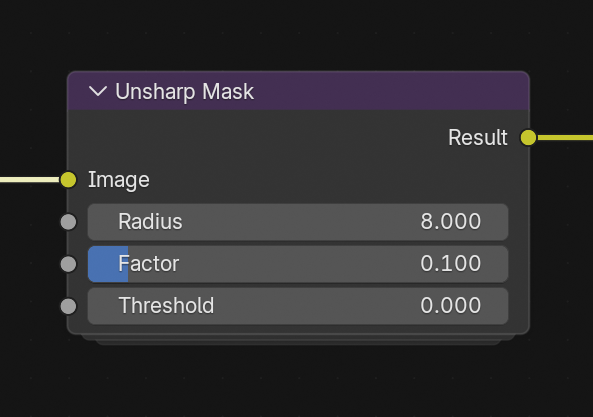
Yep! I think pretty much every video and photo editing software has it. Blender also some sharpening options, though box sharpen and diamond sharpen are really bad for most cases IMO. I’d recommend the Unsharp Mask for Blender.
Basic sharpening can be done in Davinci Resolve in the color tab, on the Blur section. Select a node, adjust the radius sliders, either by dragging or with mouse scroll. You can also click and drag the numbers bellow the sliders, and hold shift for finer increments.
Blur and sharpening are opposite in this mode.0.5 is the baseline (no blur or sharpening), less than 0.5 gets you sharpening. More than 0.5 gets you blurring. Be careful to not overdo it.
It’s awesome man! Last year I took my family on a northwest coast trip and on our way back we stopped by here. We all agreed it was one of our favorite places the whole trip. So beautiful!
I am a proud native Oregonian. We have a little bit of everything, snow capped mountains, the high desert, temperate rainforest, 363 miles of coast all open to the public. Thanks for visiting!
Which is totally botched, look at the artifacts around the helmet! Turns out the quality setting for the video is 240p!
Switching to 1080p, what the video was rendered at, made a huge difference! It looked like every other video I’ve uploaded - some loss of detail due to compression, but overall not bad. At least not as bad as the above screenshot.
Can someone, anyone, watch the video and tell me what the Video Quality Setting is set to? 240p, 1080p, or something else.
In fact, viewing my other videos, I see they are set to 360p despite I upload everything in 1080p. So I’m not sure what is going on here, why the videos are at a low resolution for me viewing them.
YouTube automatically detects the optimal quality setting based on the viewers network speed (and possibly the size of the viewing area). For me this is almost always 720p. But before commenting on this thread I had already checked your video at the full 1080p resolution to confirm there were still bad compression issues.
Every video I watch on YT is set to “Auto - 720p” except for my videos. Most of my videos are set to 360p when I view them. Not “Auto - 360p”, just 360p. Not sure what is going on here, why YouTube is down scaling my videos when I watch them…
Is YouTube doing 360p on the actual YouTube page or in the embed on your post? For me if I play the embed it gives me 480p but on the YouTube page itself it gives higher resolution (it actually gave me 1080p this time). I think YouTube gives lower resolution on the embed because it’s a smaller viewing area.
YouTube gives it to me in 240p everywhere. Viewing it here - 240p, on YouTube site - 240p, even with web browser in private mode (so YT doesn’t recognize me) it’s still 240p.
Clearly this is a YouTube problem and there doesn’t seem to be much I can do about it. I’ll just have to keep it in mind when uploading videos, check the quality settings when watching playbacks.







 Just generic sharpness like we’ve had for decades. There are different types but any of them will make the video less prone to over-compression. For YouTube, you generally want the video just barely over-sharpened, then once it goes through all the YouTube compression it looks softer and more correct.
 Does Davinci Resolve have that feature? I’ve never used Resolve before, thought it was overkill for my simple needs.