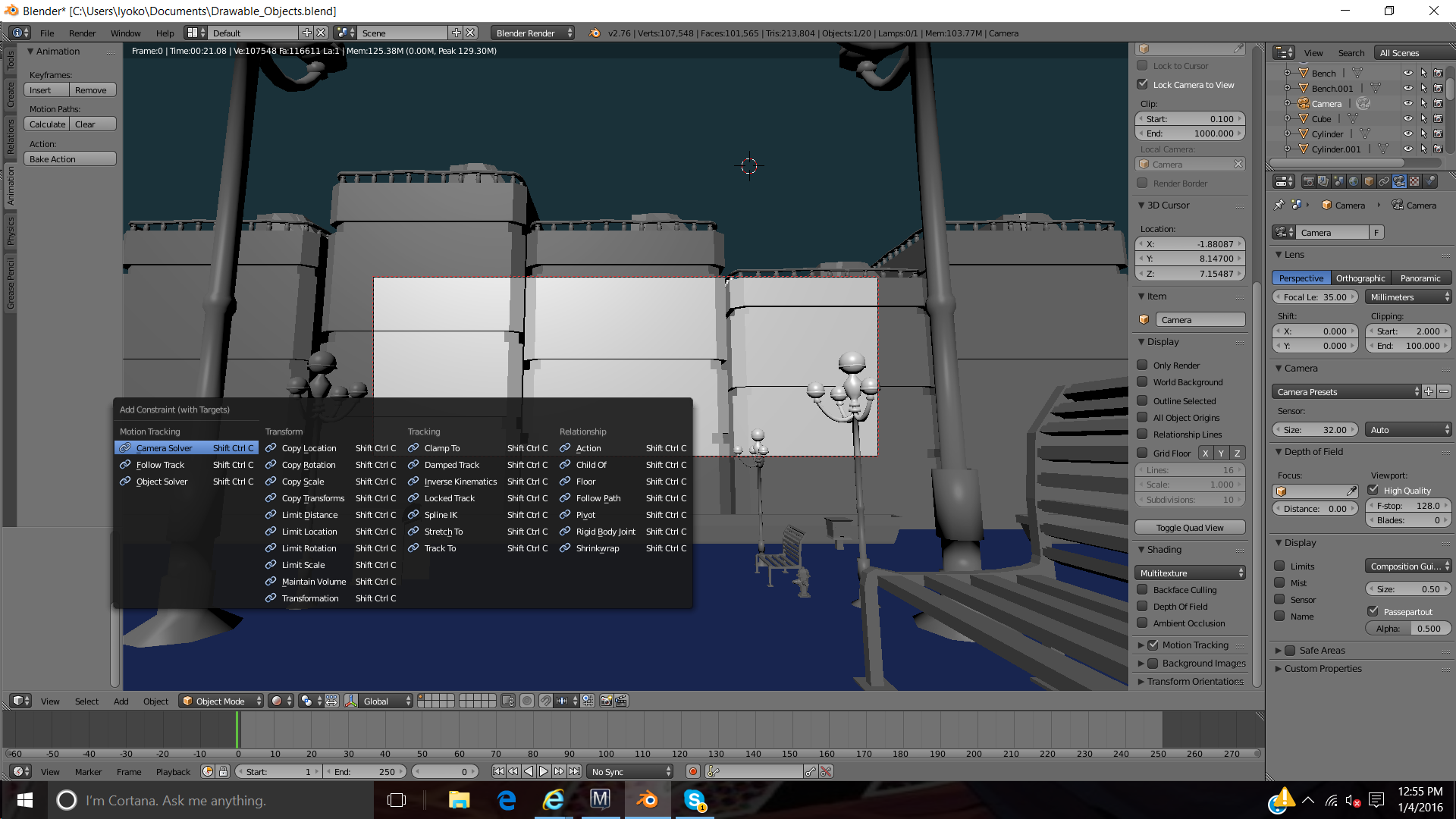
The stitched box lines is what I want to scale out some more. Does any1 know the name of this box?
:eyebrowlift2: Is it The render Viewport?
I basically want it to scale out to my actual veiwports scale, y’know like the full view. That way if I see anything that I like in the sceneray I can quickly render it in the same view position. I really don’t like to have to re adjust my camera to a perfect position till it fits again, and some times it can never be perfect.
Whoa srry about the late reply. didn’t think you guys would reply so quickly. Which is awesome. But.
Hmm… Well I tried method 1 but that didn’t seem to d anything
I tried method 2 but that only allows me to pan the render box view. I tried scrolling after pressing shift but it doesn’t do anything.
I have my camera set to “Allign Active Camera to view” And I’m editing all of this in 3D view, With the display method set to render. Could that be the problem? What I ultimately want to do is Take a photo of this scenery and export the image to my drawing software so I can use it as a reference.
If these methods aren’t working properly then maybe I’m doing this the wrong way? Is there a Render view method I have to be in? just as I do with entering 3D View?
I’m srry if that’s still a little unclear. But if you can give me so pointers I will definitely give more detail.
The name of this box is passepartout. It just appears when you are in camera mode.
Pressing the home key (pos1 at german keyboard), fits this passepartout into the viewport. This has no menu entry from what i know. It’s one of those many hotkey only tools that the user has to guess or to find in the Input manager. Its name there is View Camera Center.
When you turn off the “Lock camera to view” in the properties tab, then you can zoom in and out this passepartout with ctrl + middle mouse button. Turn on “Lock camera to view” when you are done, and you can continue as before.
Not sure if this applies, but both a Camera and the 3D viewport have a “ClipStart” and “ClipEnd” parameter, which determine the range of distances (from the “camera lens”) that they will consider and render. Anything closer than ClipStart, or farther away than ClipEnd, “does not exist” as far as the camera is concerned.