
Try typing A, X, L, then setting the max angle low enough that it doesn’t dissolve important geometry. If that doesn’t work, try hand selecting them with C instead of A.
You will not be able to completely get rid of those edges without causing problems calculating the ngon.
One face can not connect to itself in a circular fashion, you will always need 2 faces to close the circle.
In this example the extra face could be anywhere around the circle and also any size, but it needs to be there.

In these examples you can not get rid of the edges I have marked red without the ngons having problems.
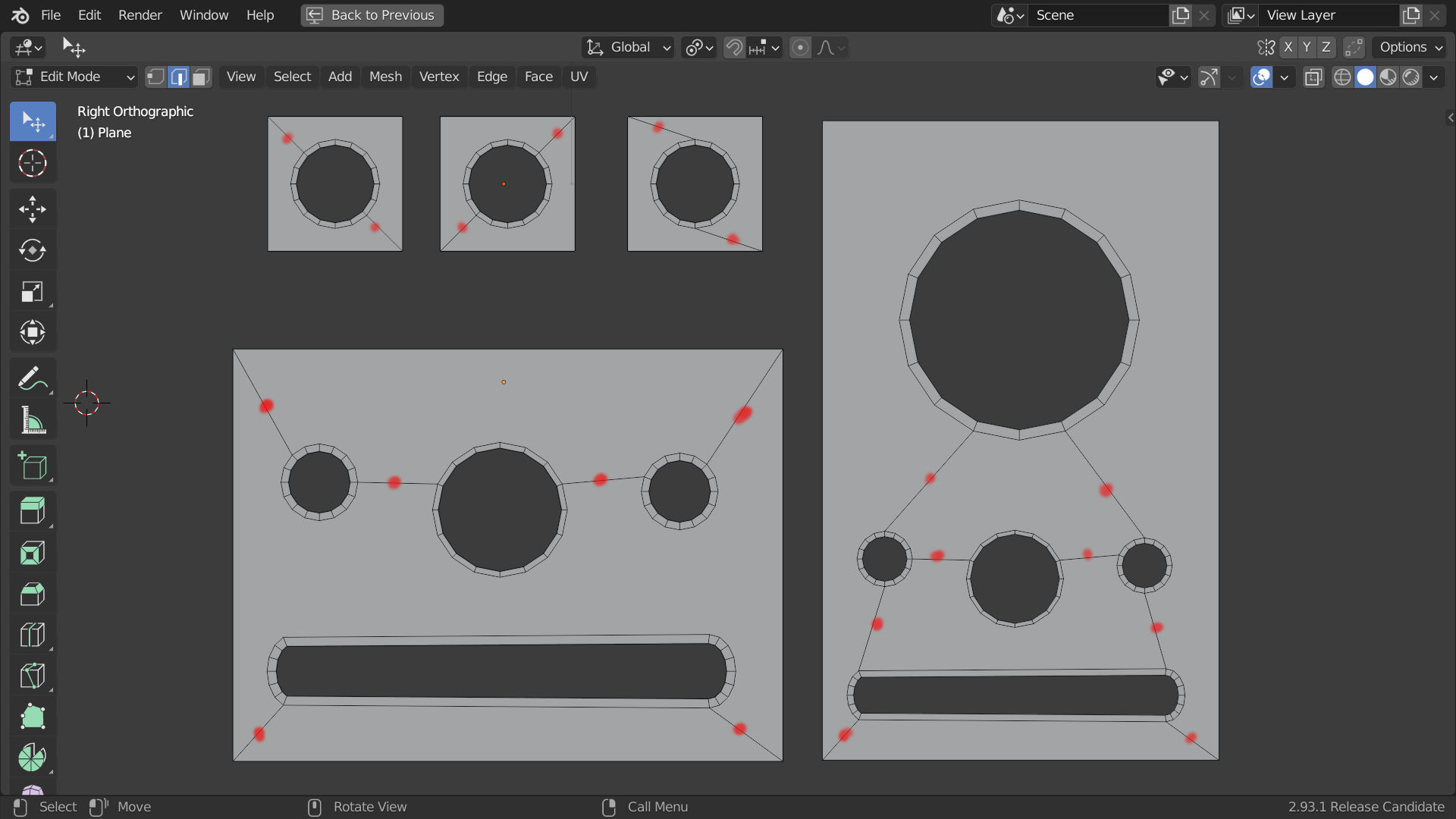
If you try to dissolve them normally (press X then “dissolve edges”) Blender will refuse and not do anything. A,X,L will not work in this case. If you delete one of them and try to manually make a new ngon without it you will get all sorts of weird results.
To rearrange where the extra edges are you can use the J key (join) to join the vertices where you want the edge to be. This will create a new edge. If you have chosen the location of the new edge correctly you can now dissolve the old edge. Bare in mind that you always need a face to close the ngon onto itself.
I hope that all makes sense!
Edit
if you dissolve one of the edges that ends on the outside corner of the mesh, the corner will disappear and you will have more problems! If you want to move one of those edges you have to first make a new edge (with J) that ends up in that corner then you can dissolve the old one.