So here’s the situation. I work with DAZ in my comic making process. DAZ is great for posing models with clothing and hair- but not so great when it comes time to render and it’s certainly has nothing in the way of Blender’s textures, which often lose quality when baked. (Not to mention blender’s partical effects.)
So I had a wonderful idea for a solution. What if I posed a model in DAZ, then exported it to Blender for a render, then just repeat that process for each pose in my comic. One problem, OBJ doesn’t export textures and setting up each texture on my imports one at a time would be a HUGE chore.
Solution:
Say I import one obj model and set up all its textures. Then I import another obj model with the same name and material names, (the same model in a new pose from DAZ) would there be a way to automatically have the materials from the first OBJ transfer to the new one? Seems like a script for this could be written rather easily if someone is into that- anyone willing to help?
You need to set it up in Daz to write the Material Library…
What that does is when you export the file as an OBJ, it will write a MTL file which is just a text file that the OBJ reads to apply all the textures…
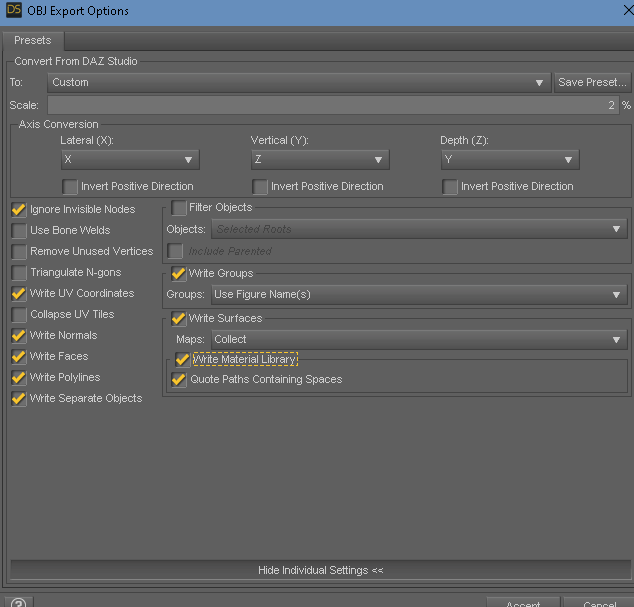
Under Write Surfaces>write Material Library…
This copies the maps to a Folder that you create …
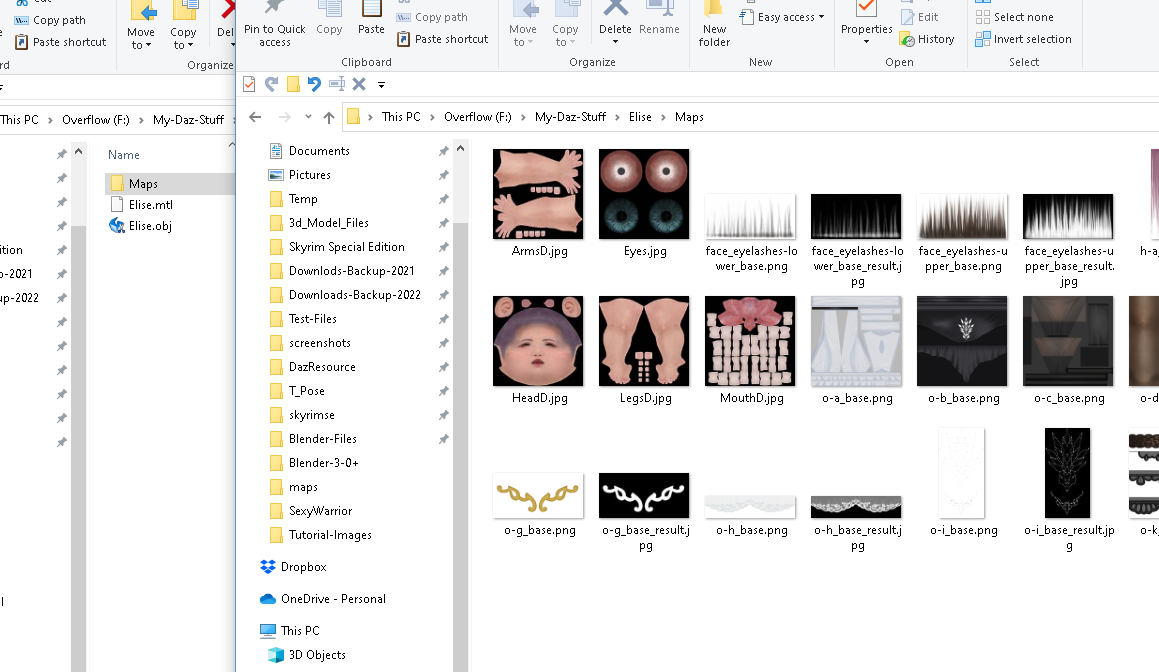
Then as you save each pose for the comic the Character will have the MTL file and they all will use the maps that have already been saved…
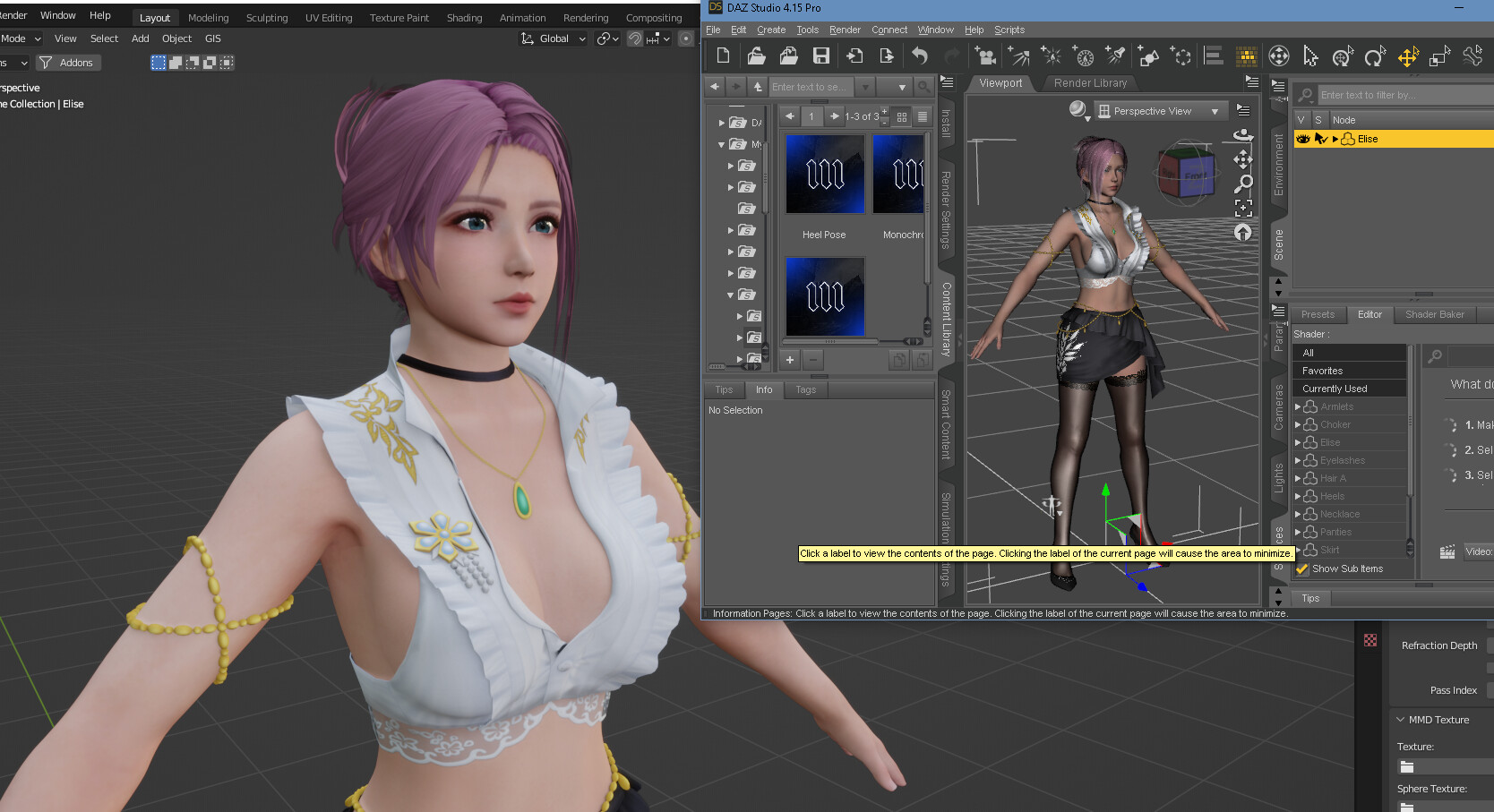
Just make sure to set the proper rotation out of Daz for the axis…and once imported it may look really black and narley, just select the character and disable Object Properties > Normals >Auto Smooth
Hmm- thanks for the tip. Close- though I will ask how you got the eyes to work, mine are just white and reducing the alpha on the eye moisture reveals the irises, but then there are no colors on the iris and pupils.
Anyway, OBJ is an old format so it won’t transmit things like normals. What I’m asking for is a lot like in photoshop when you record an action I suppose.
But thanks for the tip, it is useful.
If you use the Diffeomorphic add-on and simplified,non PBR Textures you can get results like this ,for comic style renders of Daz characters in Blender.
Using the OBJ format has it limitations, like it won’t export the Rigging…Far better to use FBX and there is a section on the exporter for collecting textures to a file…
The eyes have several different parts as you have seen…I tend to use my own setup instead of the default, and I don’t use a glass shader like others will use ( I work almost exclusively in EeVee, unless I need displacement or Bevel node…)
This is my set-up for the eye cornea and moisture…which will revel the irises…and add in the specular reflections…
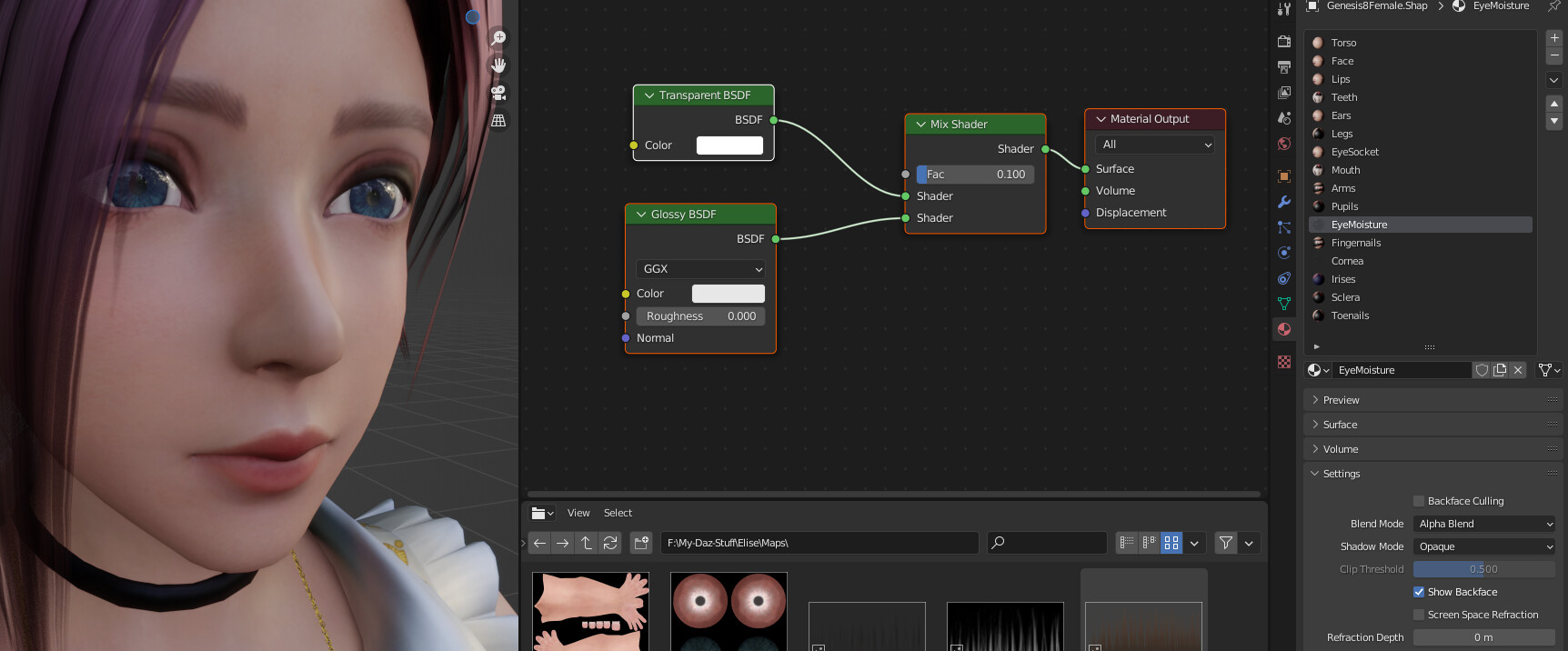
If you go the route with the Diffeomorphic add-on, then you can, with a bit of fiddling, just import the poses from an FBX file and apply them to a single exported character and you can also bake the textures into the FBX, using the export dialogue ( not to mention all the facial and body morphs you want!) But you should go over and read the section on the addon on BA
Diffeo is a great add on, I have it actually. Trouble is, Blender doesn’t like conforming clothing, so this is just a workaround. Pose in DAZ, render in Blender, work with both on their strengths, that’s the idea. This would all be fixed if only I could find a way to make DAZ models static meshes after morphing and posing because then diff would take them straight into blender, in exactly the way I’m thinking.
That was for the guy above you… reading yours now…
So, yes, there was a way to do exactly what I wanted- and it was depreciated. Dang. So- ideas now?
So… hours of researching and asking and I’m close to a break through on the necessary workflow.
In DAZ- edit>figure>rigging>convert figure to prop
Good- now, that has to be done one for every item and DAZ will NOT allow me to make a shortcut- whatever. So then, now I need diffeo to only export a selected mesh.
Click on the Reply at the bottom of the comment you are talking to not at the bottom of the page…so we see a notification and can figure out WHO you are talking to, Please!
Got ya. New here.
So- found a solution for everyone who is interested- and there may be more interested parties than at first glance because I suspect this is also a solution if to you want to port DAZ animations into blender as well.
First download and install Diffeomorphic to both blender and studio.
Next- get the latest Sagan Ambelic Exporter plugin from here https://www.daz3d.com/forums/discussion/428856/sagan-a-daz-to-blender-alembic-exporter/p1
(install instructions on page 5 of the thread if you need them, look for the conversation with francescogenovesi78)
Now, take your scene and save it into a project folder on your computer.
Next export it using diffeo to the same project folder.
Next, in DAZ go to edit>Sagan alembic exporter and export the scene through it, once again to the same project folder.
In blender import the diffeo scene,
You can now delete or hide the geometry in blender for the diffeo scene, it doesn’t matter so long as you keep the materials from it
now import alembic in blender from the folder in your project folder that you’ll notice that is named after your daz file.
Poof- your daz scene will now be in blender with all props and figures as static meshes, with full textures and materials applied.
You can repose your figures in daz, export them again, and import alembic again (from the new folder designated with a number that appears in your project folder)- once again they will come in as static figures, but now in the new poses and any new morphs.
If you want to only import one of a set of figures, or only a single figure in a scene, in DAZ, simply hide the meshes and figures you don’t want exported and the sagan exporter will ignore them for that export.
(I can help if you don’t follow this explanation, however I didn’t make the program and don’t know much about alembic so I won’t be able to help much with troubleshooting.)
(Do not concern yourself if diffeo doesn’t import some meshes properly, alembic, from my short experience, will import those meshes into blender anyway, once again, with full textures and materials.)
(I believe there is a way, using this, to export/import animations, but I’m not interested in that- if you are- this may be the resource for you.)
(Keep in mind, every time you insert a new material into your scene you will have to import the diffeo into your blender scene once again.)