I’m having a problem…
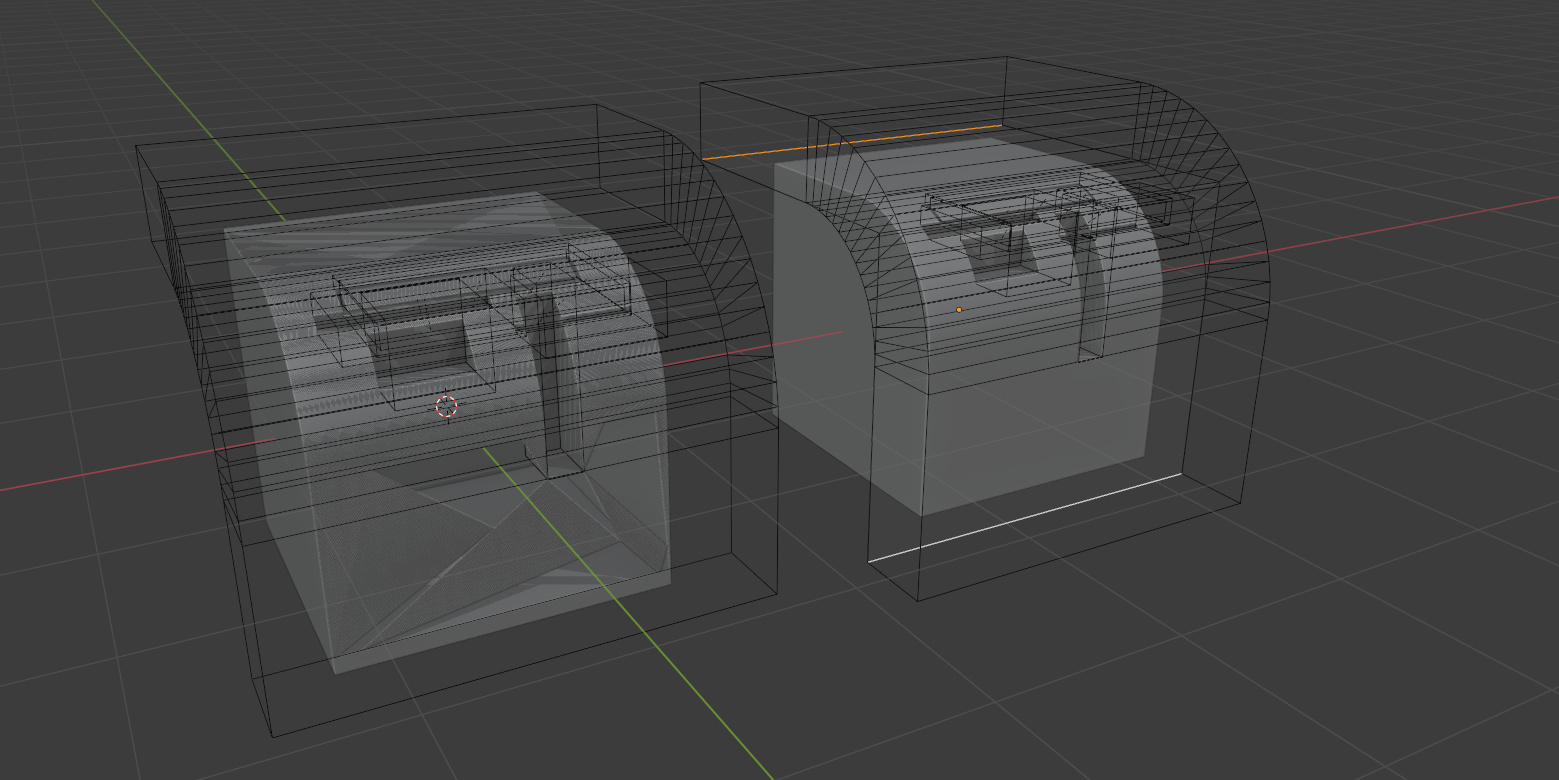
The simplified scene (all non participating objects removed) has 2 bulkheads and 1 keel - looks like this:
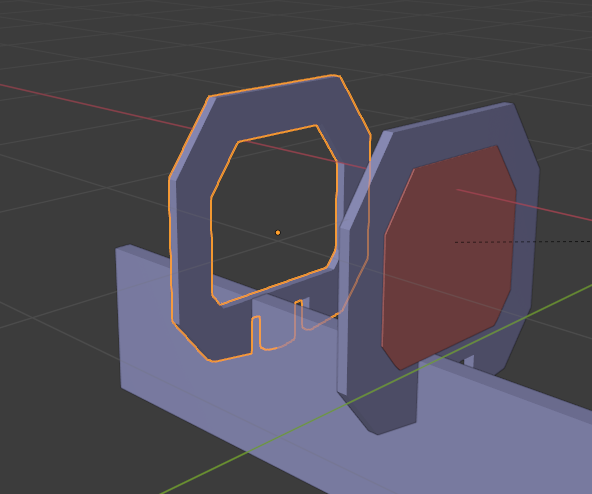
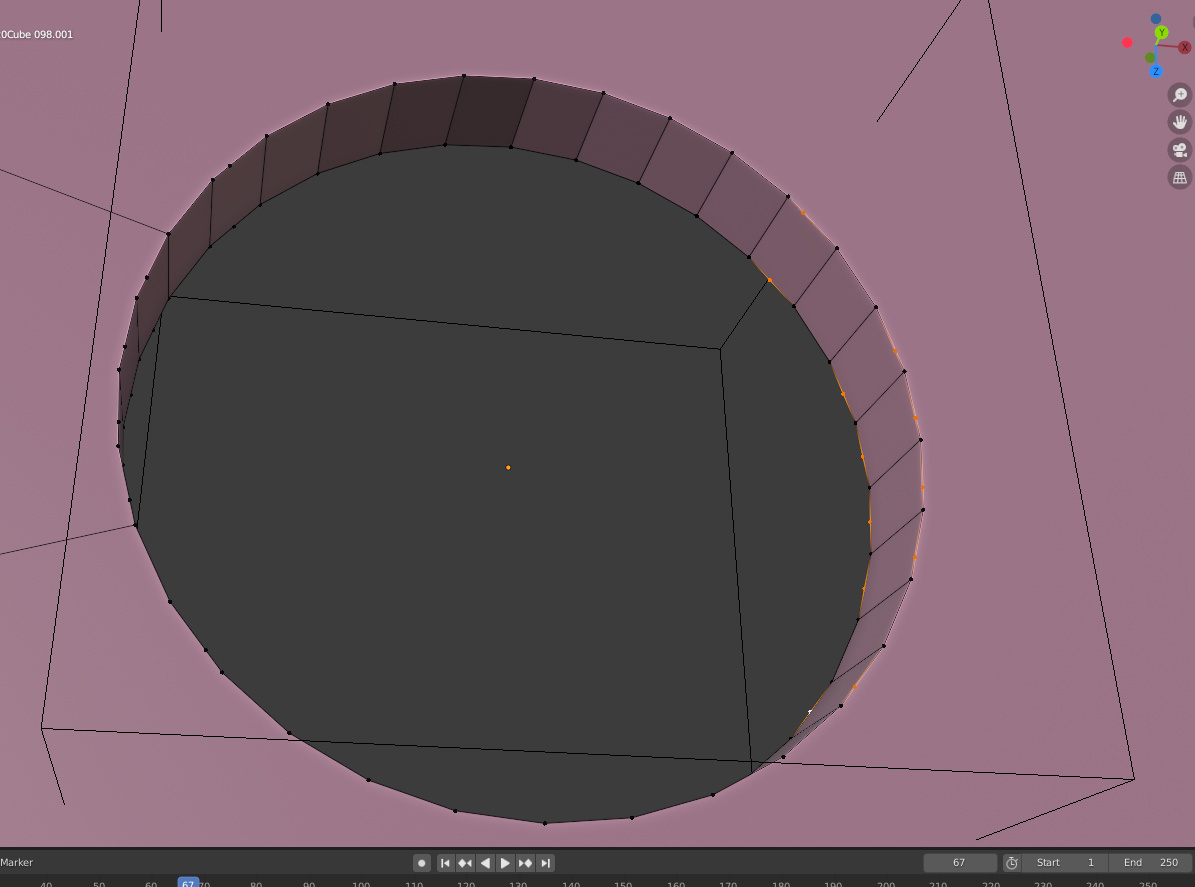
The problem is this incorrect face bridging over the slot. The left slot is correct the right slot (highlighted in red) has a top on it for some reason (keel object):
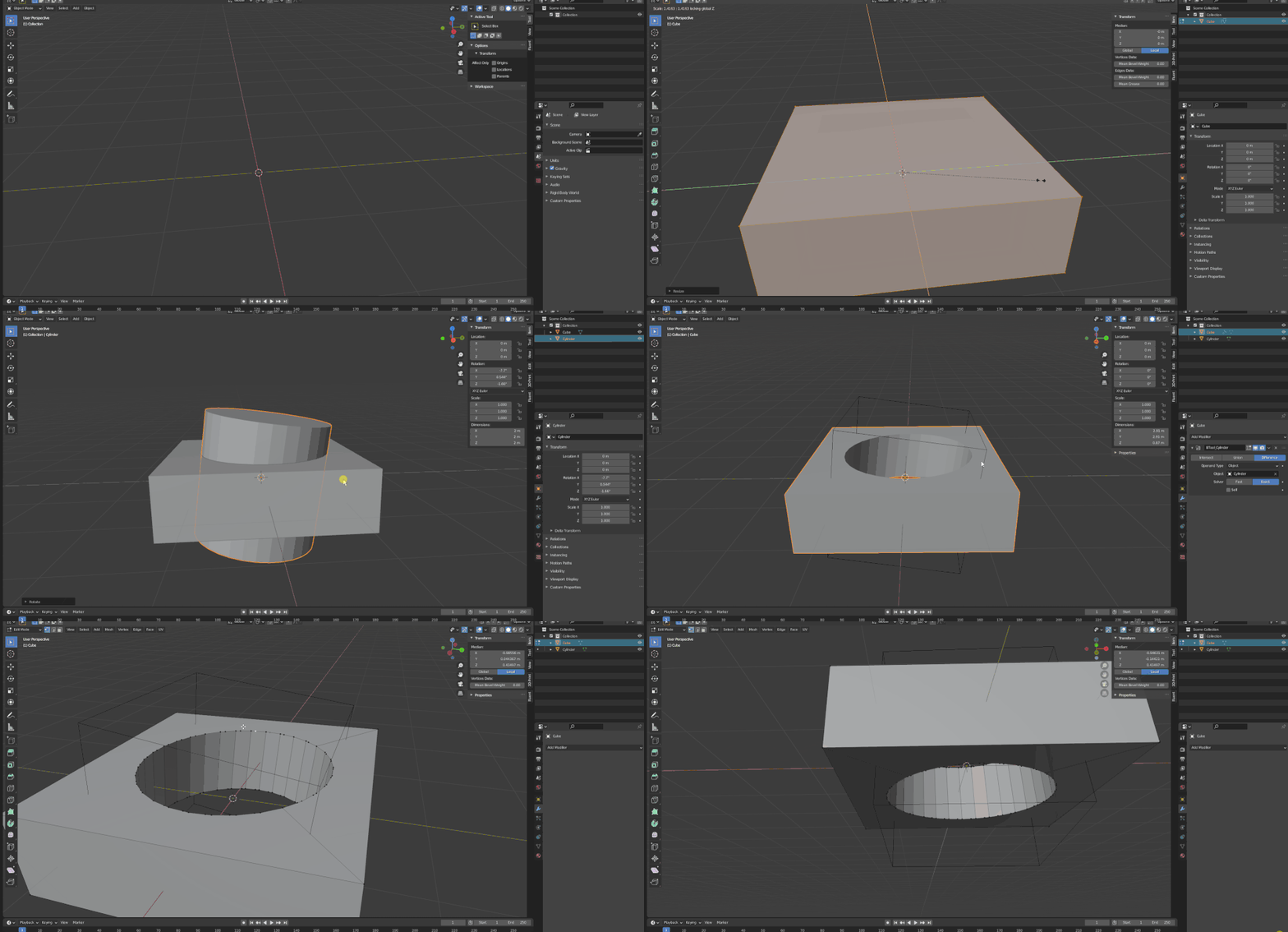
The bulkhead has a newboolean difference modifier (bulkhead void) and the keel has a newboolean difference modifier (subtract bulkhead subject) - it’s not a circular dependency but they are related.
Each object has boolean operations modifying it - It looks like the order of operations is causing the normals to get confused? But the booleans are separate objects - not in the same modifier stack.
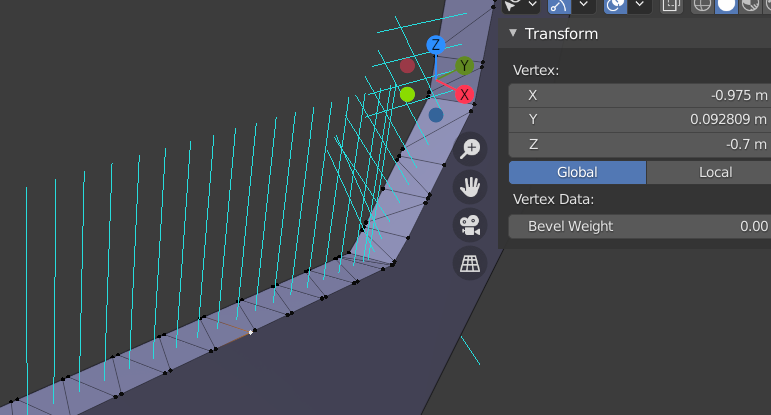
If I apply the boolean modifier and inspect the normals it looks like this:
I’ve tried self intersecting on and off… no change
I’ve checked all the normals on the source objects for the boolean operations - they all seem to be facing correctly outside.
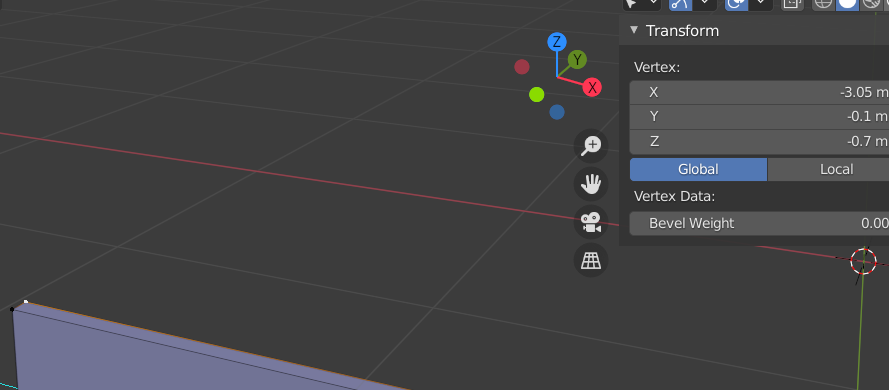
Just to provide more info on the previous post… I checked the Z position of all the vertices on the faces involved - they are all -0.7 in the global space (viewing global space to compare they are the same)… They were created with a script and all the same… Technically they are exactly overlapping faces in the Z plane…
boolean seams to work only with objects that has no other booleans operations in it with different booleans operations . If I turn of one this first bugged is magicly fixed. werid.
I’ve looked at this some now. It seems that the Bulkhead.s-01.00 being created by a boolean with void object has created a non-solid - there’s a gap along the top of the face that is even with the top of the keel. If you take out that boolean (the one removing the void), then the rest of the booleans work ok. I will continue to investigate why that void-subtracting boolean doesn’t produce a solid mesh.
If you turn off the “Bulkhead.s-02.00_Keel.s-0.15” (1st bool modifier) on the Keel.s-0.15 object than the second modifier (Bulkhead.s-01.00_Keel.s-0.15) suddenly works… Like Marcin_Surma said. I’ve found several other instances where if it’s just one boolean modifier it works fine - but lots of boolean objects interacting together some weird stuff happens. I’ll see if I can come up with some more simplified test cases…
Thanks Marcin. Those vertices are where triangulation edges intersected real edges, I think. I have a step at the end that dissolves triangulation edges and the vertices that were created only to intersect with them. But I put in a condition that it only do that if the edge it is removed from has that vertex exactly in line with it. It seemed like a safe condition, but maybe that is preventing these from being removed. I think there is already a bug reported about this.
Yes, there is an update. It is now possible to choose “Collection” and then leave the actual collection box blank, and you will get the effect you want if you choose the Exact solver (since “Self” is always enabled for “Collection”). Some users have noted that this is a pretty hidden feature. I know. I also need to balance against increased clutter of the modifier panel, and also am a bit sensitive to rapidly changing the API seen by developers (some of which have already adapted their addons to the options that are present right now). To me, one of the cleaner things I could do would be to add a third option to the Operand Type (besides “Object” and “Collection”), called “None”, or maybe “Self” (which would really just mean “None”). What do people think?
P.S., I want to also make it clear that this isn’t (at least yet) a magic “remove all inner geometry” function. While it will reliably remove inner geometry that is formed by interpenetration of otherwise “closed-volume” meshes, it will not reliably remove inner faces. I am still trying to figure out how to do that more reliably. I know that Blender has a “select inner faces” function that could be used to detect and remove such things, but on reading that code, it seems very heuristic and scares me some. Have people found it to be perfectly reliable? Another issue here is that it adds to the expense of doing any Boolean where ‘Self’ is enabled. Unless I add yet another option, which I am somewhat loathe to do.
I see, thanks a lot! No problem, this is much much better than create fake object just to do the same
I must agree that this will be totally ok - clear option for clear additional feature, imho
Even with current limitations this option is already really useful as it is, since there is no other way to remove self penetrations in non-destructible way (remesh is not suitable since it killing edge flow and data). I personally didn`t hit any problems with volumes, in my cases “self” is quite reliable (but my meshes indeed are closed)
And any destructible way is not a replacement - some effects much easier to adjust in realtime, constantly “redo” manual cleanup after shifting some parts on combined mesh is just a plain pain. No more with exact solver anymore
Regarding solver speed - this is always welcome, of course, but again… this is already faster than doing this by hand!
“Add a third option to the Operand Type” - by the way, combining this option with “Difference”/“Union”/“Intersect” would open even more possibilities…
For example “Union” may leave outer shell, “Difference” may do the inverse - leave inner parts and removing outer shell and “Intersect” may do “XOR” between volumes, carving inners from outer.
This may generate non-expected “Empty” results for “normal” meshes, but… this additional combinations may add some creative ways to do stuff If this is easily possible, of course, just a suggestion. Although for me “Union” case seems to be most important most of the time
so I was playing with this in Exact hoping this was possible but I ran into some “curiosities”. I ponder how the exact mode has very different rules than fast (bmesh i assume).
With some tinkering I was able to get it to behave in a logical manner.
So the reason I am even trying to bool bevels is to try to break past the limit where bevel would be limited by the geometry it is rounding. Just a weird idea I cant let go.
If this will help fixing this bug I found that when I move hilighted lines outside of main cube in z direction down and y direction Bug no longer is visible and bevel is working properly.
I wish that the boolean modifier actually has a dummy mode (or a union mode without calculations) which would just literally “merge” meshes without calculating any intersections. This would be a way to procedurally merge (Ctrl - J) meshes without resorting to other means.





 If this is easily possible, of course, just a suggestion. Although for me “Union” case seems to be most important most of the time