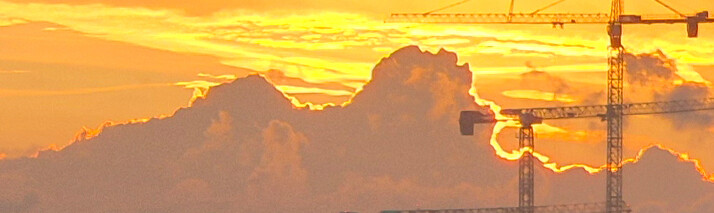
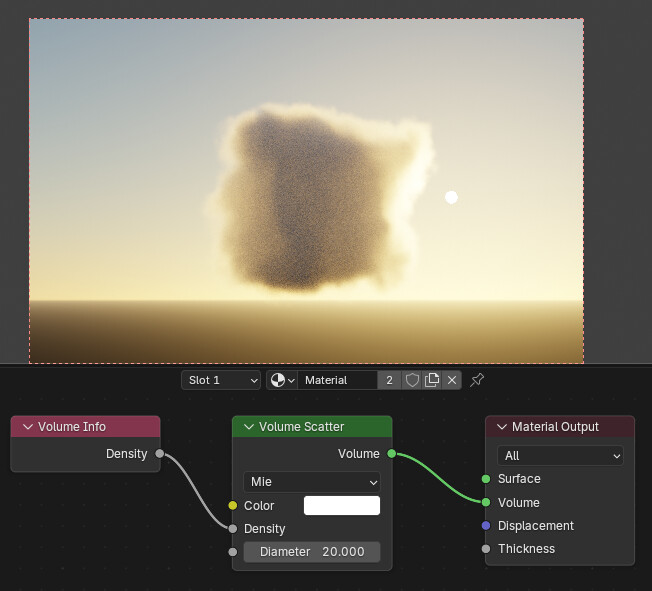
Switching to principled volume node (with countless different settings)
Changing the vertical sun position.
Changing the sun intensity.
Changing the anisotropy/density.
Applying fresnel/gradient nodes to the volume to single out the edge (this will make the volume lose its shape).
Use the Blender compositor.
Sadly, cryptomattes don’t work with volumes, so there isn’t a good way to create a mask (of the edge) of the clouds. I did try and set everything but the clouds to render transparent (holdout), but that doesn’t give a good mask either.
The only thing I can think of right now, is to try and paint it in by hand in Photoshop.
What volume shader did you use before principled volume? I watched a very old tutorial by Blender Guru, he says that clouds should use volume scatter and definitely not volume absorption (back then there was no principled volume node yet).
Also are you using a sky texture as the sunlight source, or a sun light? I suppose you are using sky texture, as moving sun light will not affect the lighting, only rotating it affects. Either way, did you try rotating/ moving the sun so that it shines from a little higher up, enlightening more of the visible parts of the edges of the clouds?
Seems this particular scene doesn’t really allow (natural) cloud edges. There might be some hack that could make this work, but I’m better of just completing the render without the edges.
The max bounces and volume bounces are set to 12. I’ve also tried up to 1024.
I’m using the volume scatter node. I’ve tried rotating the sun, vertically and horizontally, and also increaing the sun intensity. DIdn’t work.
I’m using TrueSky 3 for the light and volumetric sky. It seems the volumetric sky is blocking a lot of the light necessary for the cloud edge. Disabling the TrueSky volumetrics does help somewhat, but the edge isn’t as intensense as with the Blender Sky texture for example. Swapping out TrueSky for the Sky Texture isn’t an option however.
Yeah, this definitely works. Seems my scene simply isn’t ‘meant’ for silver lining.
I’ve tried cheating the effect by adding area lights behind the clouds directly. While this does create the silver lining effect, due to the intensity required for the area lights, it completely ruins the lighting in the rest of the scene (all the objects between the clouds and camera become too dark and the sky itself loses detail). Light linking doesn’t work in this setup. The only thing that somewhat works with getting some light back into the scene, is by increasing the indirect lighting clamping value in the render settings from 10 to 20-25, but that doesn’t have a great effect on the overall quality (and doesn’t do anything for the sky).
You could render the clouds separately and composite them on the rest of the image later, so you could have two different lighting setups for the clouds and the rest of the scene.
I don’t know if there’s an easy/good way to achieve that. Cryptomattes and object ID’s don’t work with volumes. Rendering with all the buildings set to holdout doesn’t work well either; once the images are combined in Photoshop I end up with horrible white feathered transparent edges. Combining the images in the Blender compositor gives better results, but there’s still a tiny edge visible (which becomes even more noticeable after color correction). It’s especially bad with the cranes, making some parts of the crane seem nearly fully transparent.
I’m just going to render it without the cloud edges, already spent far too much time trying to figure this out