Great option to take care of the intensity issue. Maybe one more grey option for Leica intensities which values range from [-2047, +2048].
i am normalizing values from loaded min/max to 0.0/1.0 to be able to display something as color, so any range will get remapped anyway, it is more like informative preview than data analysis…
can you share with me some example of leica data? now i am working with data samples exported from Metashape and it seems to export greyscale version of colors as intensity (logical, there is no such value in photogrammetry software)
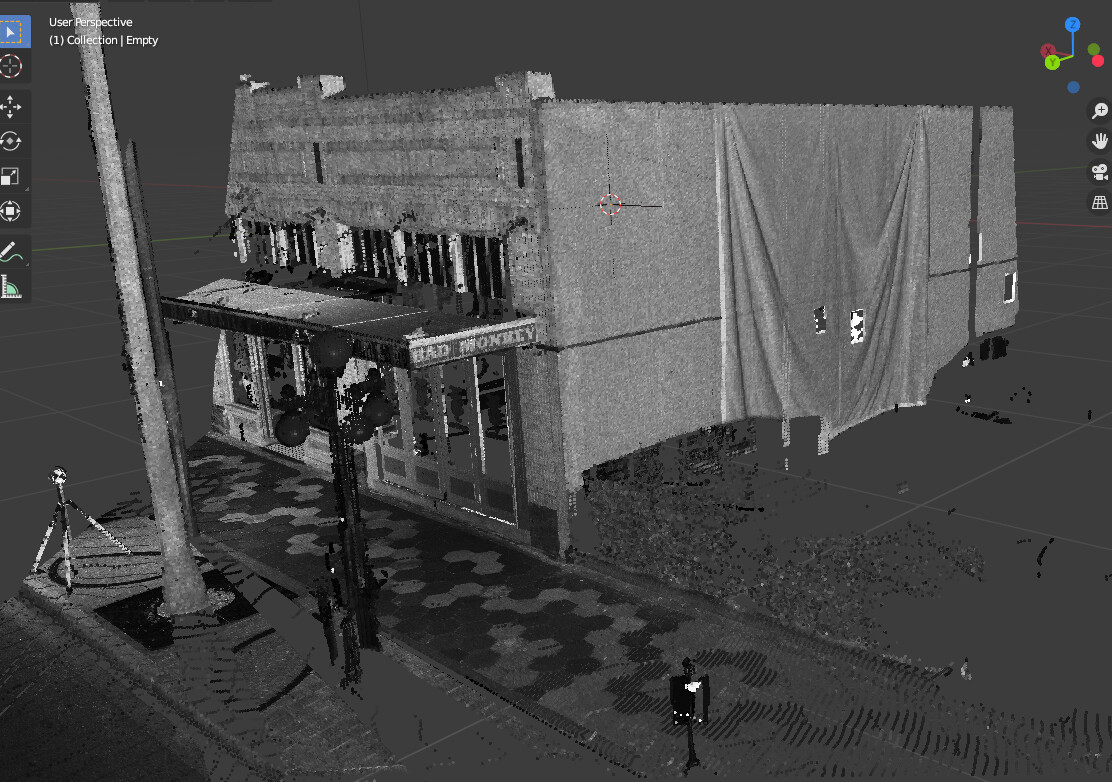
It sounds like normalizing the values will handle the Leica data with no problem. Then the user can use the Gamma setting in your add-on to make then more crisp if needed. I have attached a small pts file as well as the image of the data shown in intensity return. Intensities Meters.zip (636.4 KB)

Thanks again!
thanks! looking good, not as pretty as false colors, but maybe i can do something about it, while keeping it flexible

Excellent…That is all I was looking for it to do. We use Greyscale intensities 90% of the time even over RGB due to how much more detail you can get from the return. Plus with laser scanning the camera RGB is simply aligned and registered to the pointcloud which can cause errors at the pixel level as the warping of the lens and range can make the RGB values appear on the incorrect set of points. This is true for all laser scanners even the ones with built in cameras. They can still be out of alignment. Great Job!
another option is this, i will leave both in there, value type list is slowly getting too long 
btw, color scheme on your screenshot is a bit strange to look at, red should be foreground and not background in my opinion
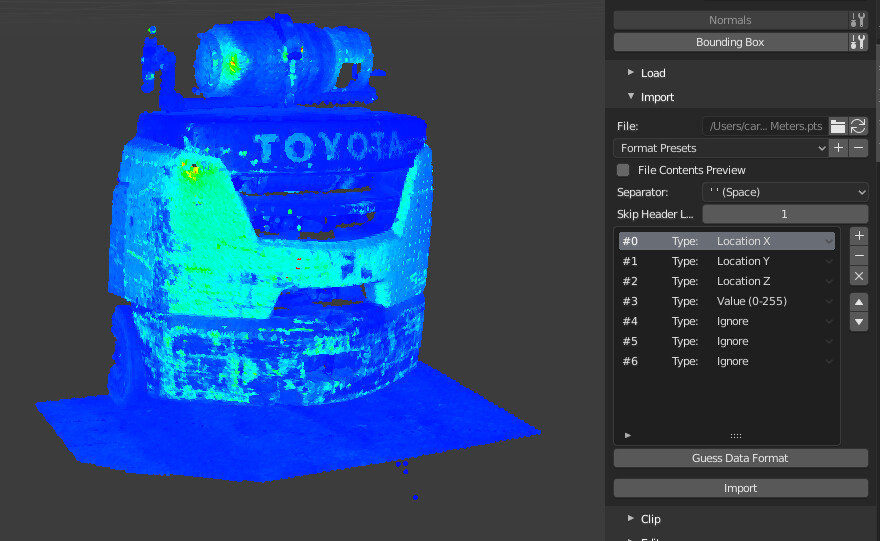
Good idea…the color looks good. I agree about the red color…there are a lot of choices on pointcoud engines that are specifically designed to work with intensity and reflectance values. The red above is the default. We typically work in grey scale.
One use of the intensity scale is being able to select a particular value and have that isolated in the color scale as shown below in the road section. This helps us auto extract features in a pointcloud database.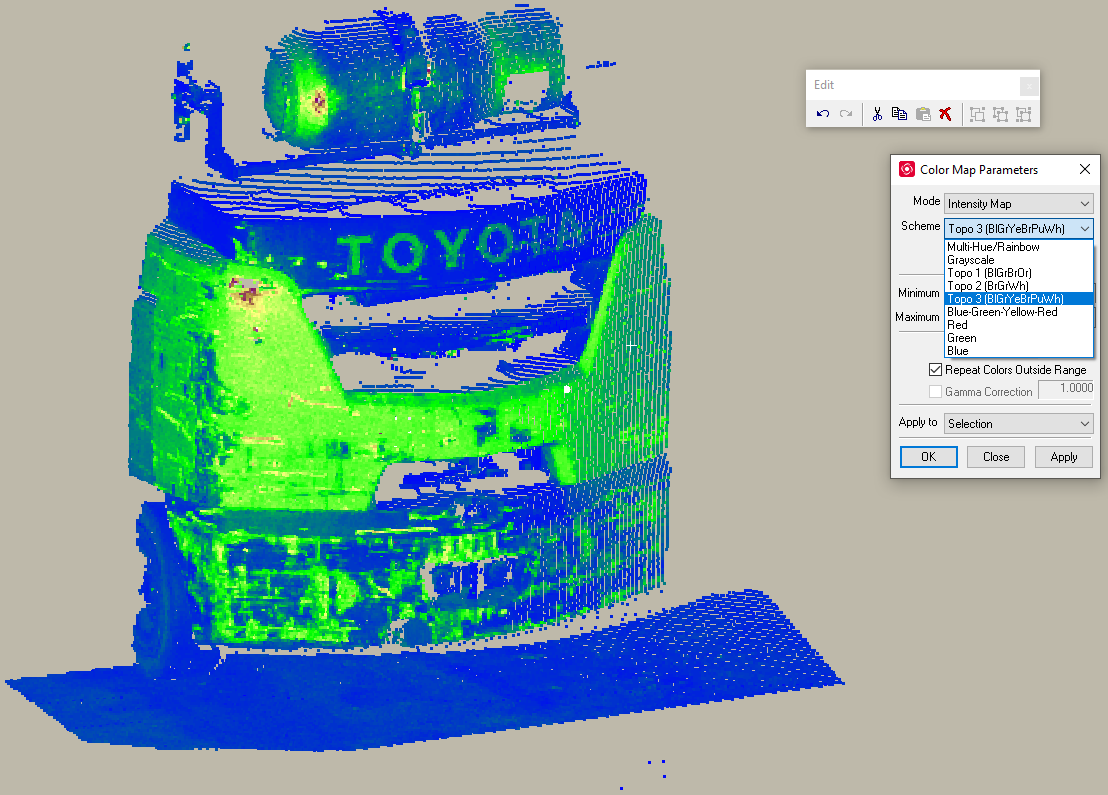
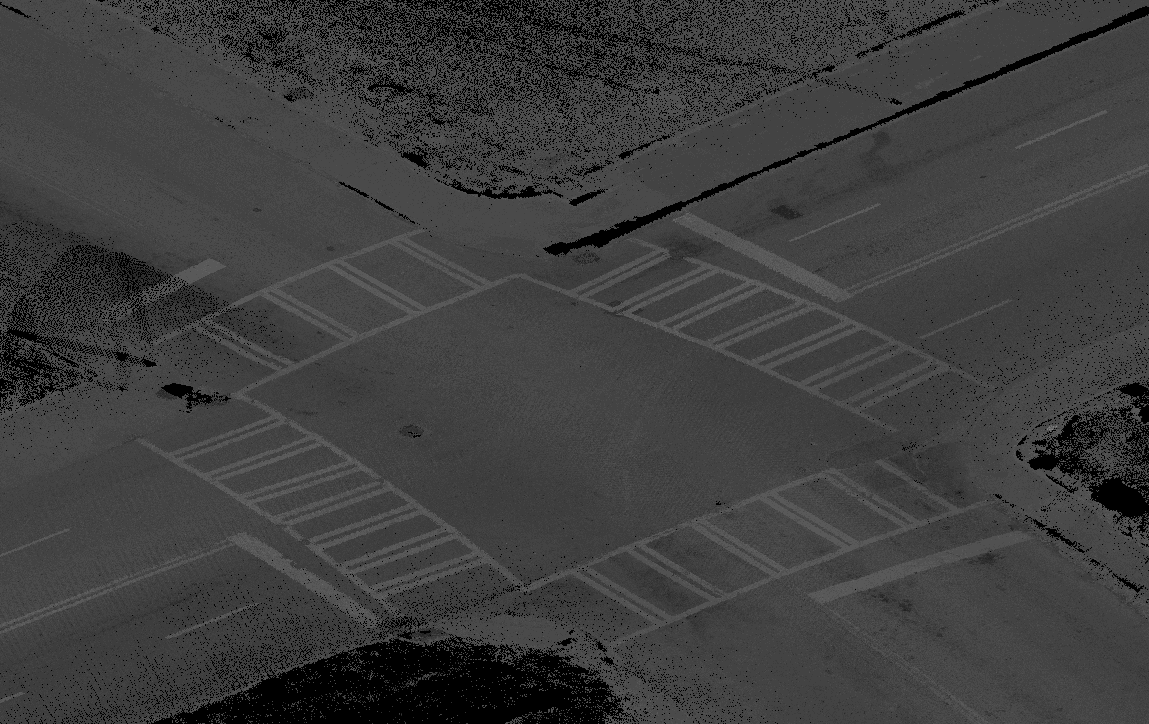

Thank you again…can’t wait for this version! 
Wow has this progressed since I first looked at it about a year ago. Great seeing the commercial version being updated frequently too. Sorry about the next “I’m being cheap” question but is a Cyber Monday sale coming up or are sales up to BlenderMarket?
While I’d like to support you @carbon2 at best I’ll explore this casually as a learning tool.
i’ll put it out soon, some more polishing, docs, etc. it’s useful enough to have it as new version
maybe
new PCV release
- 1.5.0
- Import points from text file formats
from docs:
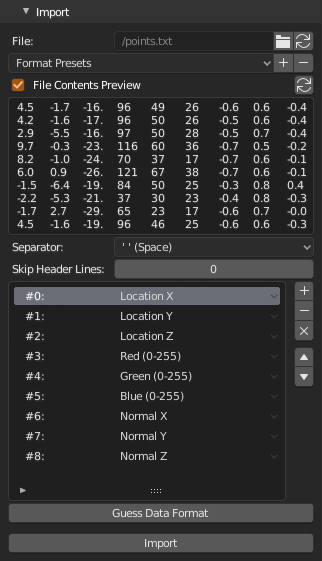
Import points from text file formats such as .txt, .xyz, .pts, .csv, etc. Any plain text file with data organized into table with same number of items in a row. Select file, specify separator, number of header lines (if any) and each column data type and click Import. For convenience you can preview first 10 lines in file checking File Contents Preview. Preview tries to split columns with chosen separator on the fly. Alternatively you can click Guess Data Format to prefill columns types based on simple rules, but because except .pts there is no official data format specification, always verify the result. You can also save current column setup, header lines and separator properties as preset using preset widget.
Import also uses Partial Load and Post-load Processing options from Load panel, except Convert 16bit Colors property.
Notes on color values: by default rgb color is used for imported data, if you want to import other value like intensity from laser scanners, use Grey data type for its column and set rgb columns to Ignore. To import such value in false colors / heat map, use Value type instead.
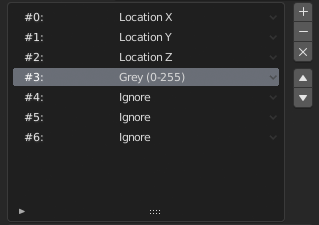
Example setup for .pts file import to get intesity column as greyscale.
Notes on performance: loading data from text files is slow, after import, it is recomended to use Export panel to export loaded data as binary .ply and use that for fastest loading next time blend is opened.
Good news…I will download and give it a go. Thanks for the update
The new ASC Text file import works very good. The interface is straight forward so I was able to easily select what I wanted and have the intensity value over ride my RGB value. Once imported I sent it back out to a PLY. My only issue now is Estimating the normals under the Extras tab. I have Open3D installed I just need to see if I can figure out why it is not updating my normals once I run the tool. Thanks again!
try to uncheck Use Existing, all loaded points have internally normals (0,0,1) because some shaders needs them and then they will mess estimation (i assume your data does not have normals)
i’ll add check, in next update, if normals are true or not to prevent that, will be easy, upon loading i keep set of props of what is loaded and what generated.
also expect estimation to not be correct. if you got already normals in cloud, it will tidy them up nicely, if you estimating them from scratch like you do, i expect them to be partly wrong. open3d has nice function to orient them correctly, but somehow it is not yet available while it is mentioned in documentation: http://www.open3d.org/docs/release/tutorial/geometry/surface_reconstruction.html#Normal-estimation and reference http://www.open3d.org/docs/release/python_api/open3d.geometry.PointCloud.html?highlight=orient_normals_consistent_tangent_plane#open3d.geometry.PointCloud.orient_normals_consistent_tangent_plane but latest open3d lacks this method, just checked v0.11.2 release 3 days ago… i’ll put that in once it is available
1 Like
Well I did try unchecking the Use Existing but it still shows no normals after calculation. As a side note the other (Extras) tools do work with the cloud. I will send you a link to the raw PTS file if you would like to test it.

hm, ok, i know what it is going on, PCV does not know it has normals now. try to go to interactive console and run this line by line, also change object name ‘Empty’ on second line
import space_view3d_point_cloud_visualizer
space_view3d_point_cloud_visualizer.mechanist.PCVMechanist.cache['Empty']['has_normals'] = True
edit: seems like there will be bug fix release 
That did it…Thanks!
i’ll put up fixed version soon, i also noticed some strange things with new open3d, until i sort it out, i limit open3d install to older version
it’s on blendermarket files, 1.5.1 - fixes ui for normals after estimation and forces open3d 0.10.0 if installed for the first time
if open3d works for you no need to reinstall it, on mac you just trash blender.app, like on windows if you use zip version, but with the installer one, it would require some more steps, at least deleting what is left in program files after uninstall
1 Like
The patch worked. Plus having the extras is a great benefit as the normal estimation is way faster than meshlabs. Thanks for the quick patch