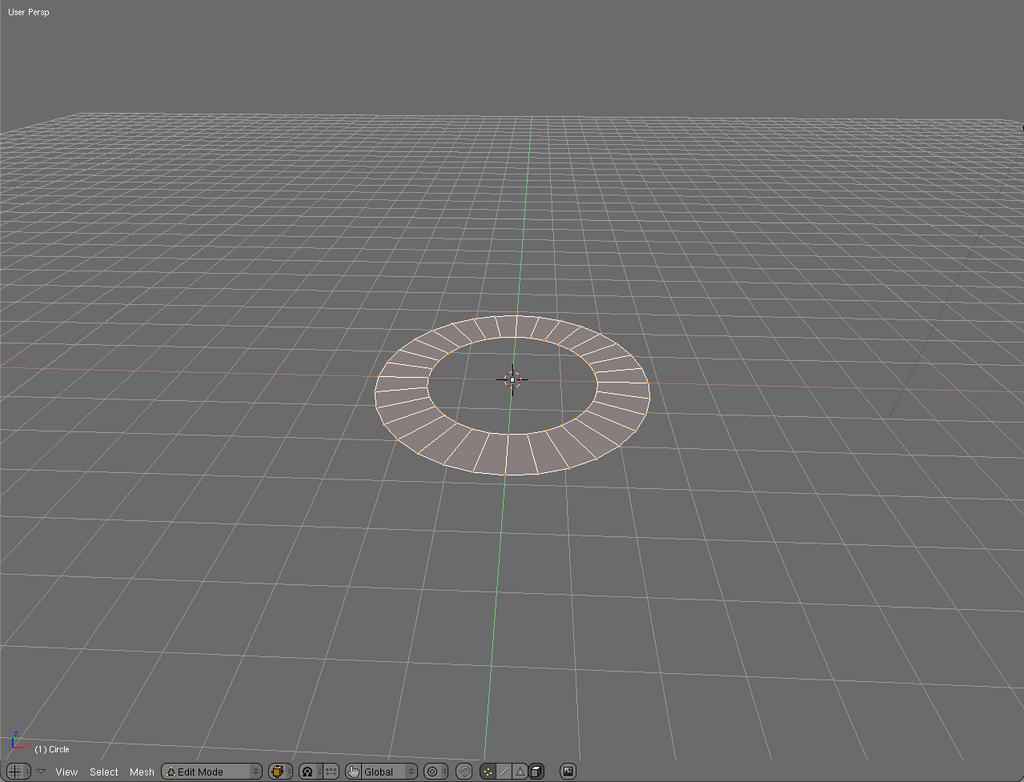
so i want to use extrude in a way that i’m familiar with in most other modeling apps and that is extruding not up (to create a block bump) or down (to create a pit) but IN so as to create a frame or edge loop.
so far, i can only seem to scale afterwards but unless your shape is a simple square, scaling will not create a perfect little frame.
If I understand your question correctly, what you need to do is select your vertices, hit Ekey for extrude, select which mode, and then without doing anything else hit enter. Then Skey to scale as needed.
no… as i said, that works for perfect squares… but if you have a polygon that is an arbitrary shape and then hit s to scale inward, you do NOT get a “perfect border/frame”… instead, it’s scaling from the center of the group so you get weirdness.
Instead of scaling, try ALT-S (Shrink/Fatten). I think that’ll do what you’re looking for. Note: You may need to recalculate normals first, or the results can be sort of chaotic.
Interesting, I see what you mean (I think). I took a mesh circle and displaced the verts randomly and then tried to add a smaller version of the same with all of the lines displaced by the same amount so that there would be “border” . Hmmm… Thanx for the puzzle!
What you’re wanting is to ‘inset’ the shape. I have not found a way to do that in blender. I always just scale first to get close and then move individual vertices.
I would love an inset tool as well.
well, this will certainly be chalked up as one of my requests for blender then.
in almost every app i’ve worked with, the extrude function usually provides the “up and down” extrude but also the “in out” as well. very useful and highly desirable.
in the meantime, i’ll try the scripts and the shrink fatten.
(no screenshot) Select all faces, recalc normals, then deselect all faces.
Select Faceloop (Alt-Rightclick), then Alt-S to shrink/fatten.
Once you’ve gotten it to the size you want, you can erase the extra faces left over on the bottom, and scale the entire thing to 0 on the Z-Axis to flatten it back out.
Not sure what exactly it is you mean by in and out but maybe you are just using the wrong point for your scaling work. Try setting the 3D cursor to the center of your collection and then using the 3D Cursor as your scaling point.
It might be nice to show a screenshot mockup to explain what exactly you are trying to do.
wow… yeah, it indeed is pretty kludgy. and especially if you have real world examples where the face or faces you want extruded in or out is on a non orthogonal plane and at weird angles and stuff, it would be non-trivial to “flatten” it out again.
well, i definitely hope this will be placed in consideration for a tool update.