Hi newby here, (although I have been a 3D guy for eons old, I an a convert in the past year). I was wondering if I can save an alpha… …in the alpha channel!
I can render the background transparent but for example I cannot get a TGA with Alpha in the Alpha channel. It seems I have to make a separate render or switch to the ZDepth and save it separately. I have combed Youtube, the Blender Documentation, DuckDuck, Google etc. There must be something I am obviously overlooking.
I am not sure what you mean. Since you are talking about backgrounds, are you trying to composite an image in the background? Or are you trying to bake an image transparent…to show foliage or hair strands and the image for them has an alpha?
Thanks for your reply RSEhlers I very much appreciate it!
It’s really easy, for example, if you open a Targa that has an Alpha in Photoshop or an image editor you can click on channels and you will see the black and white alpha within the alpha channel. You can see this in the channels tab next to image A. That is the alpha for image A but it is not active.
You can render an image with a alpha for example a PNG which will give you the alpha but will not give you an edible version of the pixel data being masked. As in image B.
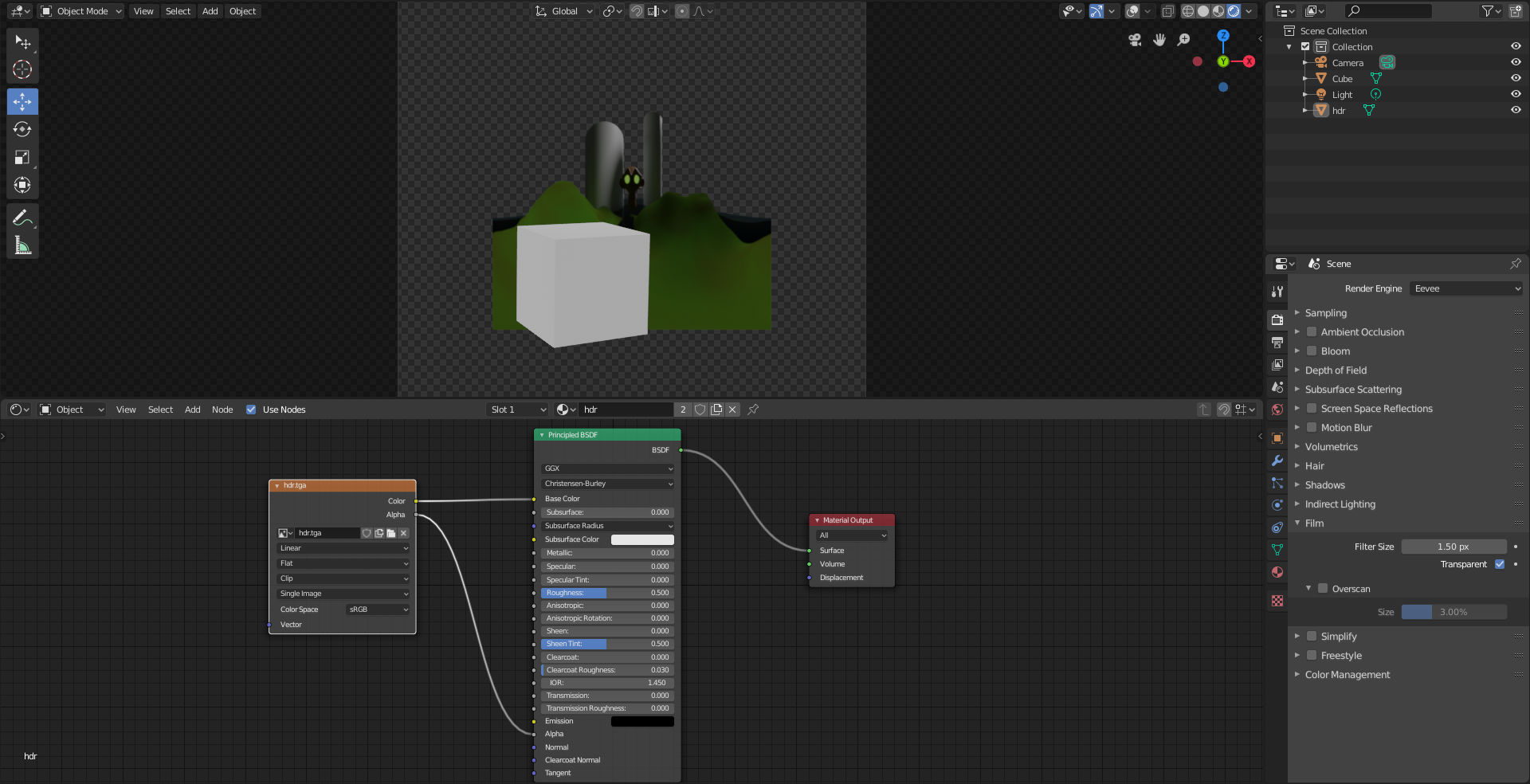
I am rendering a scene in Blender which has an hdri environment. thus there is no physical geometry within the environment. I wish to render it so that the Alpha channel is in the alpha when I open it up in an image editor, ie Photoshop. Currently I open the Alpha of the Targa and it is solid white which means no alpha was saved in the alpha channel.
This is very handy as it allows you to make only one render. Some software will even split the Alpha into a separate image image.
I wish to render the image and have the alpha stored within the alpha channel. Normally with a Targa this is pretty standard fare.
unfortunately Blender still has no alpha channel support in *.tga or writes *.psd files with alpha.
You can’t imagine how long I’ve waited for this.
But there is a solution (at least if you render with Cycles and use Photoshop).
You have to save your picture as Openexr Multilayer with Cryptomatte and then use this free plugin. https://www.exr-io.com/
For those who use Affinity Photo there are two threads here.
(Please post in the forum and do a bit of pressure to get Affinity Photo Cryptomatte support.)
@NewVisitor Fantastic! You are win!!! Exr-IO is boss and I think now my new solution thanks y’all!
OK - edit. Ahhh!! @zanzio I tried it on your file and worked but then reopened my original file. My file has an HDR environment and when you select the transparency option it saves an alpha channel, but it turns the sky black. Thus making it necessary to render twice.
I am no less thankful for your time but it only works with a black sky. The optimal solution would be to keep the image intact and render the alpha channel.
Saved the render result as a .png file and alpha channel is indeed there …but I still don’t understand what the purpose of this is…do you want the HDRI to still be visible in the image and be in the Alpha channel? The only purpose I can see as to why you want to do this is to get a transparent background to composite over another image.
This uses an HDRI image and renders the scene and in the render, it produces a B/W alpha mask in the alpha channel…it depends on the image editor, how it will show, as a transparent checker or black in the background…
Ok, maybe I misunderstood what you are doing. Are you saying that the image that you are using to light your scene has both foreground and background elements and that you want blender to use the alpha channel from that hdr to separate those on render?
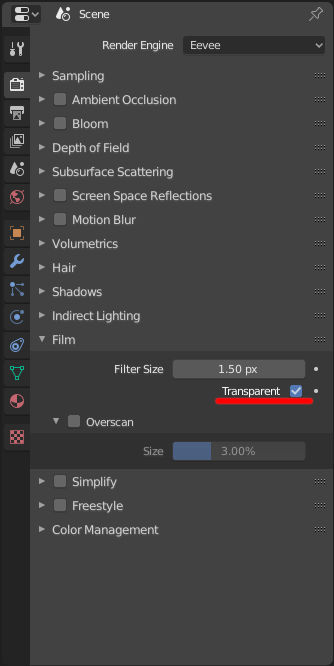
The transparent option isn’t for using the alpha channel of an environment image. It will always make the entire world background transparent and actual geometry in your scene opaque. If you have to use an environment image to do this for some reason, then you can try mixing the environment with a color that can be keyed out later.
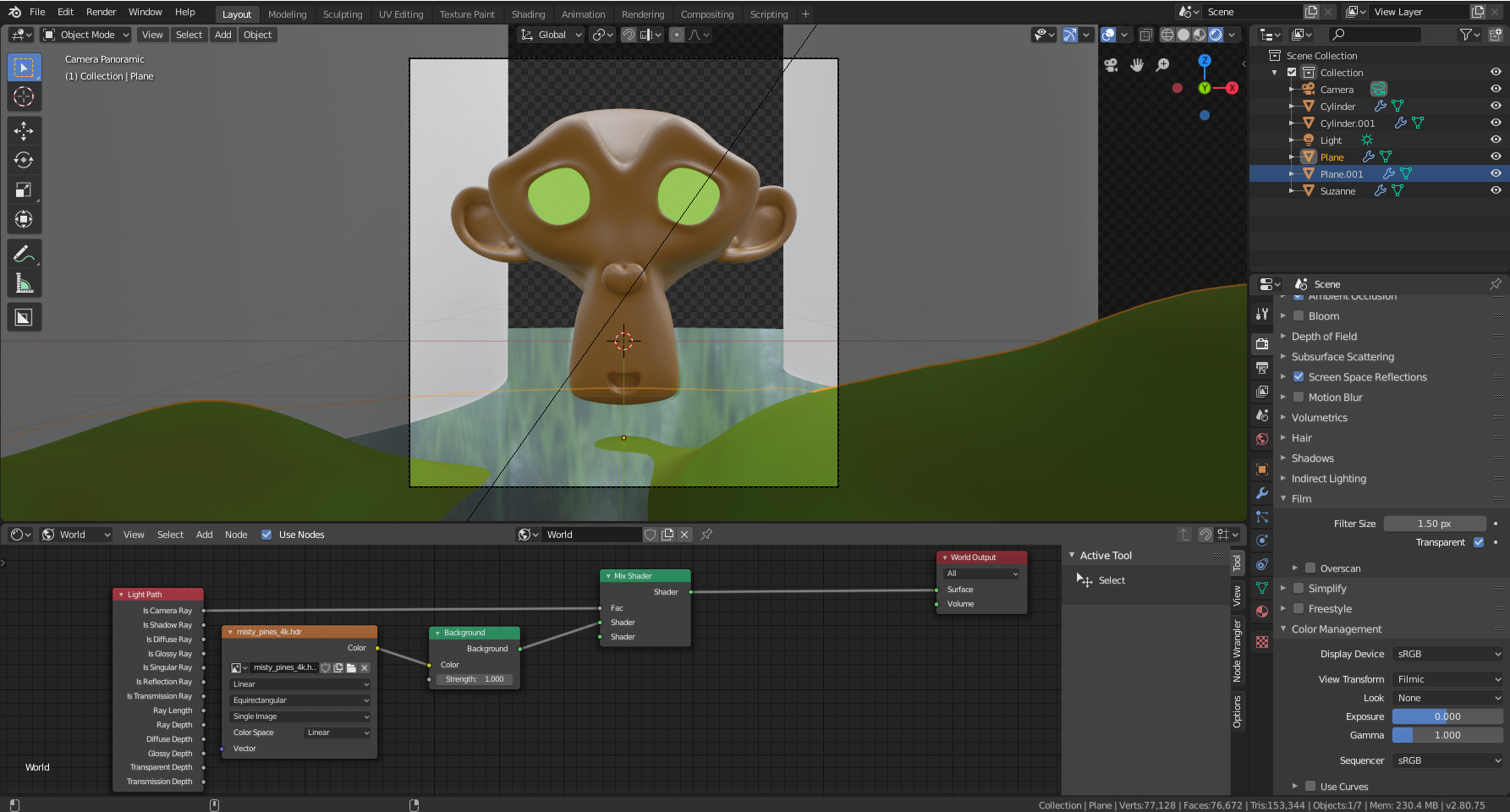
Since the environment image node doesn’t have an alpha output, you’ll have to save the alpha as a second image and use that to mix the image with a key color:
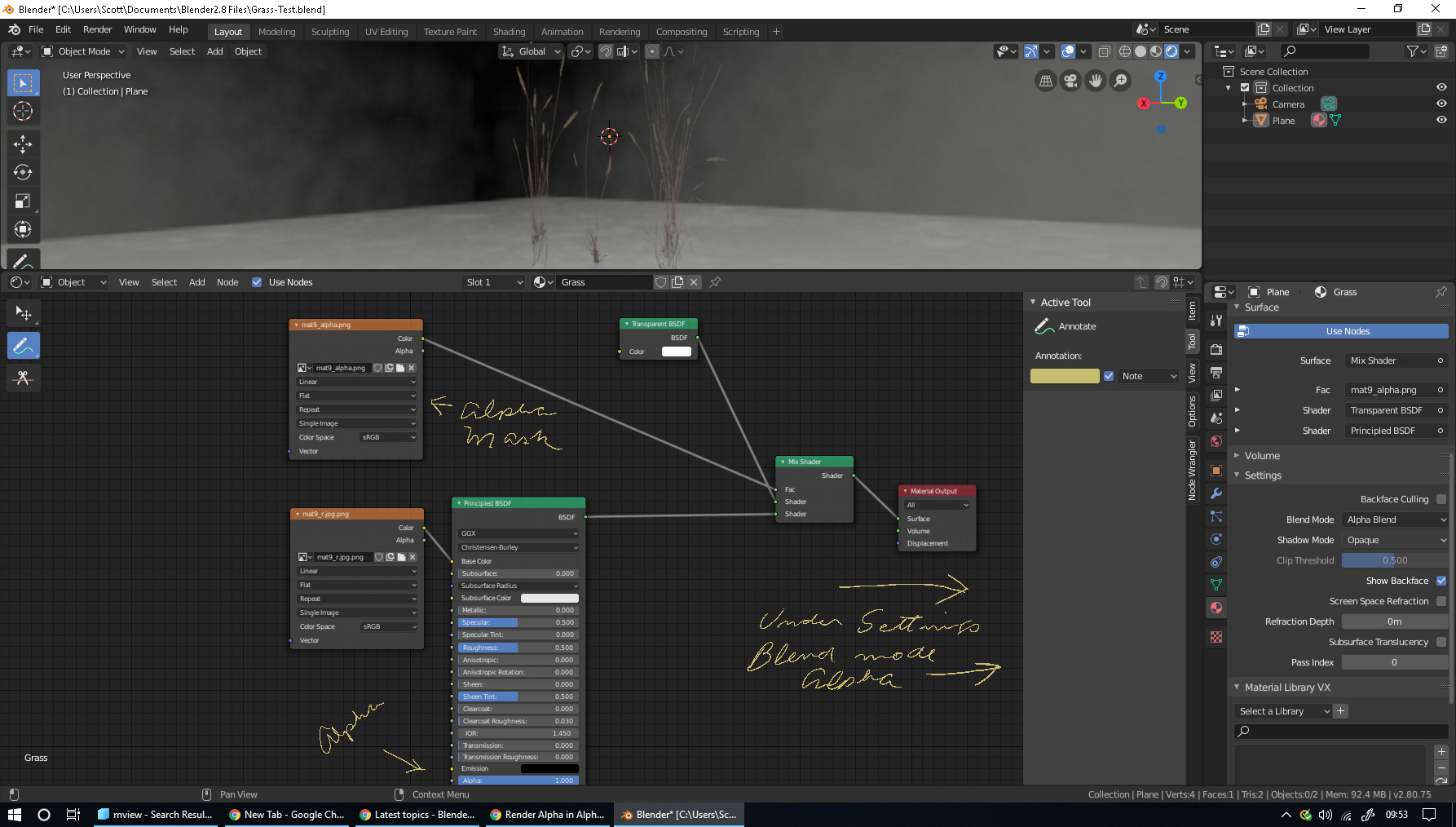
When people want to use an image that has transparency in a scene, they typically texture a plane with that image and hook its alpha to the appropriate socket of the principled bsdf (the material needs to be set to alpha blend if this is done in eevee). That way, they can enable transparency and have the alpha channel of their render incorporate the opacity of the actual objects they have in their scenes:
It has an HDRI as the background. You can also see this in my image above.
All I want to do is to render this image.
I do not want the background transparent. I want the alpha in the alpha channel so that I may make it transparent within my image editor, Photoshop. This way I have my background sky but do not have to render twice for my mask.
This is a common thing. As I said its used to mask out the background elements, for painting or replacement etc. In my specific case I can add clouds and make the background more dynamic.
That’s it.
I will play around with it more today and see if I can get it to work.
Oh, sorry. I don’t think I understood what you wanted in your original post. You said “I am rendering a scene in Blender which has an hdri environment. thus there is no physical geometry within the environment.” so it sounded like the scene only had a single hdri image and no objects. I thought you were trying to separate objects within the image you are using to light the scene itself using an alpha channel that was already inside the hdri.
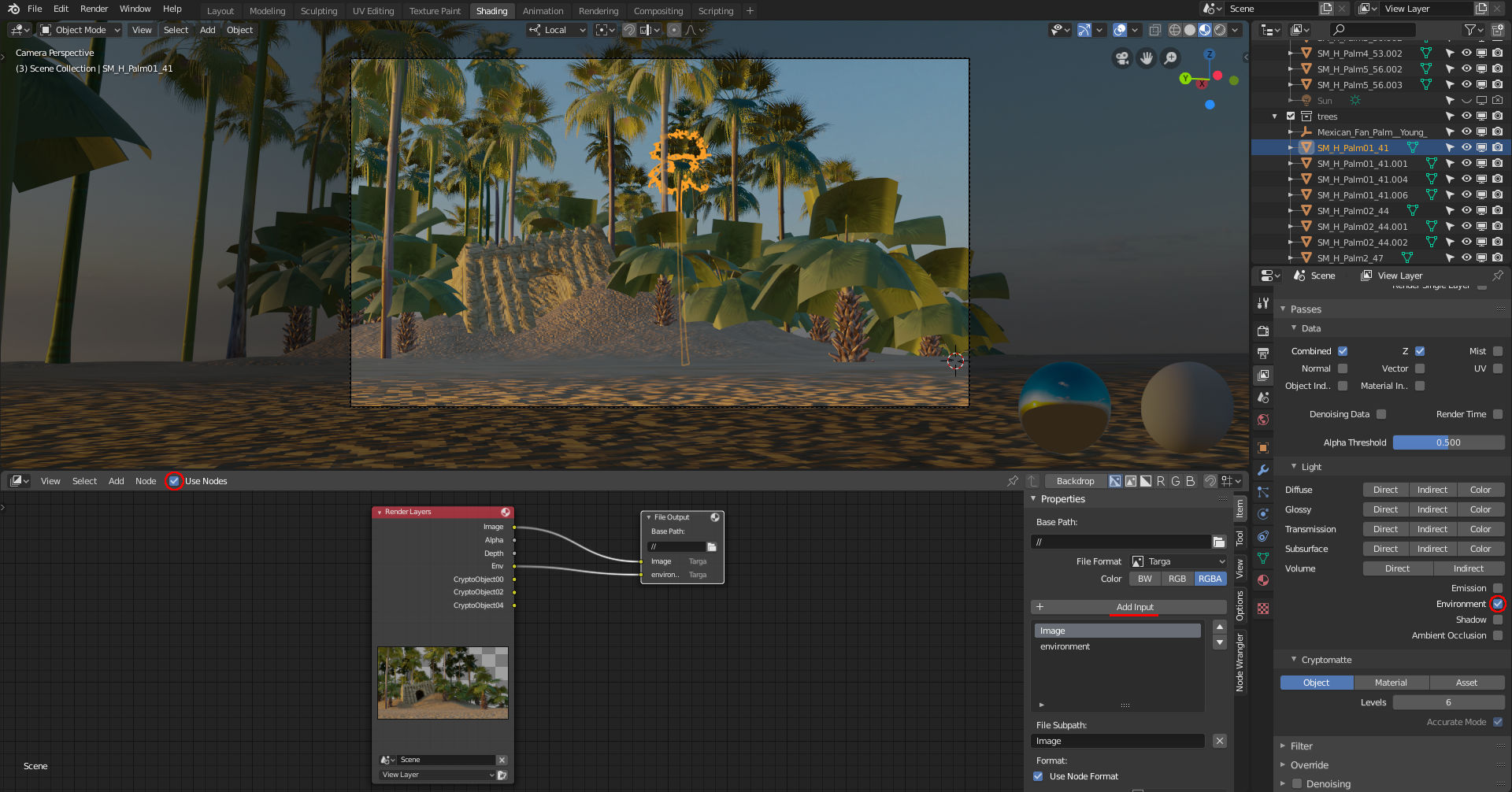
Instead you just need to enable the environment pass. If you save the render result as a multilayer openexr file, the background will be in its own layer.
If you want to use .tga files for this, then you’ll need to make the compositor save the environment pass in its own file. First, change an editor to the compositor, then check the “use nodes” option in its header. Now press shift + A > Output > File Output. With the file output node selected, open the n-panel and change the base path option to //. After that, press the add input button to add a second file output socket to the node. Now you can connect the image output and the Env pass to the two file output sockets to get the compositor to save an image for the background as well as the render result in two separate files that are in the same folder as the blend file:
Thanks Everyone who posted! What I also really love about Blender is the community! When I reach the point I will try my best to pay it forward. I appreciate all of your information filled responses, I learned quite a bit from this thread! I mean I now have multiple options thanks to y’all!