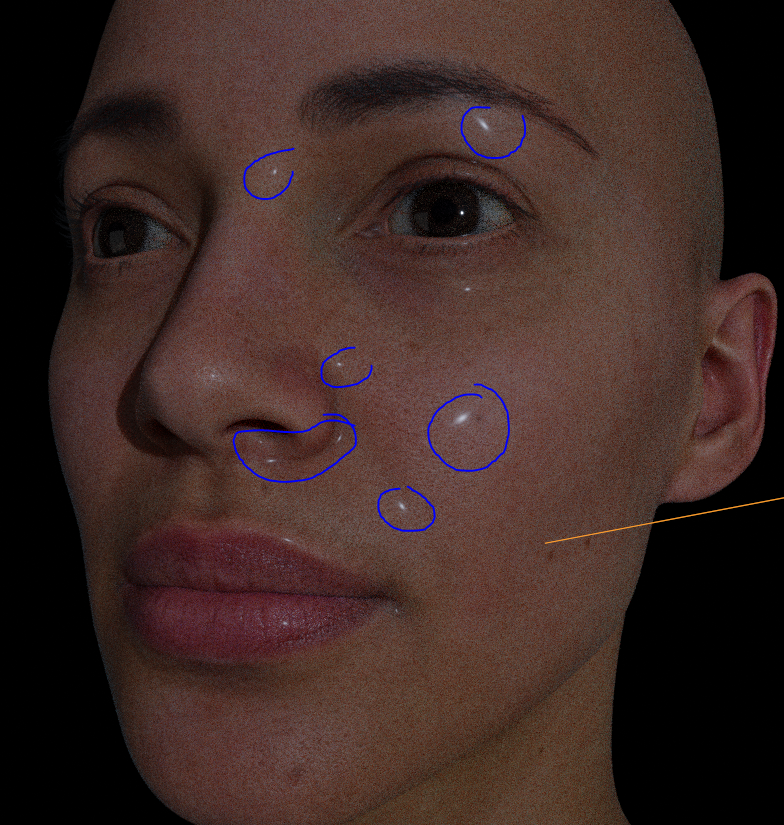
I’m new to Blender but been using maya for a few years now. So decided to test some lights using a 3d scan I found online. The shader worked fine when opening the file, but when started to add my own lights a weird ‘extra spec’ seemed to show on the face. Not really sure what could be.
Already removed the Roughness map and tried to tweak it using ramps and curve nodes, but the weird dots still show up and nothing I do seem to have any effect on them.
Funny that, if I come closer to the model, the roughness on the lips and face seems to be working, is just those damn spots that I have no idea why they showed.
Try to disconnect your normal map in shaders in see if that helps. Also, make sure Color Space for both Normal and Roughness maps are set to Non-Color.
It’ll be kinda diffucult to answer your question without viewing the .blend file itself
@st-fox@goorman
Looks like the issue was with the Principled BSDF material itself. Creating a new one and connecting all the maps seems to get rid of the issue.
Normal and Roughness maps were set to Non-color as they should and Coat weight was set to 0, so my best guess was a corrupted material node.
Thank you both for your suggestions! Will keep them in mind for next projects for sure.