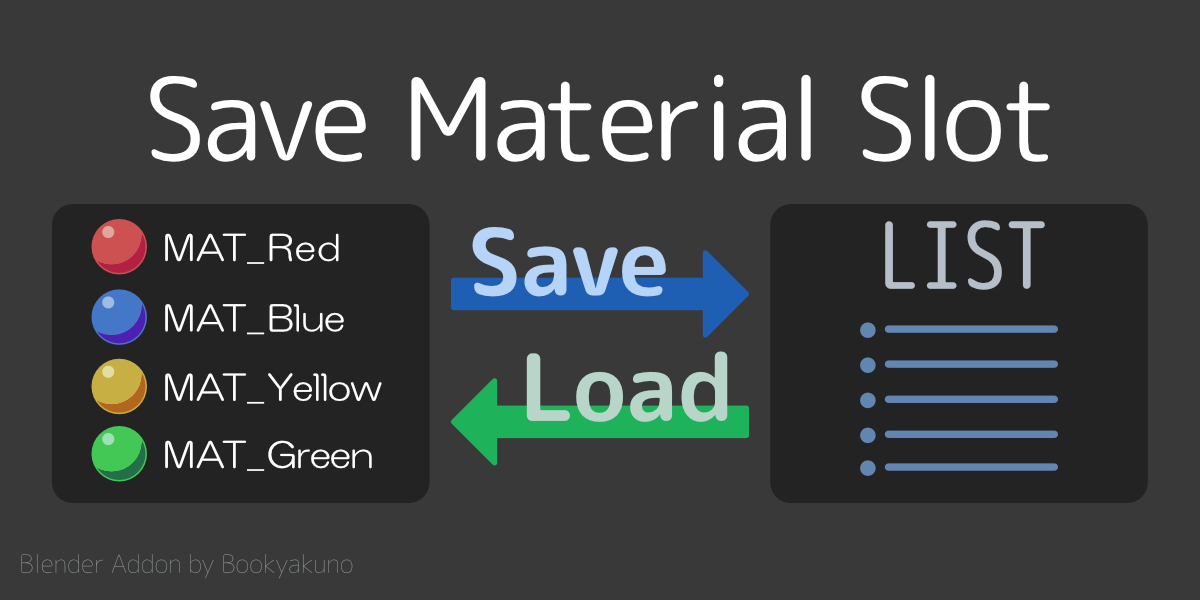
Material slots for selected objects can be stored in a list
You can save multiple selected objects at once
Resave
Overwrite the contents of an existing list item with the active object
Search
Search the list item name
Use regular expressions
Also search by specified object
Duplicate list item
Check / edit saved material
Sort list
Index order
name order
setting object order
active object only
Sort material slots by name
Sort material slots of selected objects by name
Automatic Assign before rendering
Added the function to automatically assign list items before rendering.
Material slots of list items are assigned to the objects registered in the list item all at once.
Done at render job initialization
Only items with a valid Render icon will be assigned
If there are multiple list items with the same object, the one with the highest index number will be assigned.
Restored to original material slot when rendering is completed or canceled
You can access detailed functions from the small menu icon
Automatic Assign before rendering
Added the function to automatically assign list items before rendering.
Material slots of list items are assigned to the objects registered in the list item all at once.
Done at render job initialization
Only items with a valid Render icon will be assigned
If there are multiple list items with the same object, the one with the highest index number will be assigned.
Restored to original material slot when rendering is completed or canceled
Batch assignment
Material slots of list items are assigned to the objects registered in the list item all at once.
Only items with a valid Render icon will be assigned
If there are multiple list items with the same object, the one with the highest index number will be assigned.
Accessed from the import icon below the + /-button
Search
You can search the list item name
Regular expressions are available
Added the function to [Filter by object]
You can filter list items by specified object
Resave
Overwrites the contents of the specified list item with the active object.
Duplicate
Can duplicate active list item
View saved materials
You can now see the saved material for each item
Sort material slots by name
Added the ability to sort material slots of selected objects by name.
Added [Do not delete slot when loading] option
If you have a small number of slots to allocate, fill the slots with the very first material instead of deleting the slots.
Deleting the slot will prevent the face assignment data from being lost.
Select registered object
You can select the registered object from the list.
Click the object icon to access
Added Japanese translation
The menu text is now translated into Japanese.
Change
Combined item bulk addition function with normal item addition function
Therefore, the item batch addition function has been abolished.
The icon in the list item has changed depending on the type of registered object.
Changed the number added when names are duplicated from the total number of list items to the number of duplicate item names + 1.
Bug fixed
Fixed an issue where sorting was by number of slots when sort type was “object”
Fixed an issue where keymaps could not be removed properly when disabling add-ons
Fixed an issue that caused an error due to keymap registration when launching Blender without GUI
The entire source code has changed significantly
Fixed an issue where assignment could fail if the material had a number in the name line
Fixed an issue where the delete button in the list was deleting the active item instead of the list item that pressed the button.
Support for group function/slot change during rendering
Batch operation function by group
It is be operated collectively by group.This
is useful when you want to change the assignment settings for the same rendering all at once.
Add to group-Add active item to group-Move all items in group to another group
Change group name
Assign
Render on/off
Keyframe settings
Deleted
important point
It is just a pseudo group.A
group name is set for each item, and the items with the same group name are displayed separately.
If the number of displayed lists is small, not all groups may be displayed.
When handling old versions of data
Older versions of list items have empty group classification
names.To use the grouping function, please do the following to create a new group.
Execute other menu (▼)> “collect ungrouped items”
Supports changing slots during rendering
You can change the material slot during animation rendering by hitting a keyframe on each slot data.In
this mode, only those with keyframes will affect the rendering.
How to use
Enable’Auto assign on render’ mode
Enable “use keyframes” mode
Enable render option for slot data
Set the keyframe in the “keyframe option” of the slot data
Perform the rendering
Known bugs and notes
This feature has some limitations.
Interface fixed option must be enabled
If this option is not enabled it will not work
(If this is not turned on, animation rendering will crash)
(Not required for background rendering)
Unable to revert allocation at render end
Override the assignment by creating a list item to undo the assignment and hitting a keyframe on the last frame
Slot data keyframe option does not reflect off state
You can set ON/OFF, but please use it as a dummy for keyframe registration
In keyframe usage mode, only those with keyframes will affect the rendering
Even if the render icon for the list item is enabled, it will not be assigned unless you set a key
Items with render off will not be used
Not reflected in viewport
Only reflected when rendering
Bug fix
Fixed the bug that the pre-rendering assignment function did not return to the original state after assigning to an object that was not originally assigned and rendering finished.
Other
With the allocation function, if you execute it by Ctrl + click, the slot data will be read for’object registered in list item ’
New slot data addition function
A yellow warning is displayed when there is no slot data in multiple selected objects.
Changed to add to new group when executing with Ctrl + click