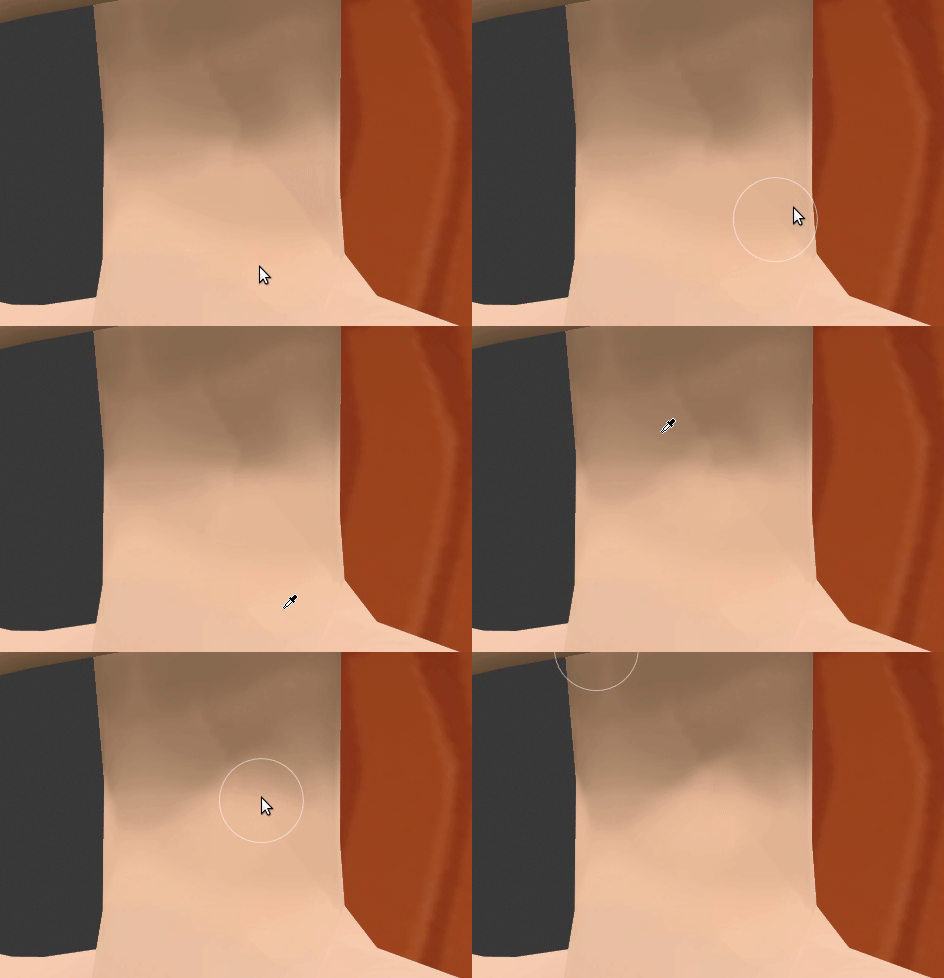
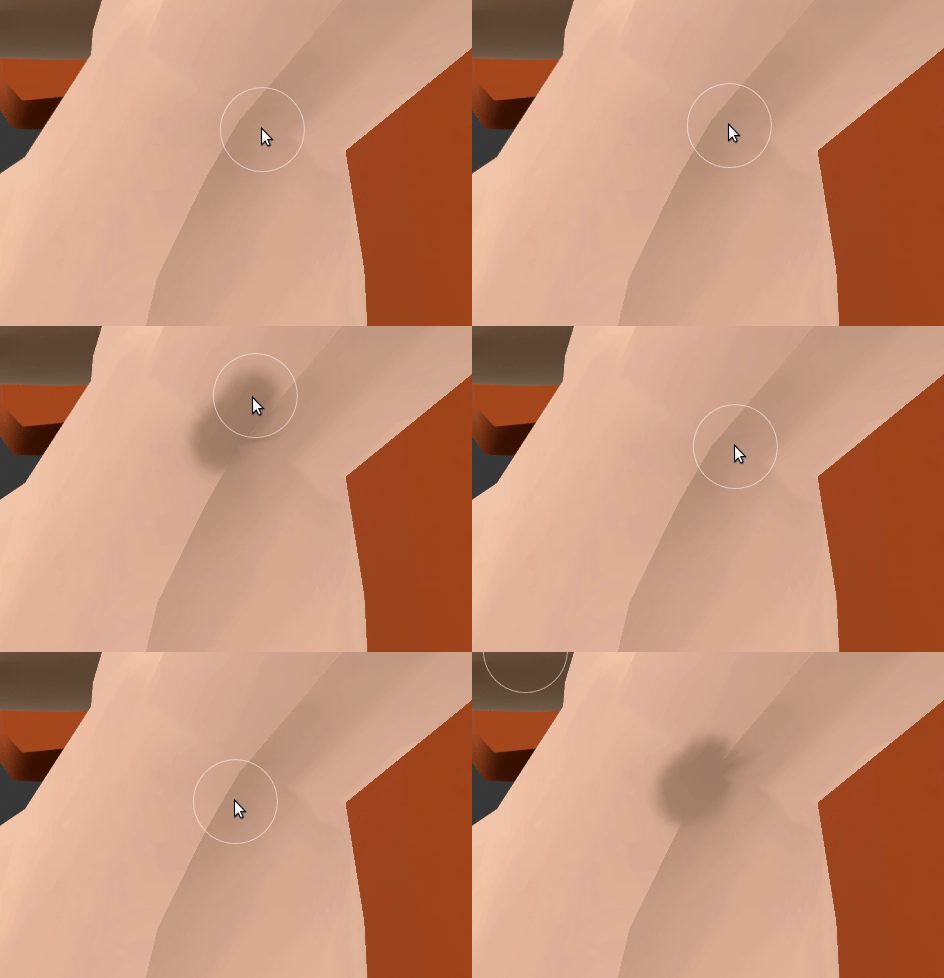
As far as I can tell, it seems like “sample colour” (hold S key) in Texture Painting mode, only works 10% of the time.
Here I recorded a GIF of myself trying to paint the colours back and forth between two shades, to try and blend them. When I started recording, it finally picked up the lighter colour, so I switched to picking the darker colour, and as you can see, it paints the lighter colour instead. I go through several attempts of undoing & picking.
I thought my problem was not letting go of S before moving the cursor, but that’s still not the problem. It’s definitely keeping the same colour after several attempts of sampling, and only picking up randomly at some point when it feels like it.
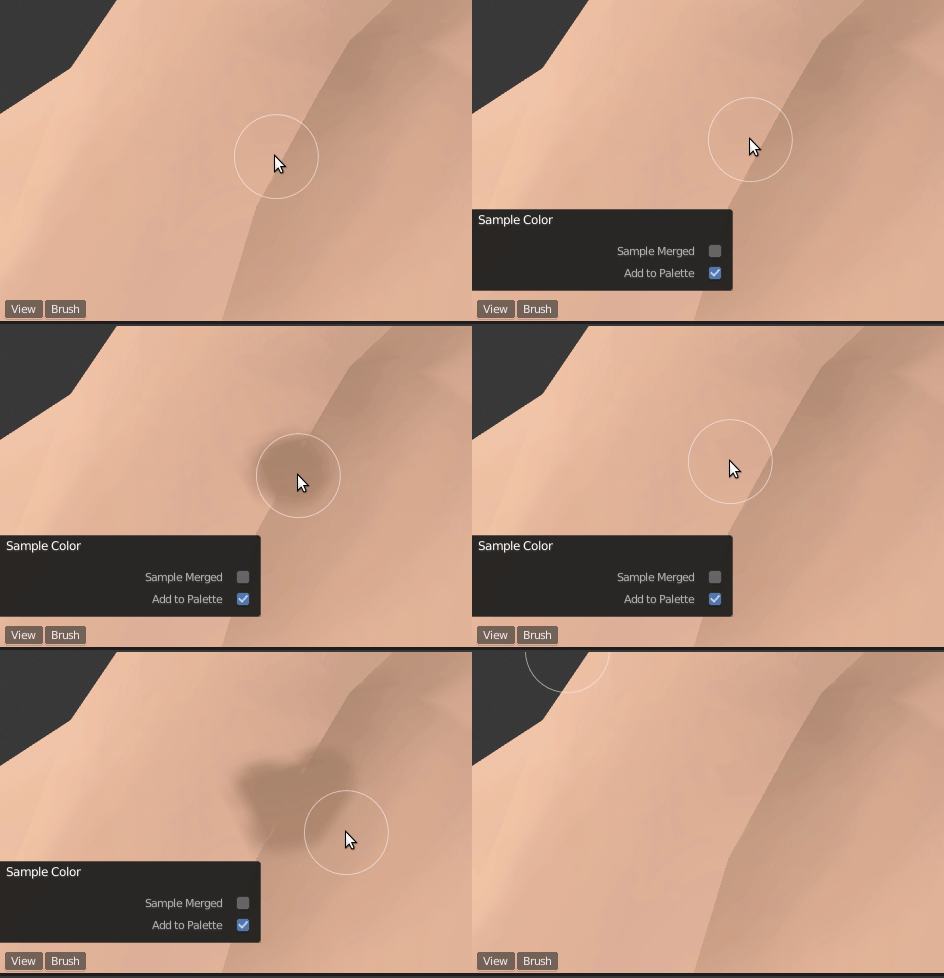
Actually I’m really confused. The colour updates in the tool properties area, but it just seems to apply a darker colour than what I picked. See below;
Hi. When you press “S” a “Sample Color” menu appears in the lower left corner of Viewport. What sampling method are you using there? Sample Merged is unchecked by default and is what you should use for sampling to take the true color and it does not take into account viewport shading.
Maybe if you share the .blend file we could see your configuration better.
By the way, here holding down “S” does not take automatic samples while you move the cursor (which is how it works in 2.79)
Your issue is likely due to the color picker just blindly picking the color as seen on your monitor (with all of the shading and overlay stuff applied) instead of the raw value you would see if you had basic shadeless drawing.
You would have to change some of the drawing options for picking as a result, you can reduce this need though by using the palette creator in the brush UI.
This was also the case in 2.7x, so there’s technically no regression. Someone will need to write a patch to make the color picker a bit smarter.
Ok, I think I understand what you mean. It’s what I said before. What you call the darker color there is not the true color of your texture painting, that’s just the viewport shading. Darker and brighter there is really the same color. If you use Sample Merged enabled by taking the color of the viewport shading as you want, then the texture will have many problems when you render. You should always try to use Sample Merged disabled (default) to take samples of the true color with which you paint so that result correct when rendering.
So in 2.8, from time to time changing to “Flat” lighting under “Shading” menu with Solid mode would be a good practice to check that the painting is going well.
By the way, the color pipette from color drop down menu always seems to take into account viewport shading, which I never understood why
Guys it’s definitely not “Sample merged” checked. Here, I’ll show you in a GIF. Also I didn’t change any tool settings because I wouldn’t know how. If you can tell me how to reset all tool settings just to make sure, I’ll do it.
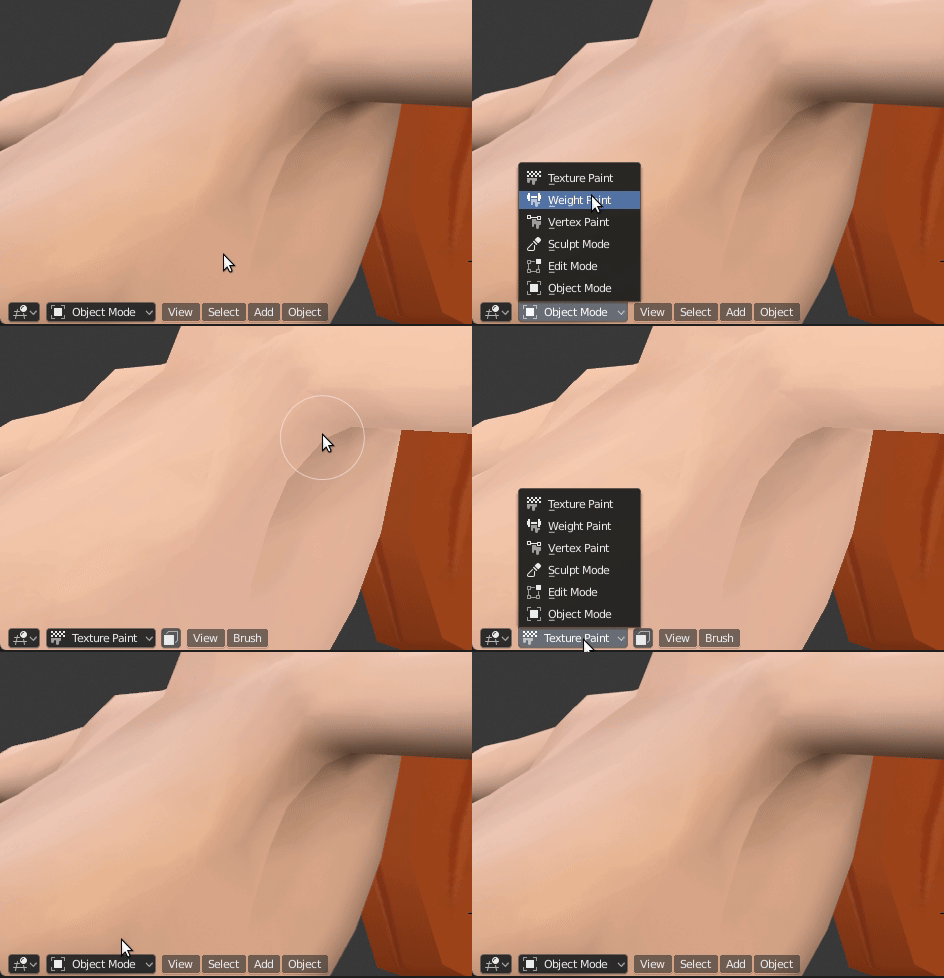
Also I can see that when I enter Texture Paint mode, it makes the entire texture brighter, which I assume is removing all the viewport shading, to show the texture’s true colours.
Sorry, maybe my lack of understanding. But it would be much easier to analyze the situation for other users who could help you, if you shared the .blend file with packed images/textures.
Yes, apparently it sometimes takes the correct sample and other times it does not. I will continue investigating. Apparently the problem also occurs in 2.79.
Apparently sometimes this is mistakenly taking the sample of the faces from behind. I have painted the part of the leg from behind in hard red, and when I take samples from the front of the leg, sometimes it takes the sample of the red color. I am not sure if this could be due to some configuration within “Project Paint” item, or some configuration of the UV map.
I’m testing Texture Paint mode in 2.8 and it seems to be working even worse than usual. @zeauro, You open this simplified .blend file: http://pasteall.org/blend/index.php?id=50833
you reload Untitled.png image in Texture node (for some reason it is not loaded when opening). If TopBar is not loaded correctly when you open the .blend file, you make some changes by choosing brushes.
Now, you take many samples at the front of the leg just with “S” key in different parts. Is it always sampled with blue color?
Edit:
Applying Mirror modifier seems to start working well. So I do not know if this is expected, or an incorrect configuration of modifiers, or something else.
It looks like a bug. It seems that enabling face selection masking is solving the problem.
So, there are workarounds but user should not have to use one.
Ah yes, I noticed after I “applied” the Mirror modifier, it seemed to work more predictably. I guess for now that is workable because I can easily re-create the Mirror modifier.
Thank you for working this out @YAFU. So it looks like we have a bug! I have looked at the bug repository and couldn’t find any mention of it, so I made a new bug here using your simplified example file; https://developer.blender.org/T58763