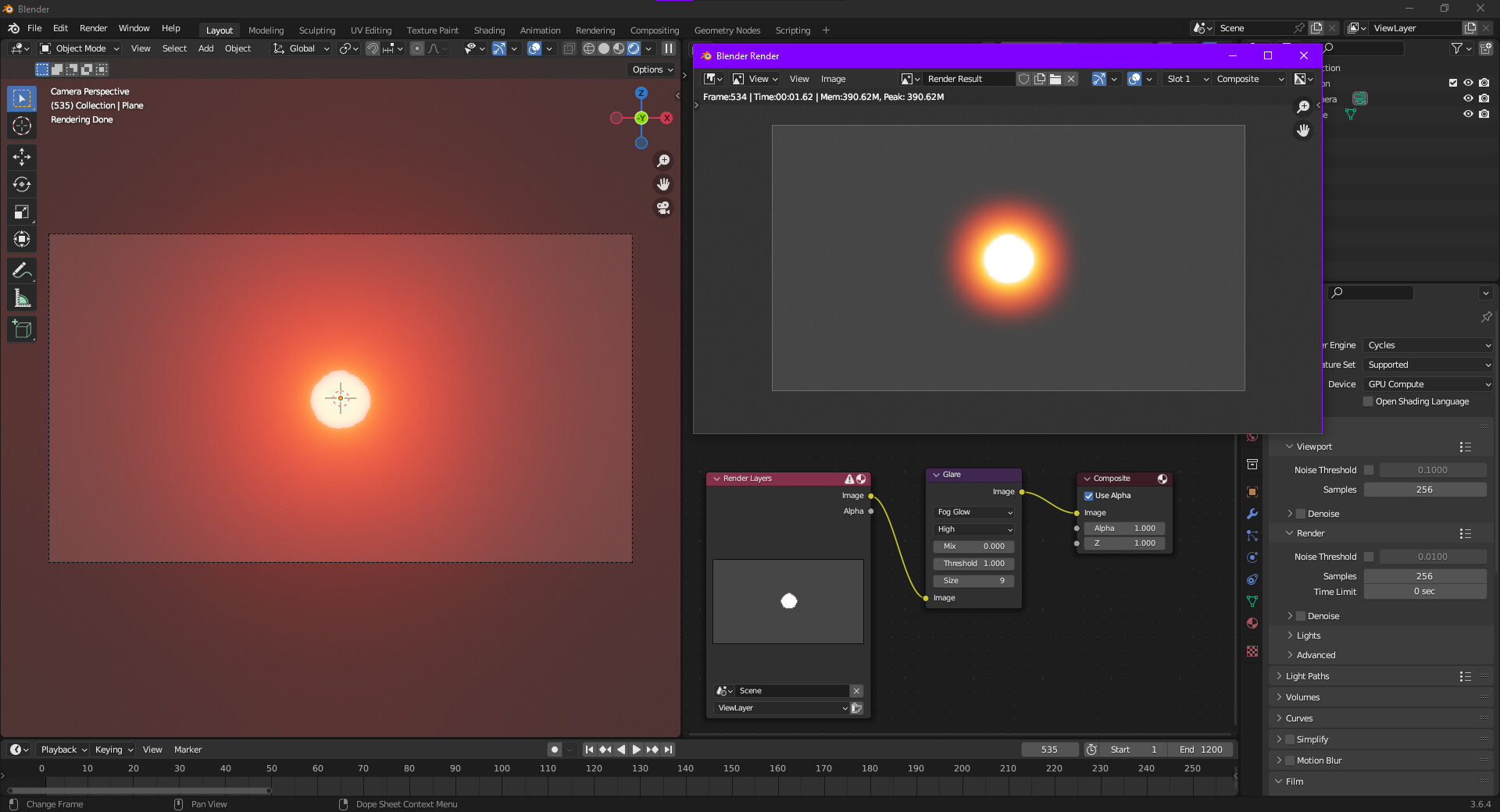
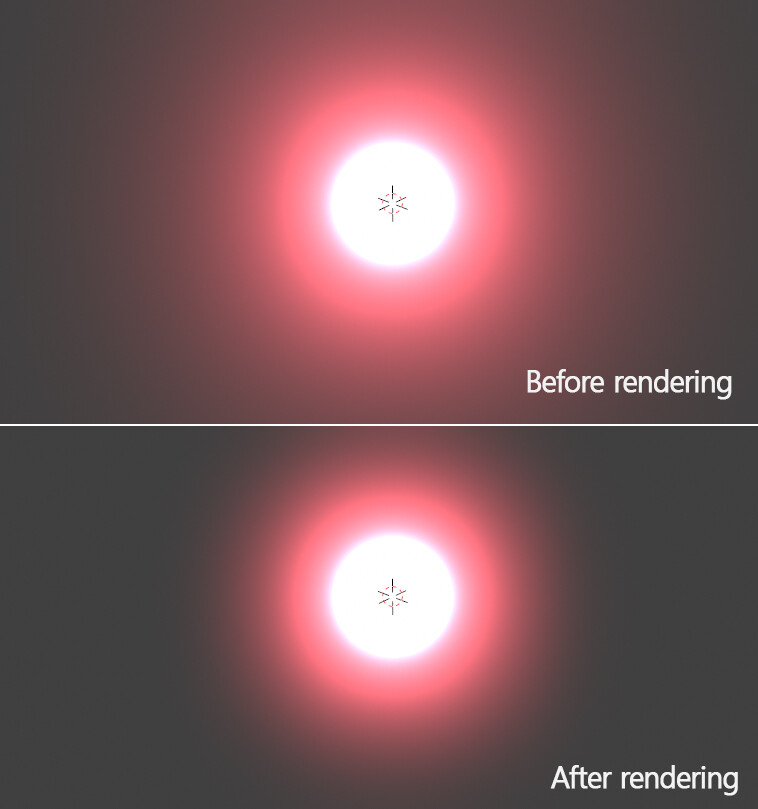
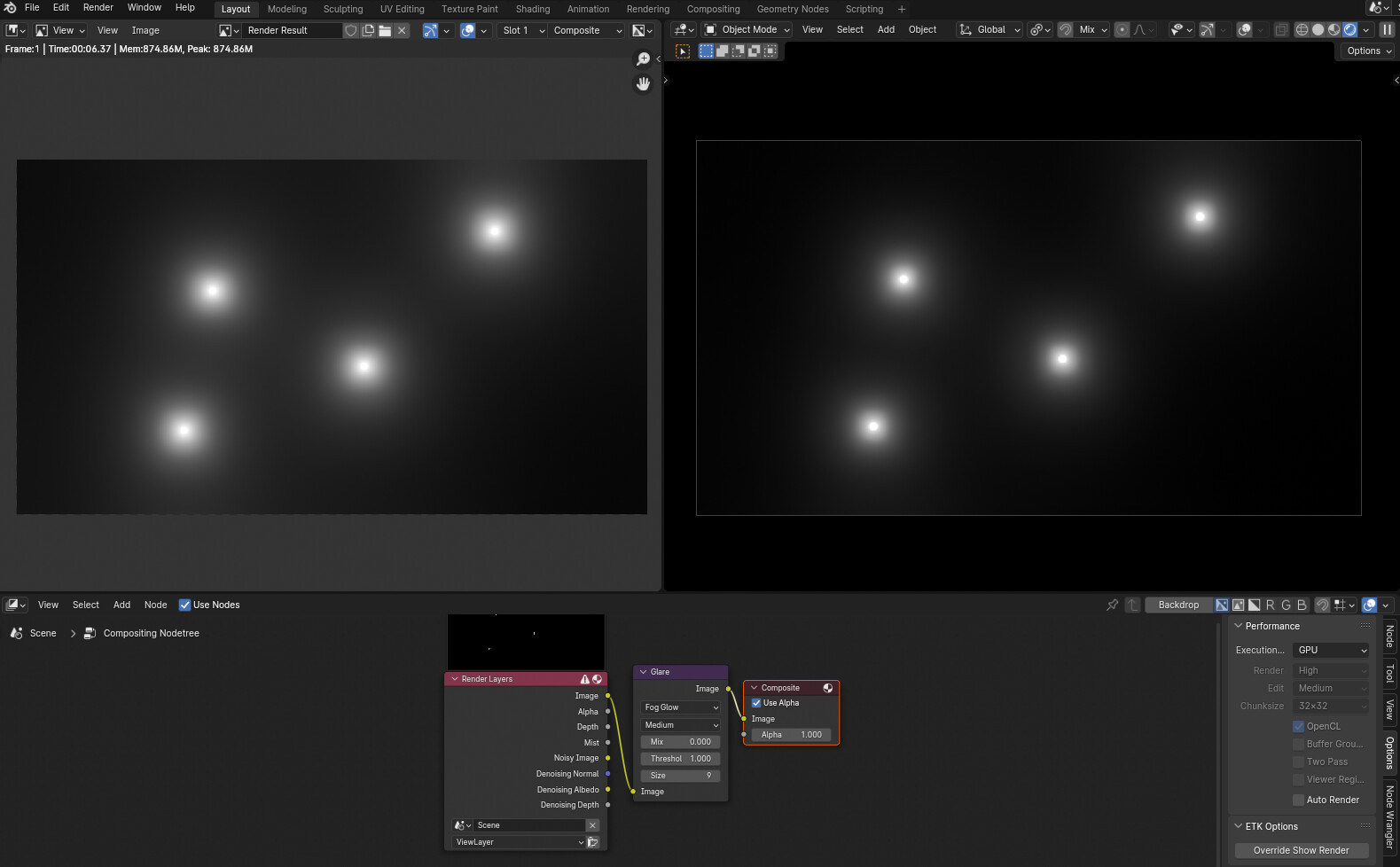
I made a reply on another post regarding the viewport compositor bloom. The viewport compositor bloom has different implementation than the one in the compositor. You can change the camera’s passepartout setting to get it a little bit similar, but it will still look different. It’s better to adjust it after render than doing it through the viewport compositor.
Thanks for the quick reply.
That’s a shame, that the (imo) better looking implementation is temporary. Do you know of anyway to at least get the viewport look into the compositor. The only method I can think if is to render everything out, then to run it through an eevee scene just for the bloom. But that is a huge timewaster and means I don’t get that direct feedback of what my scene actually looks likes.
The background is not transparent, just the default gray. The issue is that the bloom for realtime compositing it a completely different implementation.
What do you mean with volume?
I believe this issue is not going to go away anytime soon. This is the third post in as many weeks where a user is frustrated with a quick and dirty OpenGL preview not matching up with a processor intensive render. Maybe a forum moderator can pin a sticky on it?
The whole idea behind real time compositing has nothing to do with what a final render is going to look like. It is similar to proxy rendering in After Effects and it is only intended to give you a general sense of :
A.) are all of my elements positioned properly;
B.) is my animation flowing smoothly;
C,) are my post processing effects timed properly with my animations;
D.) etc…you should be getting the idea by now
Shortcuts are never equivalent to properly instantiated renders. It just can’t work that way and it’s not designed to, nor is it ever going to because it is a HACK. I hope this helps.
No, that’s exactly what they are going for (to an extent). They’re still working on it, that’s why the realtime compositor and the old compositor have vastly different result especially for the bloom.
The 4.1 alpha build has an experimental GPU compositor option which as I understand uses the realtime compositor to composite the final render, which makes the final render very similar to what we see in the viewport.
That would be nice but I seriously doubt that it can or will happen because OpenGL itself is a render hack (though they may get within 70% - 80%ish). I wish that it could happen as much as anyone else because that would bring us a giant leap forward toward the realization of the fabled “Make Cool Movie” button.
I think people here are misunderstanding my question. My question isn’t to get my viewport to look like my render. My question is if i can get the viewport version of bloom in my final render, because I prefer the way that it looks more
I kind of prefer some of that stuff too because I don’t use 3D for realistic renders. You’re just going to have to play with it in the compositor until your background image node matches what you see in the realtime view.
You probably need to take a screenshot of what you want it to look like because everything will change when you start adjusting the nodes. Put your screenshot image on another monitor or tab between the two with Alt + Tab.
I didn’t really get that reply. I dont see how the passepartout has anything to do with how bloom is rendered, it just changes the color of the view outside the camera
The passepartout is a backward approach to try and limit the difference between the realtime view and an actual render. If you get them so that they look very similar then you can use the realtime view to predict what an actual render will look like. Then you go back to adjusting the realtime view so that it matches the original viewport bloom that you enjoyed. It’s something aimed at preventing you from having to endlessly tweek the proces every time you want to achieve the effect.
solution A) just use viewport render , its like 10 times faster, has the same quality as normal render and gives you exactly the same image as the viewport
solution B) imoplement your own bloom , its faster than the glare node with better performance for animation, and will not differ between viewport and render …
this might be a stupid question but how do i do a viewport render, or better: how do i get it out? screenshots? wouldnt that be limited to my screensize?
under view → render viewport animation /image. when you use compositor you have to zoom the viewport 1:1 and center the eevee viewport though. but thats a bug. overall its a bit more work but nothing a custom render script cant solve. you also have to disable overlay of course , otherwise it will render too.
import bpy


# Get the current 3D Viewport space data
space_data = bpy.context.space_data

# Disable overlays
space_data.overlay.show_overlays = False

bpy.ops.view3d.view_center_camera()

bpy.ops.view3d.zoom_camera_1_to_1()

bpy.ops.render.opengl(animation=True)
it will render into the format and path set in the render output settings just like normal