Why my textures are blurry?

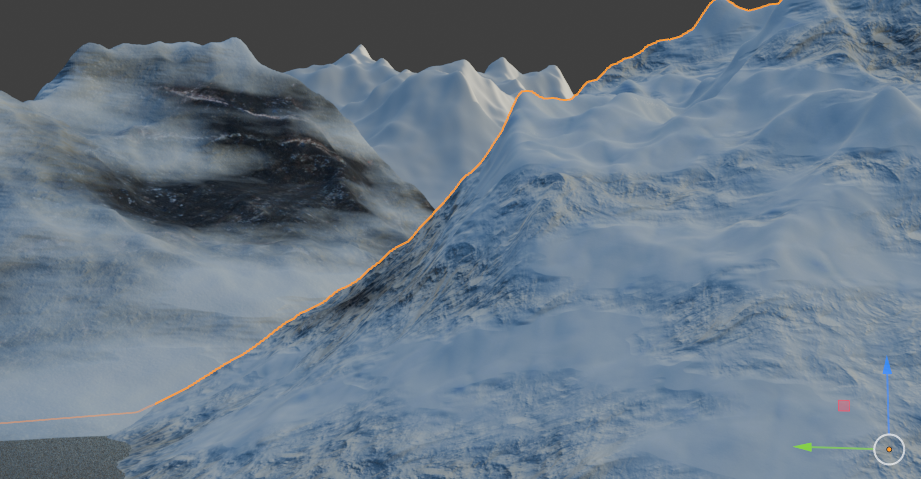
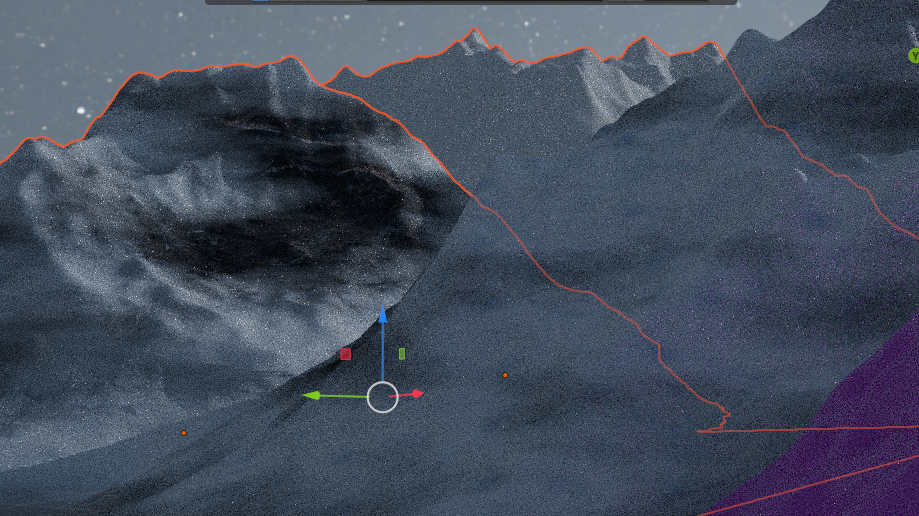
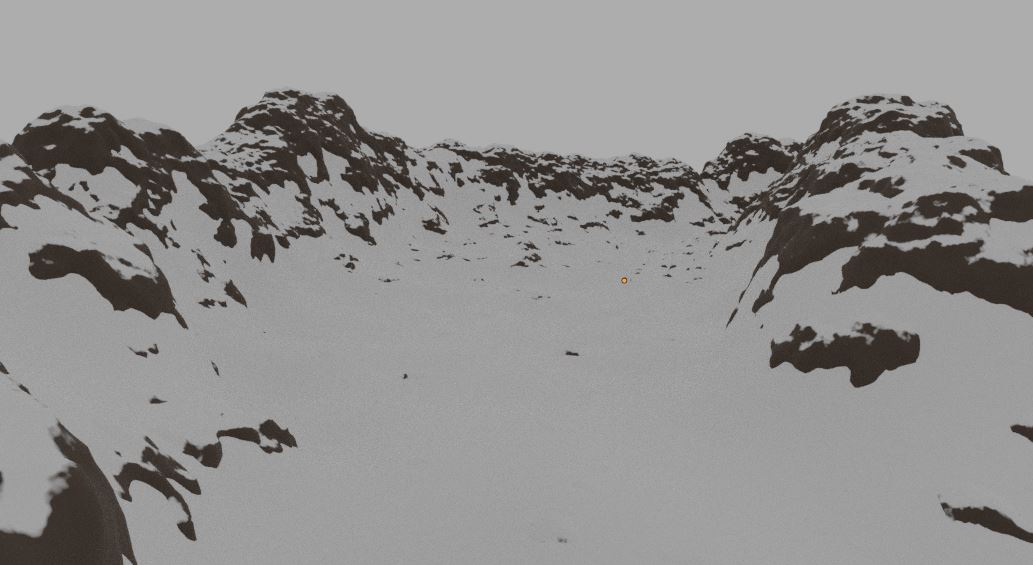
I am currently working on a terrain animation that features around 20 to 40 mountains. My Blender was functioning normally until I applied PBR materials to just two of the mountains. After rendering in Cycles, I’ve encountered issues where the terrain becomes blurry when the other mountains are hidden. Additionally, when I enable these hidden mountains during rendering, Blender crashes.
In the viewport shading, the textures appear fine, but in Cycles, they look noticeably blurry. Could this be related to the PBR material’s displacement? If so, how can I resolve this issue to prevent Blender from crashing and ensure smooth performance for the entire terrain?

Viewport Shading

Cycles

Screenshot 2025-08-13 105651

Hmm, I don’t know about the crashing, but as far as the blurry textures are concerned, do you maybe have simplify enabled by accident and down-res the textures on render time ? Just my first thought what it could be.

It could. If the mountain is setup for displacement, you could be lacking detail in the render if the subdivision is not enough.

15 millions is a lot, are you trying to displace the moutains without adaptive subdivision? Because there’s no way you could reach the required detail without it.

Is your material using Subsurface Scattering? If so, try reducing the scale of it to a lower value, if not removing it completely.

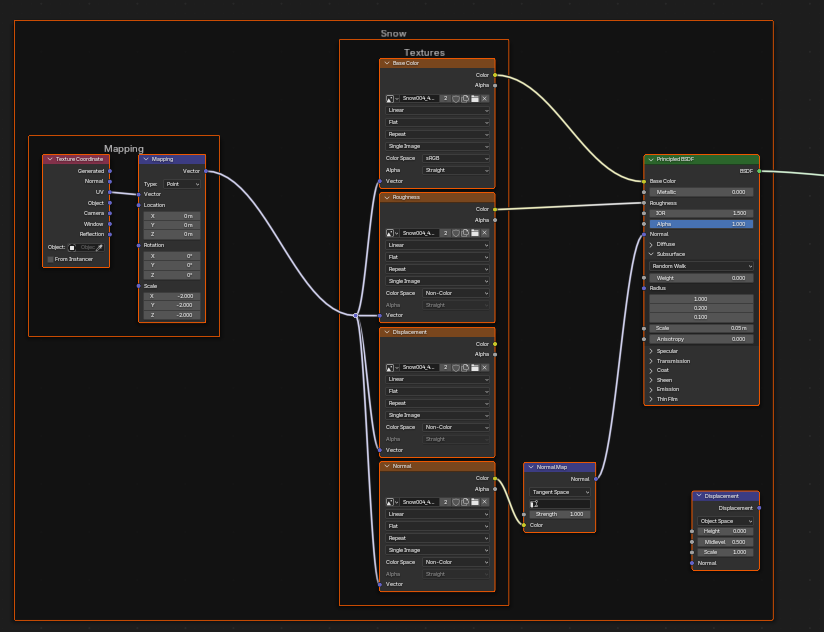
Subsurface scattering value is zero in my material

No simplify is not enabled in my scene.

Adaptive Subdivision is already checked. Can you please take a look at the mountain file and tell me if it would be easy for you.

Uploading: Mountain.blend…

The file seems stuck on upload. Is it bigger than the limit (5mb)? Might need to be uploaded to an external site and have the link pasted here.

Yeah, it was more than 5MB, here is the link

As far as I can tell, the textures are setup correctly, so I am thinking the difference must be in the lighting. The viewport has its own temporary lighting, so it might be making the normal maps much more visible than they are in the render.

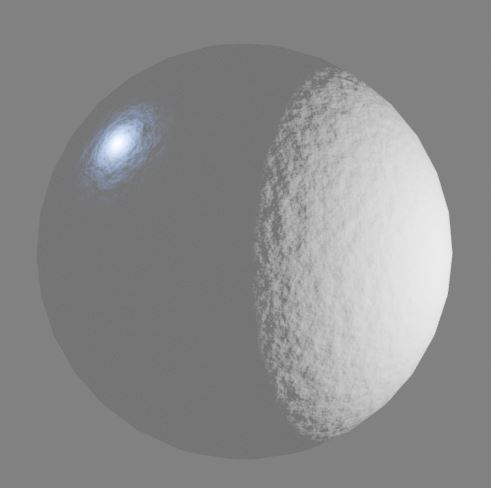
If a normal map is in the shade and is getting lit evenly from every direction, it won’t be very visible.

You can see on this sphere, the bump is almost invisible except in places where there are lights.
bump

If you bring a light source close to your flat looking mountain, I think you will see the bump get revealed by the light.

If you intend to have the scene be very evenly lit, the mountains will probably need more detail in their color channel, because it’s the only part of the material that will be easy to see in those light conditions.

What do you think if I’ll change the snow PBR material? Because rock material is working fine, right?
And I will use HDRI for ambient light and very few lights if needed in the scene. So I dont have to do so much lighting setup.

And what about the crashing? I already tried to check adaptive subdivision but still scene was getting heavy or I dont know what was happening, and if my scene is getting heavy how can I optimize it? Before, I was using procedural material setup in around 10-15 mountains, but then, the scene was so smooth, but now I tried to use PBR materials in only two mountains, scene is heavy or laggy, I’m not sure about it but blender is crashing.

If you can find one with a well detailed color channel, it might help a little.

Don’t expect miracles by changing the snow material though. If you look at images of real mountains under cloudy or night time conditions, you will see the snow itself is a rather solid white. Most of the visual detail happens because there are very detailed patches of rock poking through the snow.

Example:

The only texture in this render is a single noise to make the transition between snow and rock a bit more detailed.

The snow is a solid white and the rock a solid brown, no textures used. The visual complexity is created entirely by the complex transition between the two materials, which I think is the key for good looking mountains. I purposefully took this image under the flattest lighting possible and it holds up pretty well.

Here is the scene for that test render if you wanted to take a look.
mountains_snow.blend (2.5 MB)

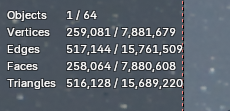
From the images you posted, I think it’s the polygon count. Your mountains add up to 15 millions triangles in the viewport. I can imagine this would be a problem. Disable the viewport levels on the subdiv modifiers and it should greatly reduce the problem, at least in the viewport.

For the render, there are 2 things you could do. Are there some mountains that are far away and need less detail? If there are, you can remove the subdivision modifiers on those to save performance.

For the closer mountains, make sure they are all using adaptive subdivision, not just some of them. It’s not just for micro-displacements, it’s also for performance, but you have to set a good dicing rate to get the benefit over regular subdivision.

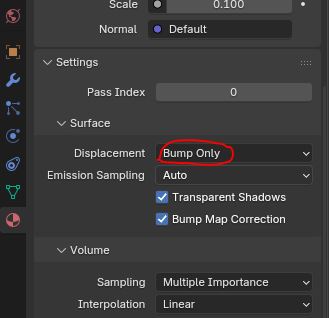
I notice you have a displacement plugged in the material, but it’s set to “bump only”, which means your displacement isn’t being used as actual displacement, it acts like a bump node.
bump

If you are fine with this, you can set the adaptive subdivision’s dicing scale to 3 or 4. It will have much better performance and is still good enough for a model without displacement.