Hello @Bookyakuno
I’m having a little trouble displaying all materials on the scene. I feel like I don’t know a shortcut key or something.
I have 300 materials on the scene “Material” list shows the first 20. I see “more…” and “20/300” written at the bottom of the list but clicking “more…” doesn’t do anything. I can change 20 to any other number but list doesn’t refresh. Tried mouse scroll that didn’t work either. I must be missing something to scroll through the material list. Hope I was able to describe clearly.
Thanks
You can scroll the displayed items from the numerical value in the search icon.
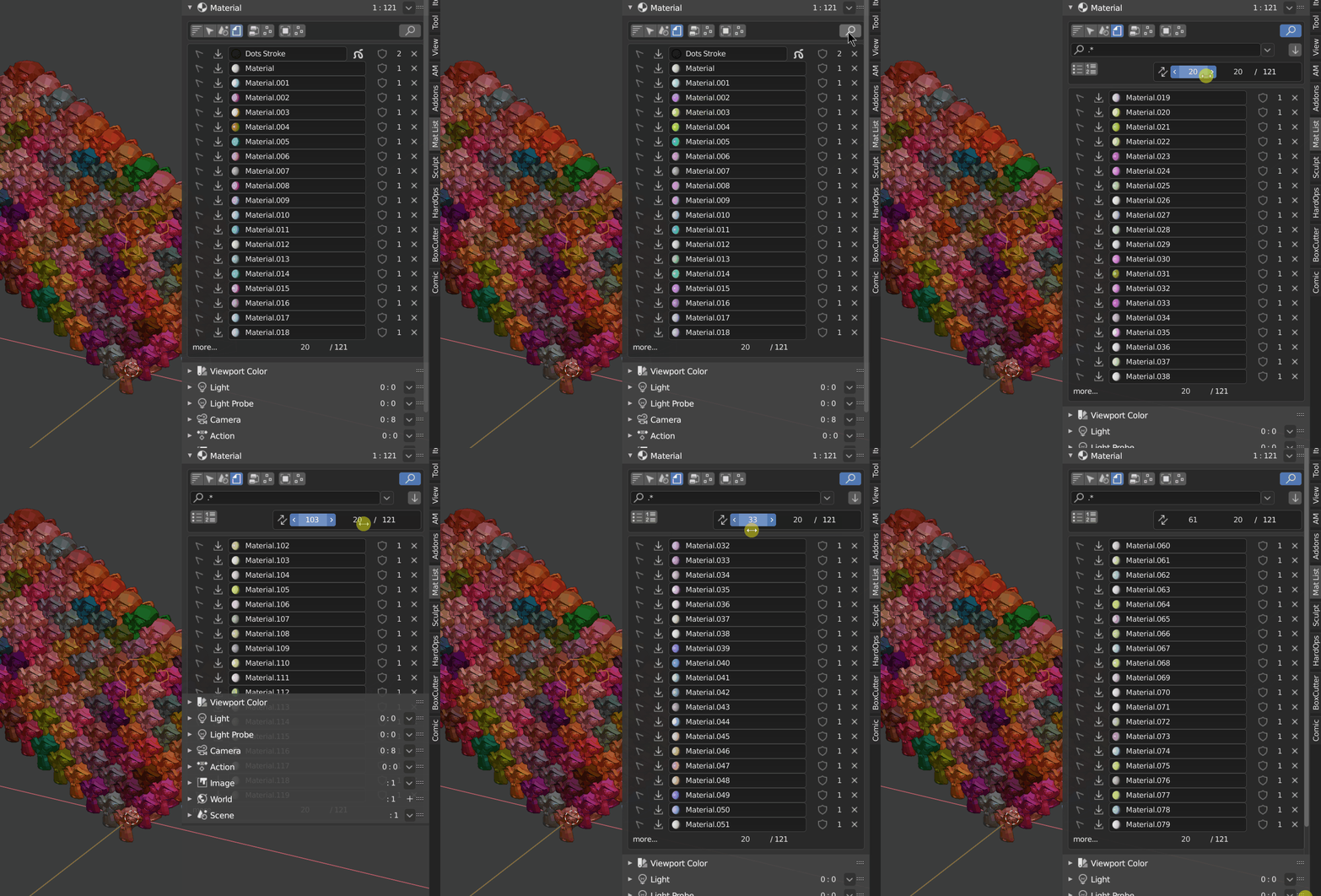
To increase the display amount, drag “20” of “20/300”.
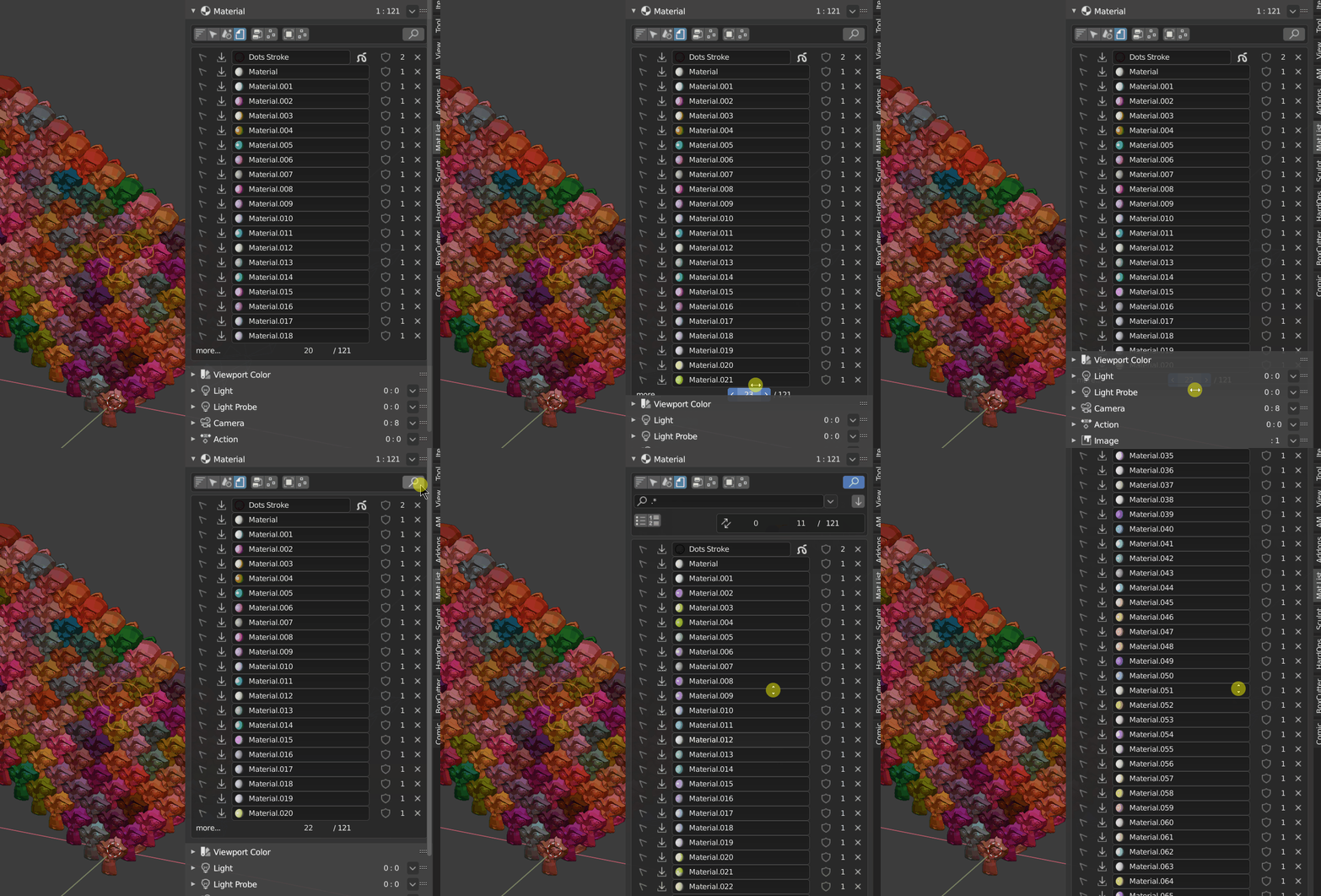
If something like the video doesn’t work for you, please provide more detailed information.
This function is an alternative function because the standard list display menu of Blender cannot be used.
I don’t think it beautiful either…
Thanks for the swift reply.
I can scroll through the list from the search area(I think it is a bit hidden there)
Scrolling works funky when in scene type. It doesn’t move all the list up but some materials move up in scene type. ( it is OK in “All data” type)
I can change the list length from search area too. But the bottom area doesn’t do anything for me.
Your video shows you’re able to change the list length from the bottom controls. I can not do this.
I’m sorry, the cause cannot be identified.
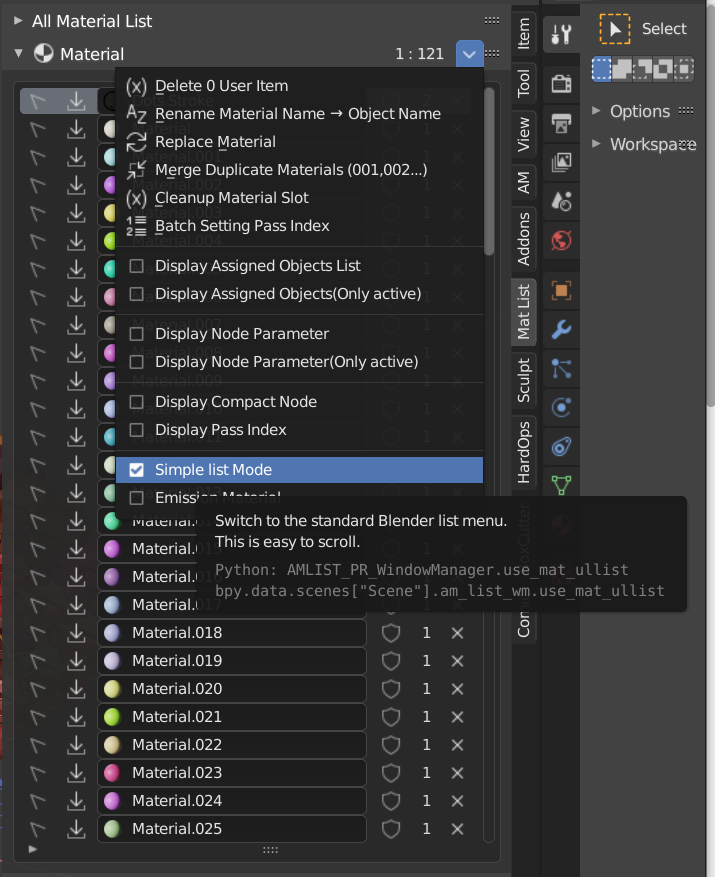
The alternative is to use simple list mode.
It does not support some options, but normal scrolling is available.
Published an Object Checklist add-on that lists objects.
By using it with the All Material List add-on, data management becomes easier.
Hello I just bought the addon, it works very well, I have a request for future versions tho, do you think it could be possible to have folders on the material list, so we can organize the materials better, if that could be done the addon would be much more useful to manage the endless data Blender sometimes has 
1 Like
the addon is great , but please add an option to filter greasepencil materials (out)
bug report
blender 2.9
material list version 2.4.1
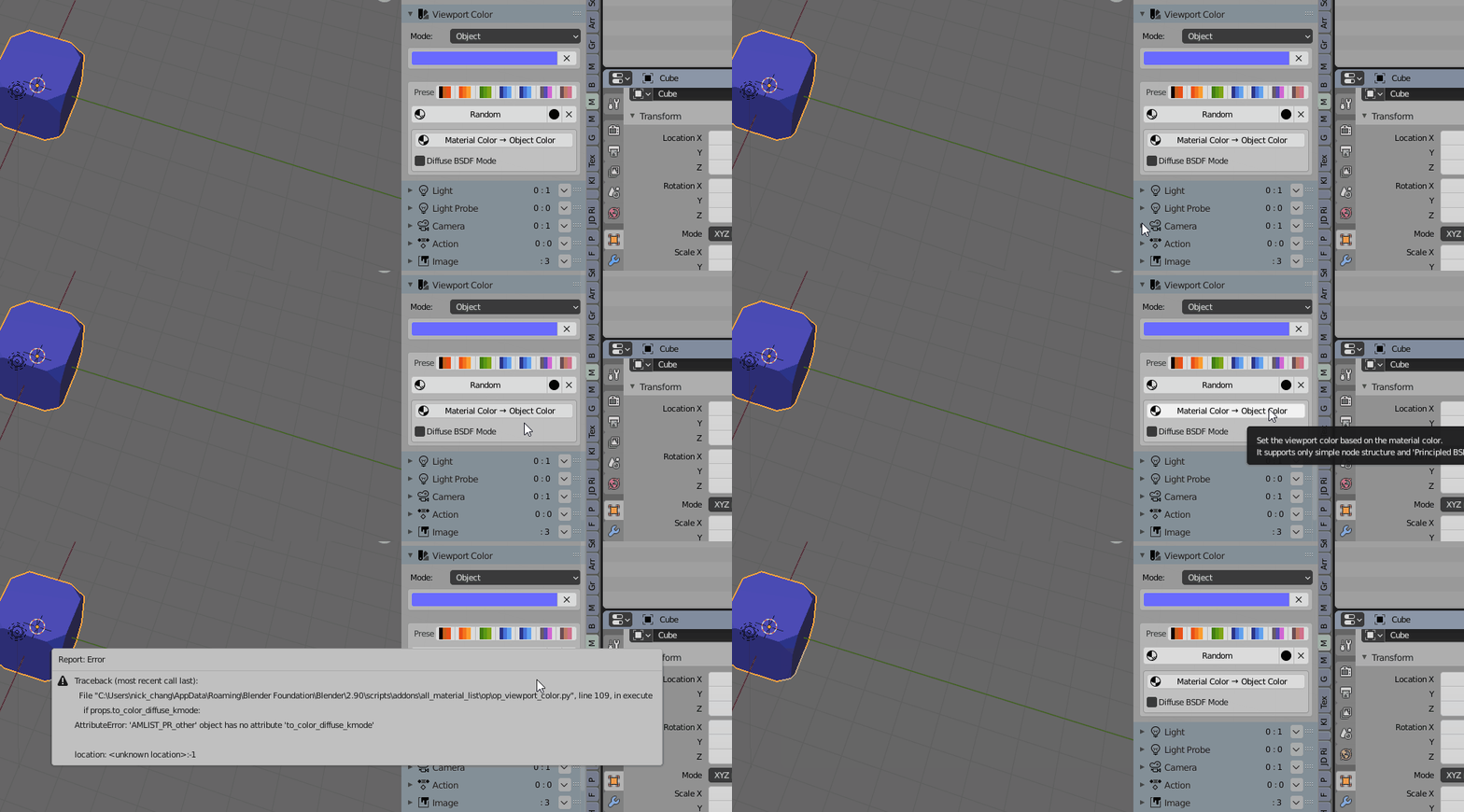
Hi,
I have couple of questions:
-
Is there a way to add my own custom presets for the Viewport Color?
-
Would it be possible to add a scroll bar when the Material list is not in Display Compact Node?
-
Is there a faster way to Replace a material? maybe an extra option to display the replace material icon next to each material? This is a quick mockup:
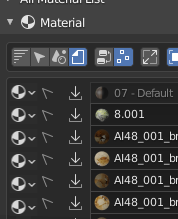
Cheers,
Juan
ver2.5.0 update
Improved scrolling / improved pop-up menu
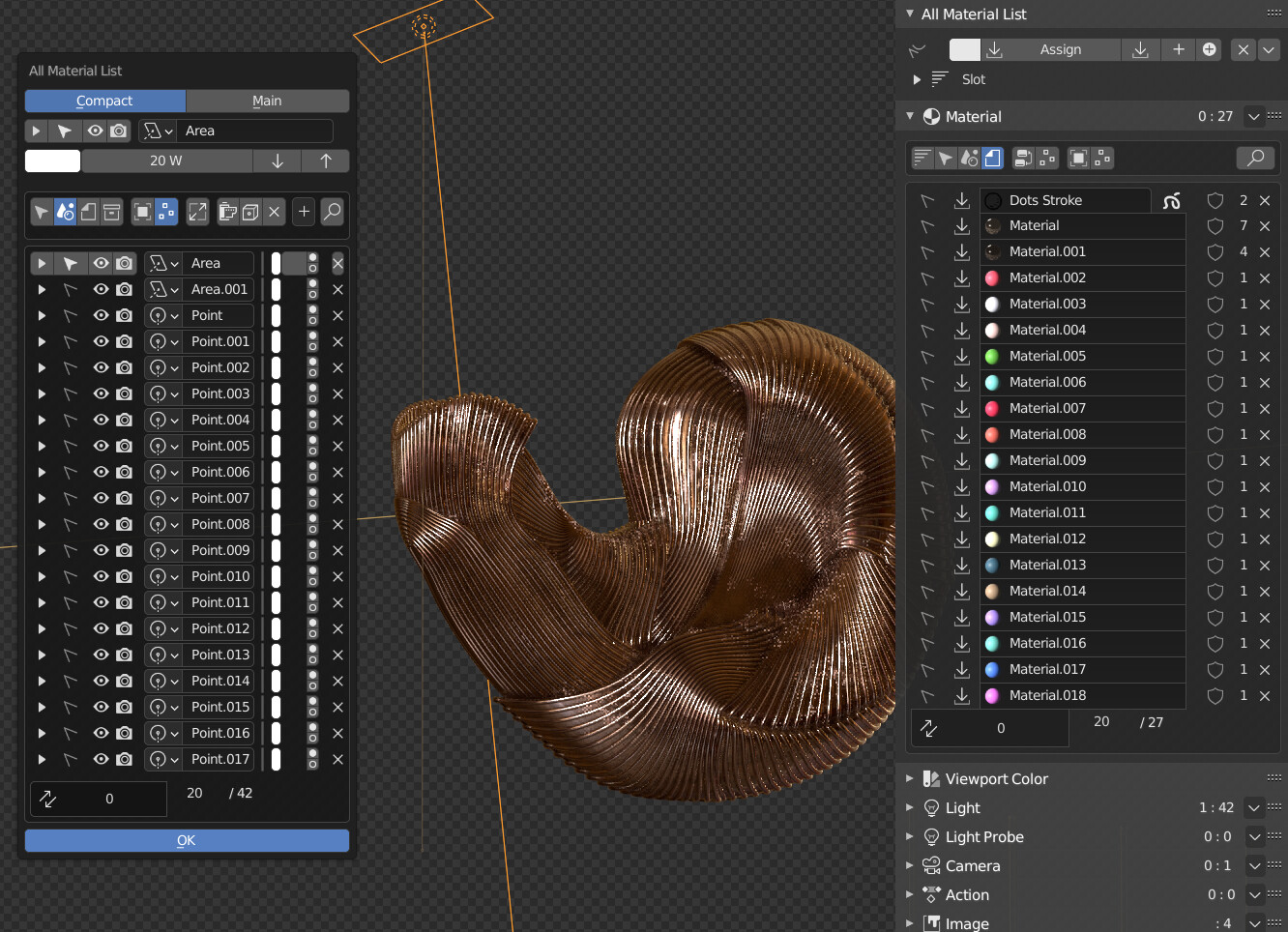
Improved scrolling
- Improved so that scrolling stops when the number of scrolls exceeds the number of items
- Added the number of scrolls below the list to make it easier to scroll
Improved pop-up menu
The pop-up menu now displays a more contextual menu.
- When selecting an object without materials such as empty light camera, the properties can be displayed and edited.
- Now you can view and edit curve properties
- A scroll function has also been added to the pop-up menu to limit the number of items.
- Changed to display only grease pencil materials in the list when grease pencil is selected.
- The material for grease pencil has been changed so that it will not be displayed in the list except when the grease pencil is selected.
Other
- Materials > Top right menu > Added " Display Material type " option
- You can display only grease pencil materials or only regular materials
- Fixed the problem that an error is output when the object color is used in the viewport color > " Material Color > Object Color " function.
2 Likes
Sorry, my notifications for this thread were muted. 
@renderluzblenderid
It’s difficult to implement, so I’ll give it up now.
@ulf3000
In ver2.5.0, Material> Top right menu> “Display Material Type” option was added.
You can display only grease pencil materials or only regular materials.
@Nick2321
Fixed in ver2.5.0.
1
I will consider.
2
I’m sorry, I couldn’t imagine it well.
3
I didn’t feel that important to this.
Please use All Material List> Materials> Top right menu> Replace Material.
I love the material side of the addon, but I’m a bit confused by the image side.
I have a large scene with ~20 materials, and 80 image maps dependent to them, unpacked;
I want to rename each image with its material name + the suffix of its channel (_diffuse, _metallic, etc.)
I can rename one by one the images “alias” in All Material List, image / UV editor panel, but is there any way to rename the actual file without to loose its link to the material?
Thanks!
With this add-on and the standard Blender features, such a process is probably not possible.
You have to do everything manually.
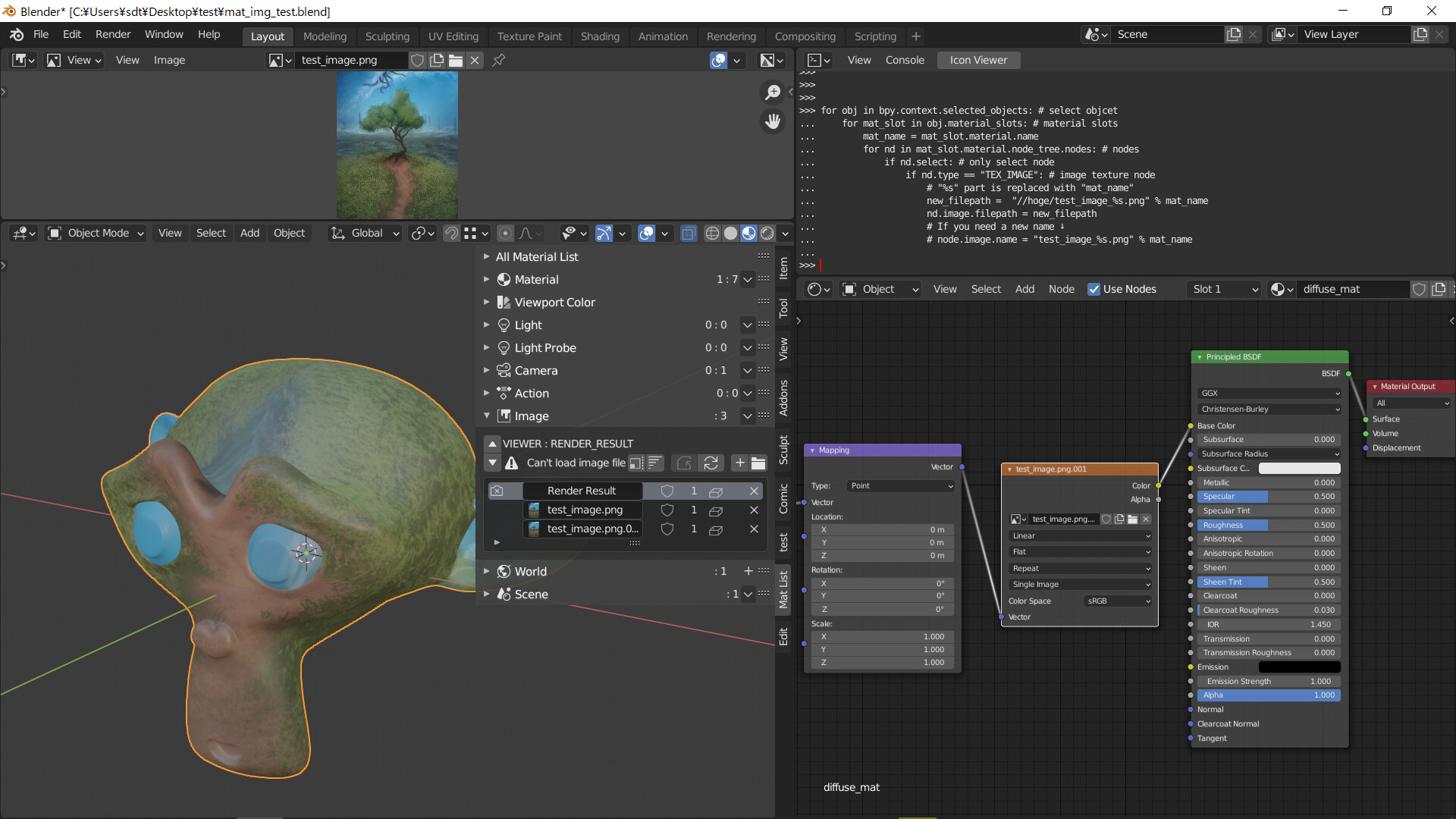
I was curious, so I made a simple sample script.
It replaces the file paths of the selected object, all material slots and selected image texture nodes with new ones.
mat_name is the material name.
for obj in bpy.context.selected_objects: # select objcet
    for mat_slot in obj.material_slots: # material slots
        mat_name = mat_slot.material.name
        for nd in mat_slot.material.node_tree.nodes: # nodes
            if nd.select: # only select node
                if nd.type == "TEX_IMAGE": # image texture node
                    # "%s" part is replaced with "mat_name"
                    new_filepath =  "//hoge/test_image_%s.png" % mat_name
                    nd.image.filepath = new_filepath
                    # If you need a new name ↓
                    # node.image.name = "test_image_%s.png" % mat_name
This is only a simple example and not tested extensively, so please learn Python if you want to use it properly.
1 Like
Is there a way to make this window resizeable or more properly expanded?
Sometimes it gets into state where I can’t really read anything/most lf the info is chopped off, unfortunately.
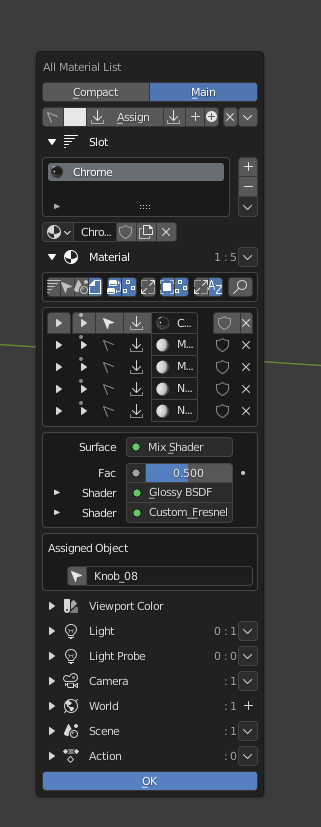

The width of the pop-up window can be changed from the add-on settings.
The problem seems to occur when the width of the display you are using is wide.
1 Like
aaaah ok, I can try that.
Yes, I am using a 34" Widescreen for my main display. 3440 x 1440
Edit: Ah, yes, this option definitely helps, thank you!
ver2.6.0 update
Enhanced material list / normal scrolling
Allows normal scrolling in the material list

The simple list menu, which has few functions, has been enhanced, and it is now possible to display detailed filters with a menu that allows normal scrolling.
You can use various functions like the previous material list.
Currently it only supports lists of materials.
Other improvements
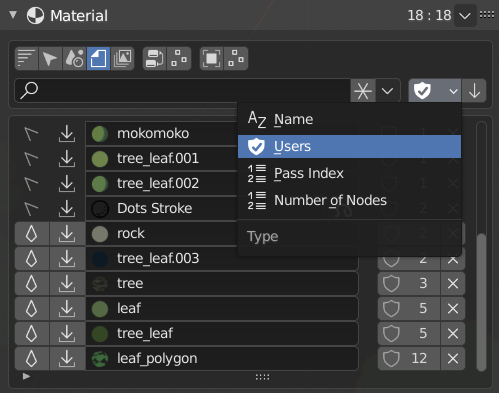
- Added sort type option
- You can select the type to sort the list from name, number of users, path index, and number of nodes.
- The display of the filter menu has been changed
- The search menu is always displayed.
- Changed the regular expression to one option
- Disabled by default.
- Added a view layer to the filter type
- When using a view layer, you can only display the material of the object displayed in the view layer.
- Added the node number display
- Shows the number of nodes the material has in the list.
- The count display in the panel menu header is now “Number of filter states: Total”
- Previously it was “Number of active object material slots: total”.
How to revert to the previous material list
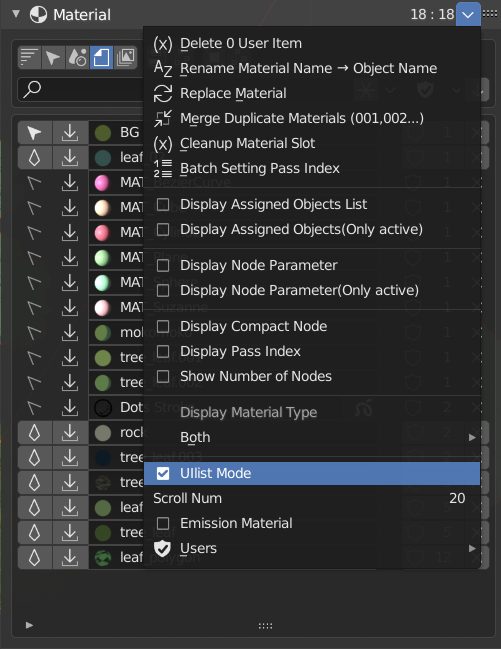
You can switch to the old material list by turning off “UI list mode” from the other menus.
Others
- Removed the list highlight option in add-on settings.
- The current material list does not use UI list index highlighting.
3 Likes
Does this version supports Blender 2.93 ?
So far I haven’t gotten any problem with 2.93.
2 Likes
Does this version supports Blender 2.93 ?
Yes.
2 Likes