list all the materials in a project
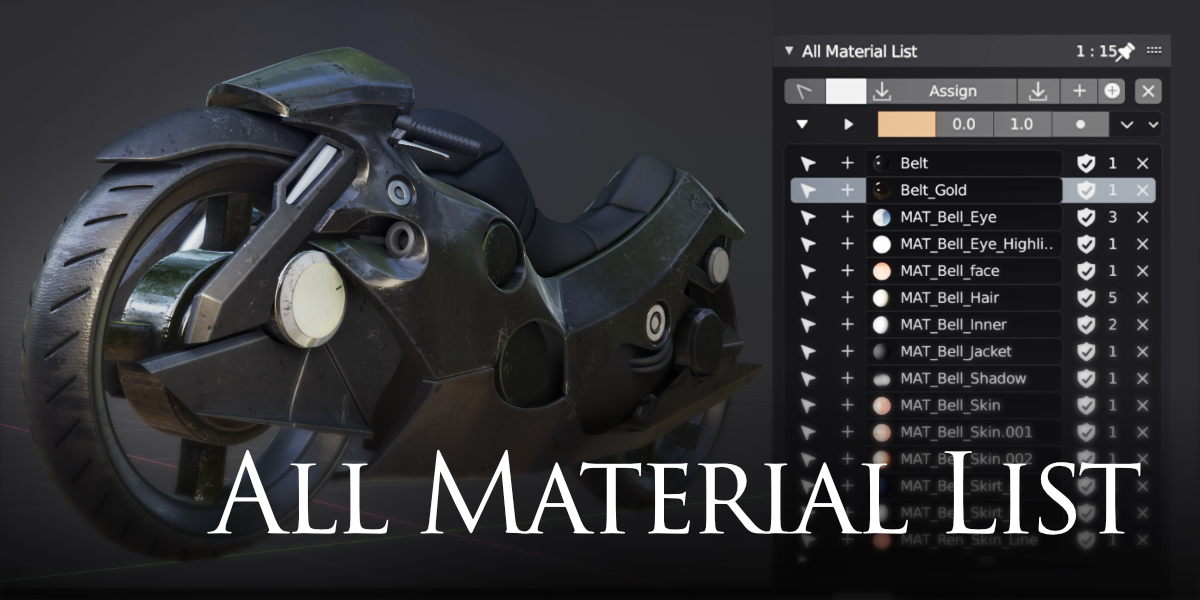
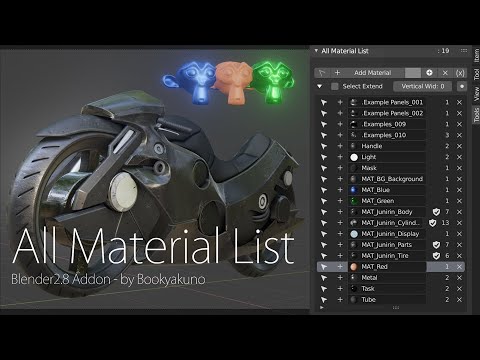
It is an add-on that displays material / image data in a list and improves data management efficiency.
Rename, select, assign, delete, check for path, check for broken links, etc.
Demo Video
Download - gumroad
Download Blender Market
The data you sell is the same
https://blendermarket.com/products/all-material-list
Material List

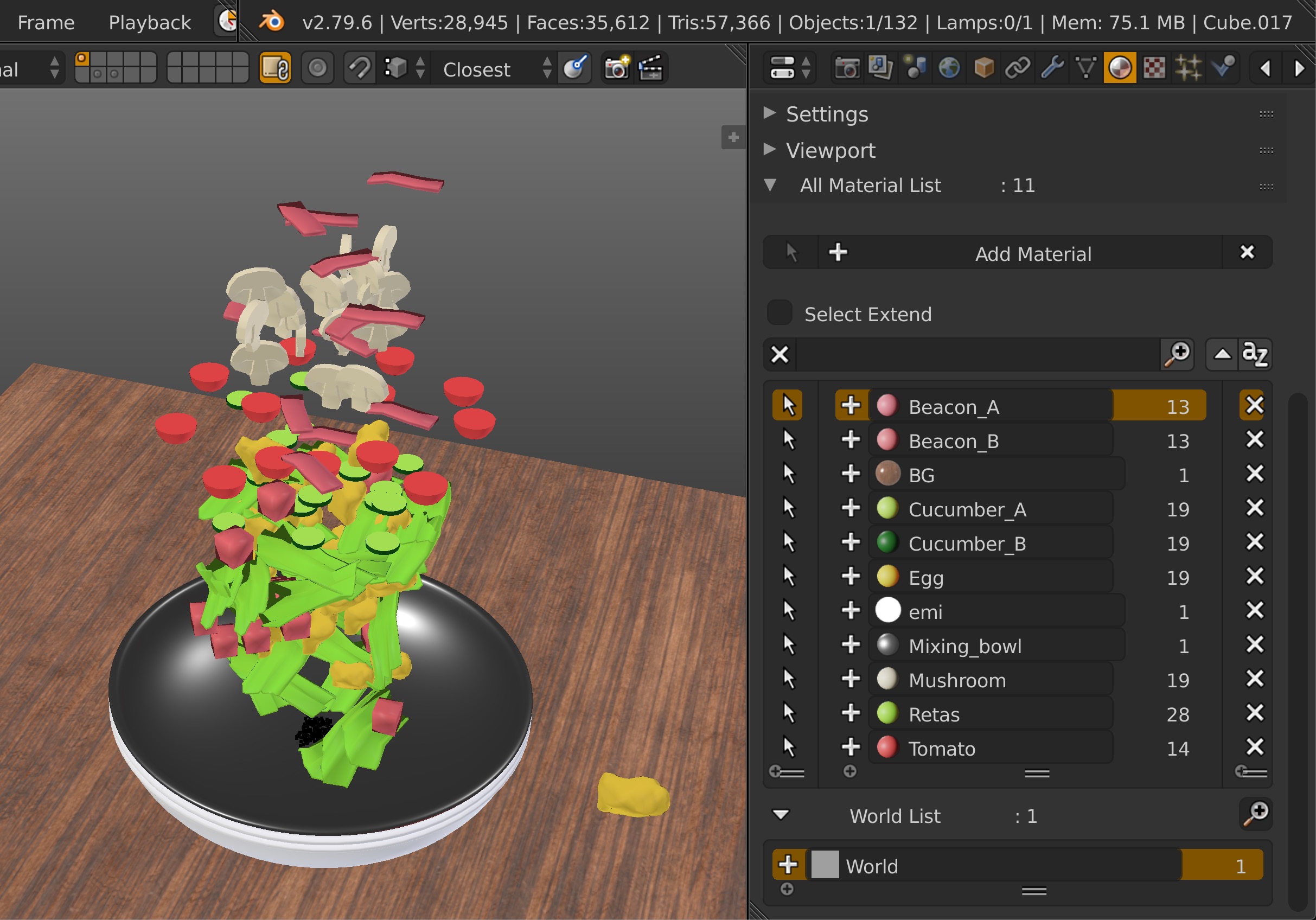
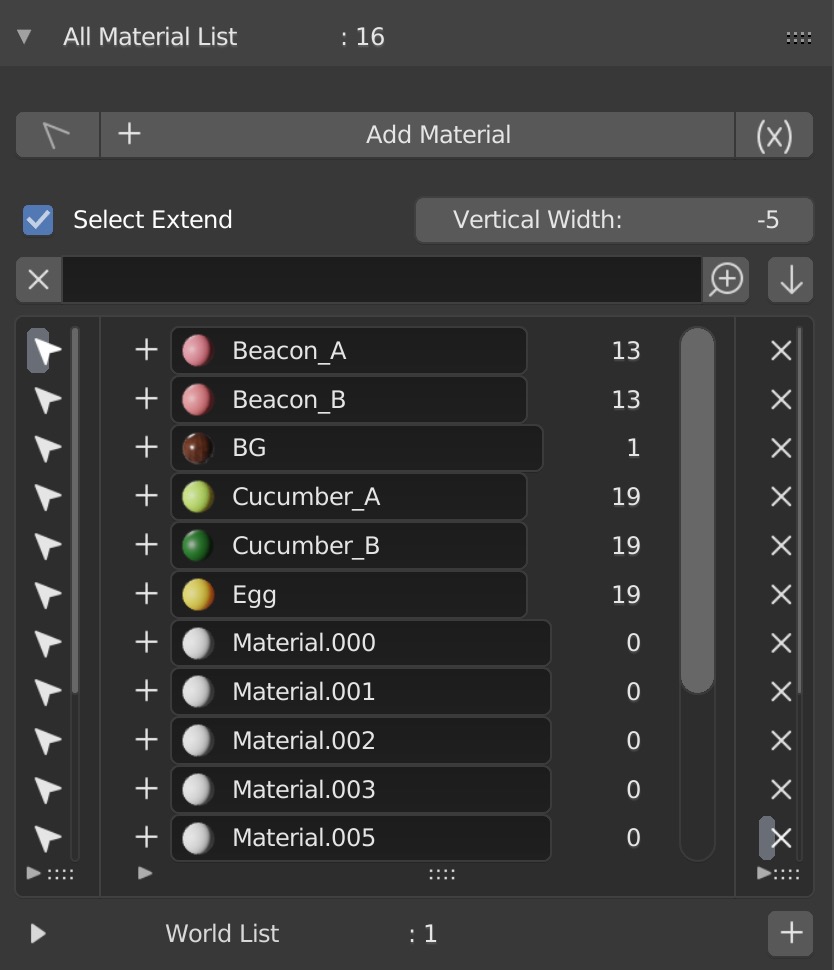
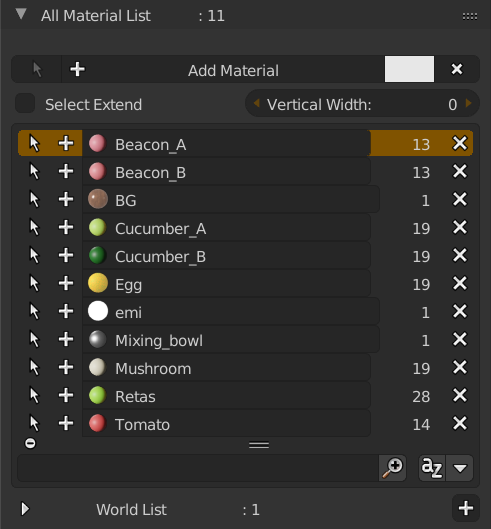
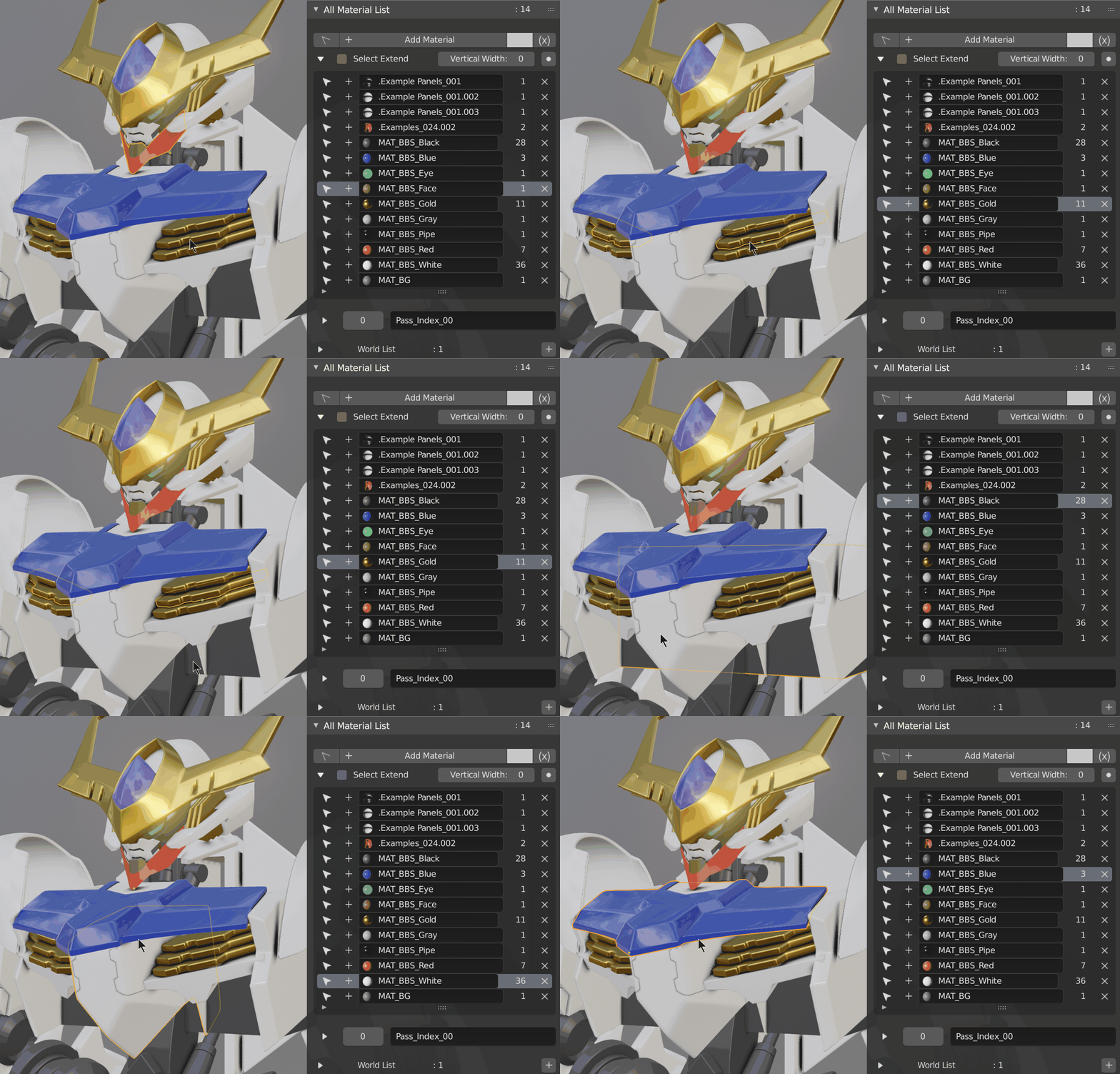
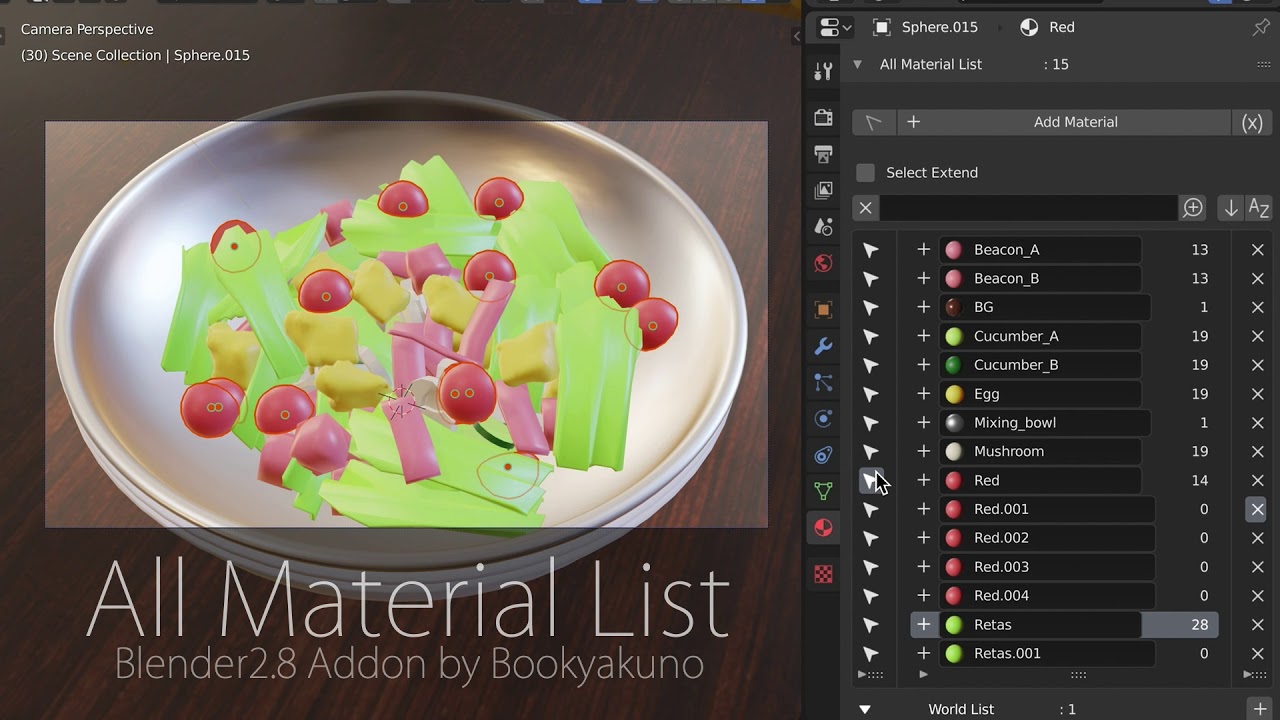
Display all Materials in the project.
- Select an object with a material
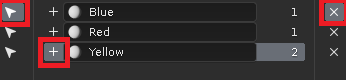
- Select by list (Mouse Click icon)
- Assign to Material (+ icon)
- Rename Material Name
- Show number of assigned objects
- Fake users are excluded from the count
- Delete Material (X icon)
Other Material management functions
■ Delete all users’ materials ((×) icon)
■ List assigned objects
Lists materials assigned materials and visualizes objects that cannot be selected.(selection disabled setting, hidden, hidden collection, etc.).
■ Merge duplicated materials
Materials and images with numbers such as .001 and .002 can be replaced with unmarked materials and images.
The join destination is the name without .001 or .002 attached.
The image is only for material nodes.
Option
- Target only all items and specified items.
- Specify a character( “.” ) string For the search.
■ Replace material
You can replace a specified material slot with another material.
Option
- Only the slot of the selected object.
■ Material Cleanup
Remove unused materials and empty slots from selected objects, and combine duplicate materials
- In the menu to the right of property → Material → Material Slot
■ Highlight list
Highlights the material assigned to the selected object, the current world, etc.
This feature may slow down other add-ons.
If there is a problem, please close all list views or turn them off from user settings
“Bezier Utilities” add-on “Flexi Edit Bezier” function is slow to display
Assign Material Menu

Assigned material list in a popup.
- Keymap … Alt + Ctrl + R
- Face assignment in Edit mode also works
- You can view the assigned material in slot mode
- You can switch to the main menu
- Regular expression filters are available
Example: 1 ^ M … Search for materials with “M” at the beginning of the line
Example: 2 ^ (?!. * TEST). + $ …… Exclude material named ‘TEST’
New / Assign Material
In addition to simple new creation, you can now do multiple ways.
In the settings, you can set the material name to the object name.
Optionally, slots can be removed and assigned in advance.
- Create and assign materials for each selected object
- Create, randomize and assign materials for each selected object
- Create and assign a single material
- Create one material, no assignment
Material Slot / Simple Shading Setting
Simple Shading settings and Slot Editing.
- Adjust Base color, Metallic and Roughness
-Supports only Principaled BSDF - Added material slot
-Edit and assign slots
Pss Index Material list
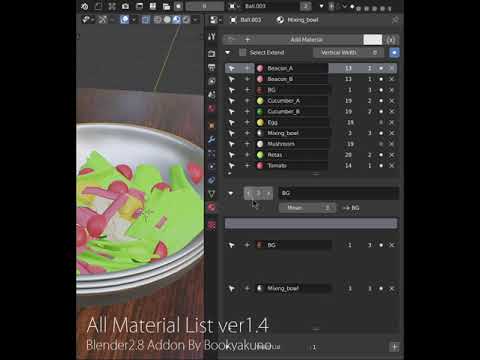
list to show what was filtered by material path index.
Can be treated like grouping.
ver1.4 Current issues
- There is a space in the filter list
- If a path index is used for its intended purpose, it can not be used for grouping purposes.
- Can handle only 20 filters
Viewport color
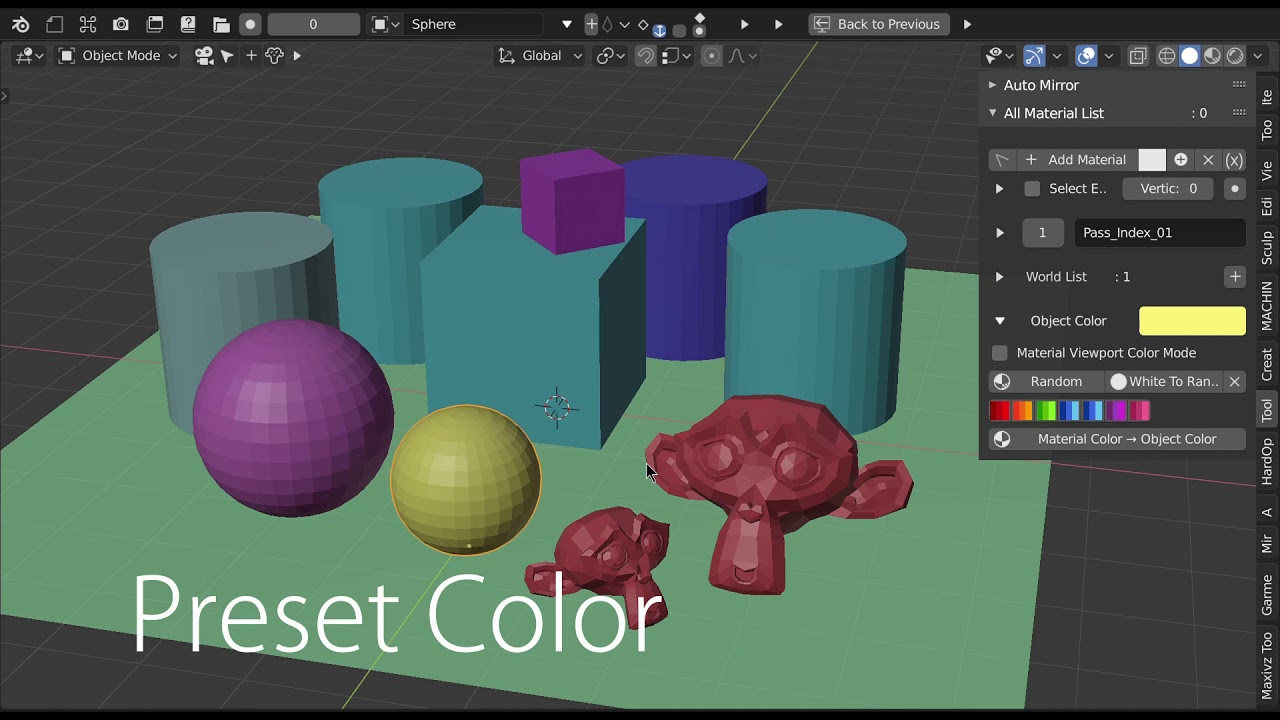
Added various functions related to object color in viewport.
Makes objects easy to identify.
To some extent it can be used like 3ds Max.
- In the rightmost menu of the 3D view header →
- 3D view shading →
- Displayed when [Color] is [Object] or [Material].
Functions
- Randomized
- Randomized only for white (default setting) objects
- Set the same value as the assigned material color
- For material viewport color, set the same value for metallic and roughness
- Use the value of “Principled BSDF”
- Clear color
- Set the color to white (default Color)
- 7 preset colors
Easy to check thumbnails
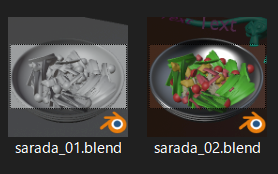
By setting the viewport color to the material color,
it becomes easier to identify the thumbnail of the file in Explorer.
Image data list
Lists information such as file path, broken link status, image size, and file type, and streamlines the management of image data.
- Image Editor-> Property Shelf (N)-> Add a panel to Tools
- Show image icon
- Show path
- Display image size
- Display pack status
- Display internal data (△)
- Warning display for broken links (
 )
)
- An image with no broken link may be displayed as a warning. Check with the button to reload all images.
- In Blender specifications, it seems that detailed data is released for images over time
- Delete
- Display file types such as videos and sequences
Other Image management functions
- Collect all image files in Textures folder
- Pack all the images and unpack them right away to put them together in Textures
- Move images from one folder to another
- Depending on the number of files, it may take a very long time
- Only supports folders directly under the .blend file
- Rename image to file name
- All image batch processing option
- Option without extension
- Delete 0 user
Location
- Keymap … Alt + Ctrl + R
- property → Material → “All Maternal List” Panel
- 3D View→ Property Shelf(N Key) → “Tools” Tab → “All Maternal List” Panel
- Image Editor-> Property Shelf (N)-> Add a panel to Tools
Support Version
- Blender2.80
- Blender2.79
The add-on version of Blender 2.79 is currently ver 1.3.0.
I Give priority to the update of Blender 2.8 version.

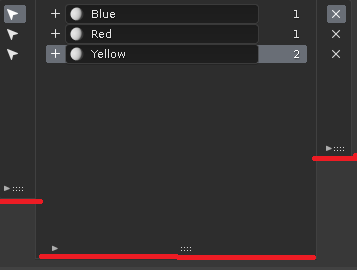
 icon below the list