Found a use for the chrome matcap…
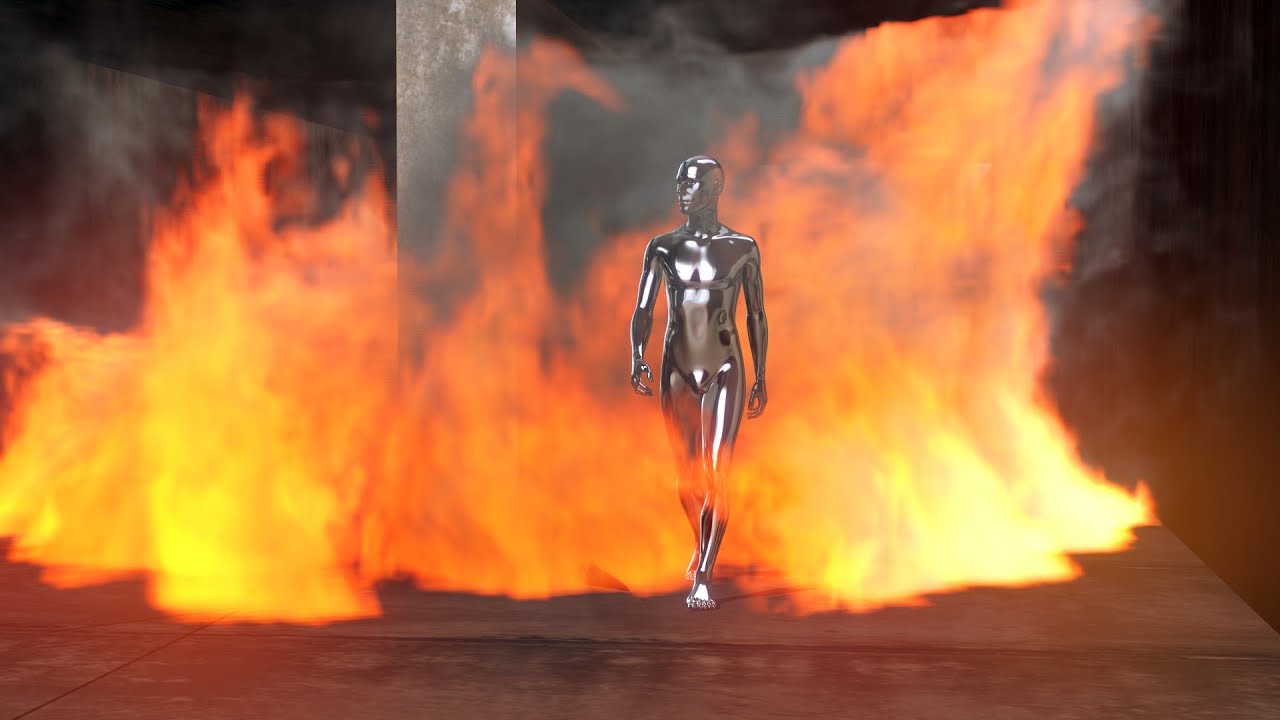
Oh Chris. What have you done this time?
P.S. Good job for going to 2.8!
Thanks, it’s still only the bits of 2.8 that I can actually use though (in this case, workbench). I used 2.8 in the other recent demo videos as well actually, so I could take advantage of the OpenGL shadows.
PS you could also check out modifiers in the dephgraph. That way you can have a more random blink. Now its blinking always in a simular way unless you animate the influence. With the modifiers you can have more randomness, thius more realistic.
But perhaps i understood the mini guide complete wrong. Eitherway always stunning to see your work 
I think yiou would love these addons by this coder. They are awesome. Also his versions of weighttools simply helps and seems what your looking for
Dang dude, your killing it! You seem to be a tre master at facial rigging
this might help: Everything To Know About Blender 2.80
Thanks I’ll look into that.
I meant it’s the only bits that work with my GPU, but thanks anyway.
oh! i though you meant you didnt know how to use it!
The infamous shoulder region. Not perfect, but the arms can reach a fully raised position without the armpits inflating and shoulders imploding now.
I couldn’t find much in the way of tried and tested techniques for shoulders, so I had to improvise. Weight painting and corrective bones alone weren’t cutting it, so I gave in and slapped on some corrective shape keys driven by the upper arm rotations.
Now the bones, corrective bones, corrective shapes and two body shapes (male and female) were all fighting it out for dominance, but I gradually wrestled it under control by aligning the topologies of the body shapes more closely, constantly massaging the corrective shapes and tweaking the weight balance.
If I were to start over I think I’d ditch the corrective bones, give it an even coat of weight paint and do the heavy lifting with corrective shapes. It’s just easier to shape things with shape keys.
https://twitter.com/cjones3D/status/1174957846812741632?s=20
I have tried this multiple times, with generally bad results. In my experience corrective shapekeys get much harder to edit when you don’t have those corrective bones (mostly due to how Blender handles the shapekey space in edit and sculpt mode). I don’t often work with subdivision surfaces though, so with a much sparser mesh like this one, it might be more viable.
Interesting, I’ll take that on board. I couldn’t seem to find a way to apply corrective bones without their motion eventually disrupting something else when the shoulder is in certain rotations… other than to add more and more corrective bones, in which case I thought I might as well just be using shape keys.
How many shapes keys did you end up with for the shoulders? I am in the planning stage of doing the shoulders on my character and I estimated about 8 shapes so far up/down forward/back and 4 correctives for the combos.
So far I have forward, back, up and trapezius (for when the clavicle goes up), x 2 for left and right. I can almost get away without the back one. To be thorough I’d probably need a forward, back and up for clavicle, and forward, back and up for the arm. Possibly a down for each.
I plan to try and find a means of simulating muscle/bone/tendons at some point, so I’m leaving it be for now in case that negates all the work with shape keys and corrective this and that.
Amazing work Chris!
Nice transition between Male & Female,looks like the head and the body are modules or did you use a universal mesh?
Are the corrective shape keys on a mesh deform cage or on the mesh itself? Because if they’re on the mesh won’t that make it difficult to rig clothes to the character?
Good work, Chris. How are you firing the corrective shapes? Did you build your own system based on angles or rotations to fire them?
Thanks @Safetyman
If you’re referring to the colour difference between head and body, it’s just because it’s using a different material. The head and body are the one mesh.
They’re on the mesh itself. For clothes I was thinking of using the cloth sim - or failing that, sculpting them into a multires - or failing that, displacement maps. Or combination.
Someone mentioned using a deform cage earlier but I still haven’t got around to testing one… so if it all falls apart at some point I figure that will be a good time to try it out.  At least then I’ll know how far I can get with the current approach.
They’re just driven by the rotation of the upper arm bone or the clavicle, and come into affect within a range of rotation that’s dictated by the curves in the driver editor.
I also added some ease-ins on the curves to smooth the transitions, but I can still see them popping, so that needs more work (possibly by overlapping the curves). Which, by the way, made me realise this might be the more direct solution I was originally looking for when I came up with that crazy eyelid rig.
Hi Chris! Awesome work!
I have a small question, how does your shape keys work? It seems that once I am turning on more than one shape key, my mesh is getting distorted.
Is there a good way to fix it?