Multi GPU rendering with EEVEE (WIN / Nvidia only)
We did a small bat script that enables us to render multiple instances of blender automatically on individual GPUs. Some initial steps are required so read carefully.
1. Fist of all, go to your blender directory
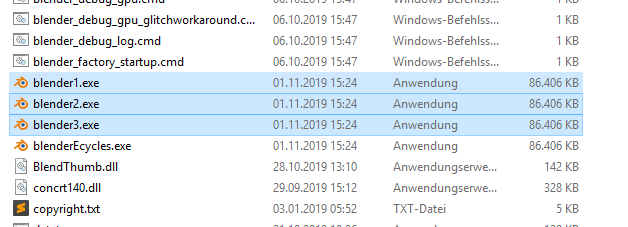
Duplicate your blender.exe multiple times, so that you have one blender.exe for every GPU you want to use.
In our case, we use 2x 1080 TI and one Titan X.
So we duplicated 3 blender.exe and named them accordingly:
-blender1.exe
-blender2.exe
-blender3.exe
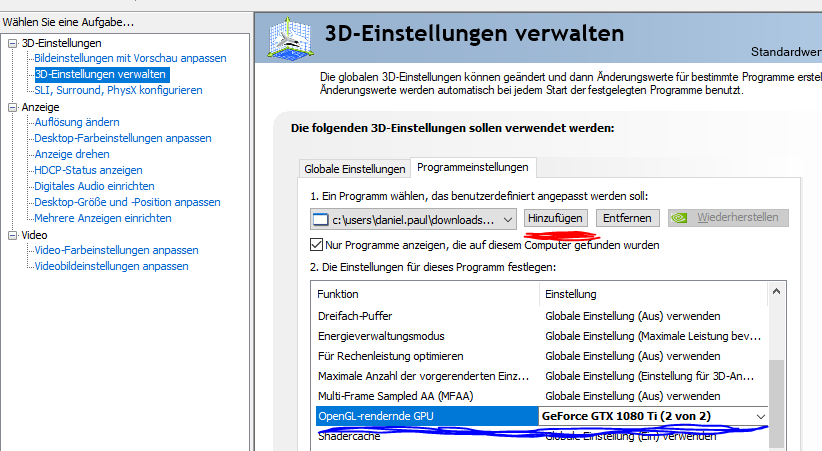
2. Now we go to our Nvidia settings
(Maybe this steps are also possible with AMD but I’m not sure.)
Then we go to our application settings and add (red marker) the blender1.exe and set one unique GPU to it (blue marker).
This we will repeat, until every blender.exe has it’s unique GPU assigned.
3. Let’s use the BAT
_Render.bat (1.2 KB)
We will go through the code here, so you know how to configure and adapt it if you have more or fewer gpus.
Part A
Here you will define your path to your blender.exe
The SET parameters will be asked in the console when the bat is started
echo off
:::::::::::::::::::::::
:: path to blender path
:::::::::::::::::::::::
SET "blenderPath=C:\Program Files\Blender Foundation\20191101_2.81_E-cycles\"

::::::::::::::::::::
::  input parameter
::::::::::::::::::::
SET /P startFrame= start frame:
SET /P endFrame= end frame:
SET /P sceneFile= scene file:
Part B
This parameters will offset the rendered frames by every instance
SET /A startFrame2=%startFrame%+1
SET /A startFrame3=%startFrame%+2
SET /A startFrame4=%startFrame%+3
SET /A startFrame5=%startFrame%+4
SET /A startFrame6=%startFrame%+5
Part C
So here you define every execution path for every instance of blender.
As you can see, every instance has it’s belonging blender.exe 1, 2 or 3.
%startFrame% is defined so it can find it’s value at “Part B”.
“-j 6” is important, you have to change it accordingly to your instance count.
You can use as many instances as you wish, but don’t forget that you have to increase the SET Parameters for the start frames at “Part B” also.
The reason I start multiple instances per GPU is that the load reaches 100%. Sometimes 3 or even more instances could be needed.
echo on
start /d "%blenderPath%" blender1.exe -b "%cd%\%sceneFile%" -s %startFrame% -e %endFrame% -j 6 -a -y
timeout 1
start /d "%blenderPath%" blender1.exe -b "%cd%\%sceneFile%" -s %startFrame2% -e %endFrame% -j 6 -a -y
timeout 1
start /d "%blenderPath%" blender2.exe -b "%cd%\%sceneFile%" -s %startFrame3% -e %endFrame% -j 6 -a -y
timeout 1
start /d "%blenderPath%" blender2.exe -b "%cd%\%sceneFile%" -s %startFrame4% -e %endFrame% -j 6 -a -y
timeout 1
start /d "%blenderPath%" blender3.exe -b "%cd%\%sceneFile%" -s %startFrame5% -e %endFrame% -j 6 -a -y
timeout 1
start /d "%blenderPath%" blender3.exe -b "%cd%\%sceneFile%" -s %startFrame6% -e %endFrame% -j 6 -a -y
timeout 120
Now just start the Render.bat and put in the Blender file name and the frames you want to render.
IMPORTANT! The Render.bat has to be the same folder directory as your blend file.